That “You are now a developer” toast message has confused more phone owners than almost any other line of text in Android. It shows up after a few taps in Settings, and suddenly a whole new menu exists that wasn’t there yesterday.
Enabling developer options on Android means tapping the Build Number seven times inside About Phone, which unlocks a hidden settings menu with tools for USB debugging, animation speed, and performance testing. The Android operating system keeps this menu hidden by default because most of its switches are meant for app developers, not everyday use. Once unlocked, the menu stays put until you turn it off or reset your device.
The exact tap sequence and menu location shift slightly depending on your phone’s brand and Android skin, and a few of the settings inside can cause real problems if you flip them without knowing what they do. Here’s what to expect on Pixel, Samsung, Xiaomi, and other popular brands, along with which settings are worth using and which ones deserve a second thought.
How Do You Unlock the Hidden Settings Menu?
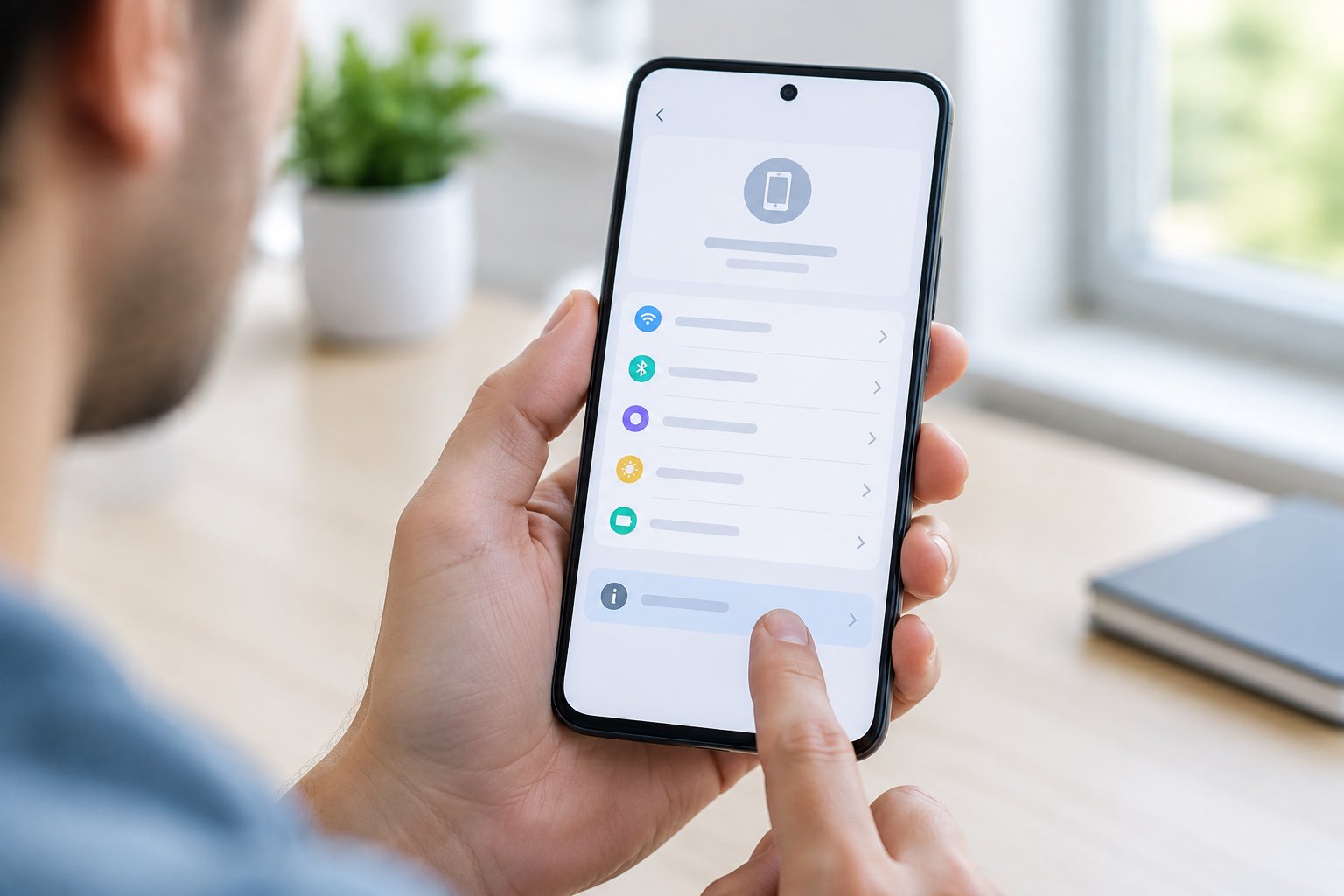
You unlock developer options by finding your phone’s Build Number in the About Phone section and tapping it seven times in a row. The path to that number changes by brand and Android skin, so Samsung, Pixel, Xiaomi, and OnePlus phones each ask you to dig through a slightly different set of menus before you get there.
Tap Build Number Seven Times
Open Settings, scroll to About Phone (sometimes labeled About Device), and look for Software Information. Inside that screen you’ll find Build Number. Tap it seven times in quick succession.
Your phone will count down after the third or fourth tap, showing a message like “You are now 4 steps away from being a developer.” Enter your PIN, pattern, or password if prompted, and a confirmation toast reading “You are now a developer” appears. This works the same way whether you’re on Android 7 or Android 15, since the tap gesture has stayed unchanged since Android 4.2.
Find the Right Setting on Pixel and Samsung Phones
On a Pixel, go to Settings > About Phone > Build Number and tap seven times. Pixel phones run close to stock Android, so this path rarely changes between OS updates.
Samsung phones bury the number one level deeper: Settings > About Phone > Software Information > Build Number. Samsung’s One UI adds that extra Software Information screen that stock Android skips.
Use the MIUI, HyperOS, or OnePlus Path
Xiaomi phones running MIUI or the newer HyperOS software ask you to tap the MIUI Version or HyperOS Version entry instead of Build Number. Head to Settings > About Phone, then tap that version line seven times.
OnePlus devices follow the standard Android path: Settings > About Device > Version > Build Number. The tap count and PIN confirmation work the same as on other brands.
Where Does the Menu Appear After You Unlock It?
Developer Options usually lands inside Settings > System > Developer Options on stock Android and Pixel phones. Samsung places it at Settings > Developer Options, sometimes under a General Management or About Phone submenu. If you can’t spot it right away, type “developer” into your Settings search bar and it should surface immediately.
Which Developer Settings Are Worth Using?
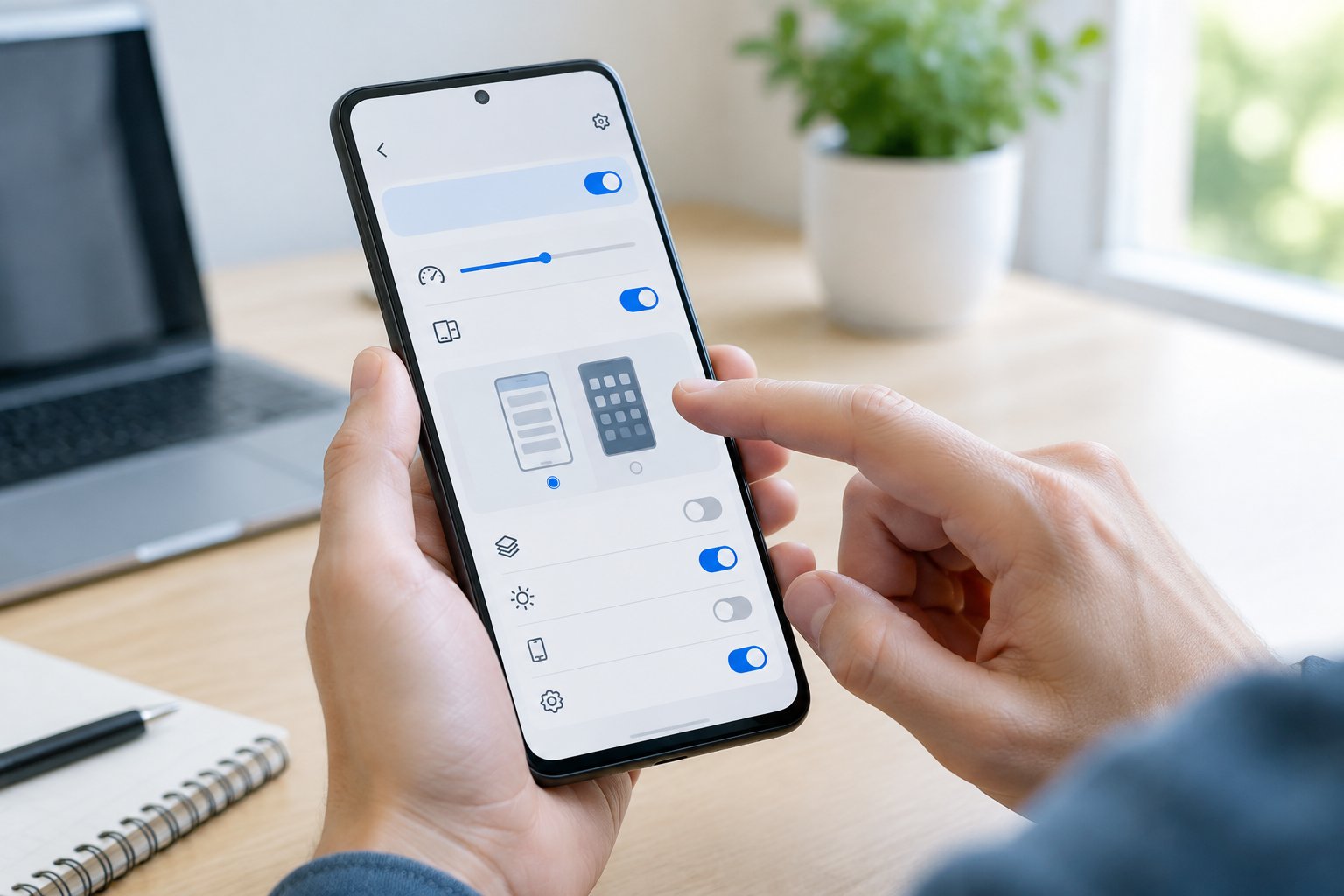
A handful of developer settings offer real, everyday value without any technical risk: USB debugging for connecting to a computer, animation scale adjustments for a snappier feel, and quick settings tiles for one-tap access to frequently used toggles. Bluetooth and USB connection controls round out the list of settings worth knowing, even if you rarely touch them.
Enable USB Debugging for ADB
USB Debugging lets your phone communicate with a computer through the Android Debug Bridge (ADB), a command-line tool used to install apps, pull logs, and troubleshoot device issues. Flip the toggle labeled USB Debugging inside Developer Options, then connect your phone to a computer with a data cable.
A dialog box asks you to authorize the connected computer’s RSA key fingerprint. Only approve computers you trust, since an authorized machine gains meaningful access to your device’s file system and app data. Leave this switch off when you’re not actively using ADB.
Adjust Animation Speed Without Changing App Performance
Lowering the window animation scale, transition animation scale, and animator duration scale to 0.5x makes your phone feel noticeably faster without touching processor speed or battery drain. These three settings control how long system transitions like app switches and menu pop-ups take to play out.
Setting all three to Animation off removes transitions entirely, which some users prefer for pure speed. Dropping them to 0.5x keeps a bit of visual polish while cutting wait time roughly in half.
Show Touches and Add Quick Settings Tiles
Show Taps displays a small circle wherever your finger touches the screen, useful for screen recordings or tutorials where viewers need to see your gestures. Pointer Location overlays coordinate data and a crosshair, handy for testing touch precision on a new screen protector or case.
Developer Options also lets you add quick settings developer tiles for things like Show Taps or Wireless Debugging, so you can toggle them from your notification shade instead of digging back into Settings each time.
Understand Bluetooth and USB Connection Controls
USB Configuration controls what your phone offers a connected computer, options like file transfer, MIDI, or charging only. Bluetooth AVRCP Version, Bluetooth Audio Codec, and Bluetooth Audio Channel Mode let you fine-tune wireless audio quality with specific headphones.
Switching your Bluetooth Audio Codec to LDAC or aptX HD (when your headphones support it) can noticeably improve streaming audio fidelity over the default SBC codec.
Which Options Need Extra Caution?
Two categories of settings inside Developer Options carry real consequences if you misunderstand them: OEM Unlocking, which is a required first step before a bootloader unlock, and the graphics rendering overrides grouped under GPU debugging. Both groups are safe to leave alone unless you have a specific, informed reason to change them.
OEM Unlocking Is Not the Same as Unlocking the Bootloader
Toggling OEM Unlocking on inside Developer Options only grants your device permission to have its bootloader unlocked later; it doesn’t unlock anything by itself. Actually unlocking the bootloader requires a separate command run through a connected computer, and doing so wipes all data on the phone.
People pursue a bootloader unlock to install a custom ROM or gain root access. Flipping the OEM Unlocking toggle alone carries little risk, but leaving it on permanently reduces a layer of protection against unauthorized bootloader changes if your phone is ever lost or stolen.
Graphics Overrides Can Affect Battery Life and Stability
Settings like Force GPU Rendering, Force 4x MSAA, and Disable HW Overlays change how your phone draws visuals on screen, and pushing them too far strains your battery or causes visual glitches in certain apps. Force GPU Rendering makes 2D apps use hardware acceleration meant for 3D graphics, which can smooth out choppy apps but also increases power draw.
Force 4x MSAA applies anti-aliasing to games that don’t natively support it, improving edge smoothness at the cost of frame rate on older hardware. Disable HW Overlays forces every graphic layer through the GPU for testing purposes, a setting best left off during normal use since it increases battery consumption without a visible benefit for most people.
How Do You Turn Developer Options Off?
You turn off Developer Options with a single toggle inside the menu itself, located at Settings > System > Developer Options (or Settings > Developer Options on Samsung phones). Switching it off hides the menu again without erasing your phone’s data or affecting installed apps.
Switch Off the Developer Options Menu
Open Developer Options and switch the toggle at the top of the screen (often labeled Use Developer Options) to off. A confirmation dialog appears warning that the menu and its settings will be hidden.
The menu disappears from Settings immediately. To bring it back, repeat the seven-tap Build Number gesture from earlier; you won’t need to enter your PIN again since your phone remembers you’ve unlocked developer mode before.
Check Individual Settings Before You Stop Using Them
Turning off Developer Options doesn’t automatically reset every setting you changed inside it. USB Debugging, animation scales, and Bluetooth codec choices often stay at whatever value you left them, even after the menu itself is hidden.
Revisit any settings you customized, like animation scale or Force GPU Rendering, and set them back to default before switching the menu off if you want a clean reset. Otherwise those changes persist in the background even with the toggle switched off.
Unlock the Menu, Then Change Only What You Need
Getting into Android developer options takes seven taps on Build Number and a PIN confirmation, regardless of whether you’re on a Pixel, Samsung, Xiaomi, or OnePlus device. The menu opens a wide toolbox, but only a few settings, like USB debugging, animation scale, and quick settings tiles, offer everyday value for most people.
Settings tied to OEM unlocking and GPU rendering carry more weight and deserve a clear reason before you touch them. Turning the menu off later takes one toggle switch, though any individual settings you changed will need to be reset by hand if you want your phone back to its original state.
Frequently Asked Questions
What happens when you enable developer options on Android?
A hidden settings menu appears inside your phone’s Settings app, giving you access to tools like USB debugging, animation speed controls, and GPU rendering overrides. Nothing on your phone changes automatically; the menu just becomes visible and every setting inside stays at its default value until you adjust it.
Why can’t I find Build number on my phone?
Build Number sits inside About Phone > Software Information on most devices, though Samsung and some Xiaomi phones nest it one level deeper than stock Android. If you still can’t locate it, search “Build Number” or “developer” directly in your Settings app’s search bar.
Do the steps work on Android 15 and older versions?
The seven-tap gesture on Build Number has worked the same way since Android 4.2, so it applies to Android 15, Android 7, and everything between. Menu placement inside Settings varies slightly by manufacturer, but the unlock method itself hasn’t changed.
Is turning on developer options the same as enabling USB debugging?
No, these are two separate steps. Enabling Developer Options only unlocks the menu; USB Debugging is one specific toggle inside that menu that you switch on separately when you want to connect your phone to a computer for ADB access.
Does turning off developer options undo every setting I changed?
Turning off the menu hides it from Settings but doesn’t reset individual toggles like animation scale, USB configuration, or Bluetooth codec choices. Those settings keep whatever value you last set unless you manually change them back before disabling the menu.
Join The Discussion: