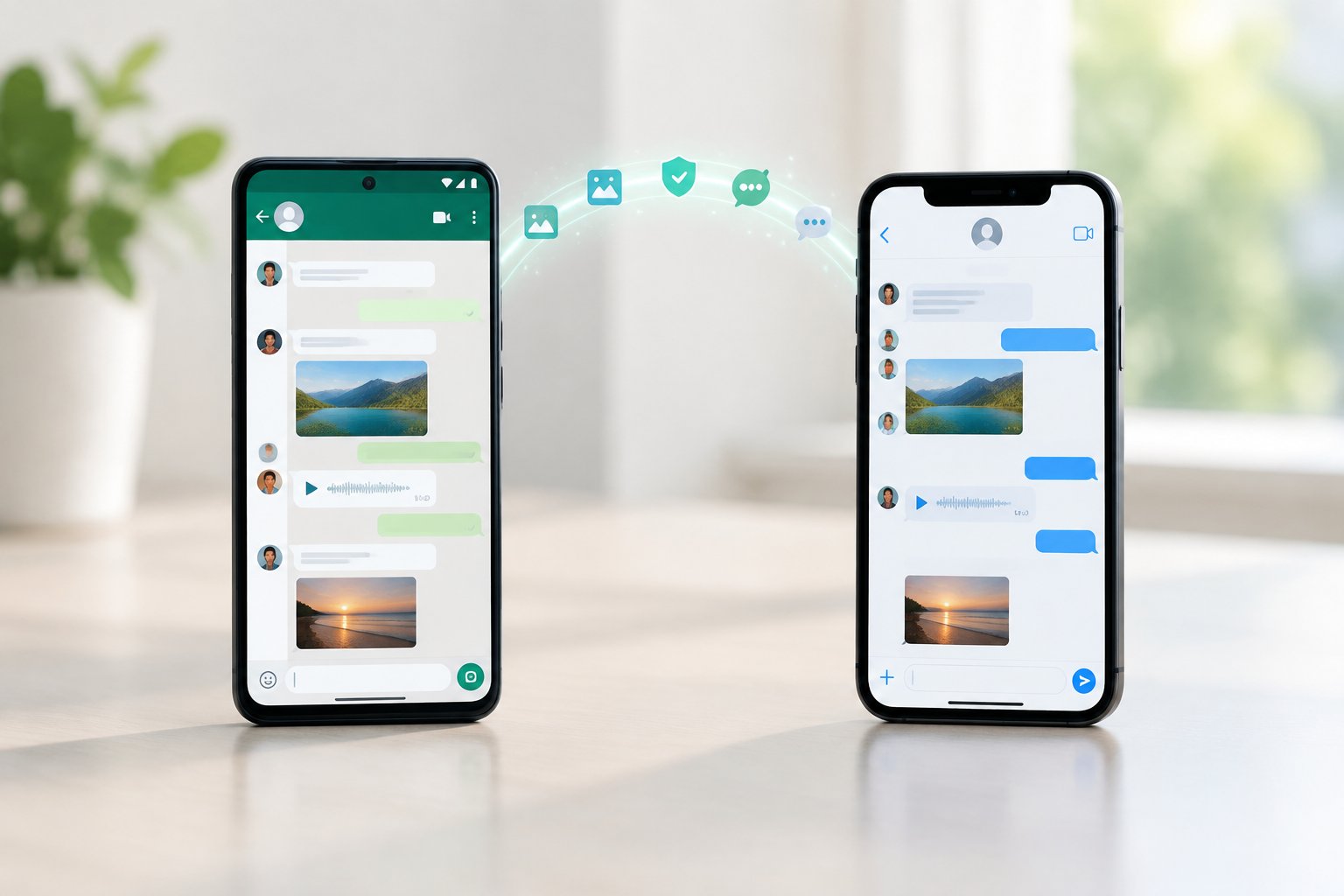
Apple’s free Move to iOS app is the official way to transfer WhatsApp from Android to iPhone, and it works best for anyone setting up a brand-new or freshly reset iPhone. It carries over your chat history, media, and settings in one pass, keeping your conversations intact instead of leaving them stranded on your old phone.
The catch is timing. Move to iOS only works during the iPhone’s initial setup screen, so if you have already been using your iPhone for a week, the button you need simply is not there anymore. That single detail trips up more people than any technical glitch, and it shapes almost every decision covered below.
Plenty of people only discover this rule after they’ve already tapped through setup, added their Apple ID, and started downloading apps. If that sounds like your situation, there are still workable paths forward, along with a clear picture of what actually moves across and what gets left behind for good.
How Do You Move Chats with Move to iOS?
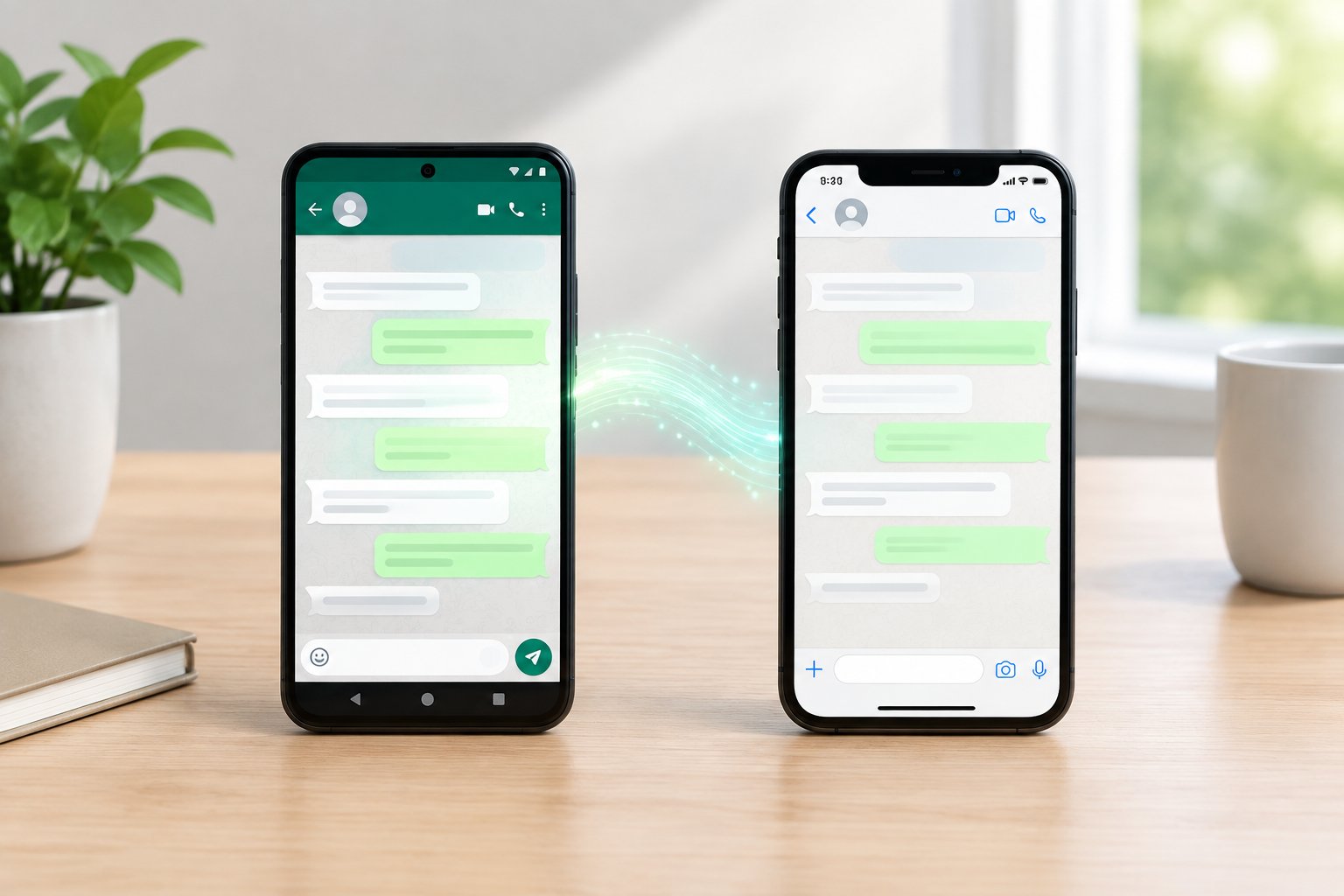
Apple’s Move to iOS app handles the transfer for free, but it only functions at one specific moment: the very first setup screen on a new or factory-reset iPhone. You’ll need both phones near each other, a temporary Wi-Fi network the app creates for the transfer, and enough patience to let a large chat history copy over without interruption.
Check the Requirements Before You Start
Before touching either phone, confirm a few things. Your iPhone needs iOS 15.5 or later, and it has to be unused or wiped clean through Settings > General > Transfer or Reset iPhone. You’ll also need to keep the same phone number registered to WhatsApp on both devices, since switching numbers mid-transfer breaks the chat history link entirely.
Charge both phones above 50%, and disable mobile data on the Android device so it doesn’t interfere with the temporary Wi-Fi network Move to iOS builds between the two.
Select WhatsApp During iPhone Setup
Work through the iPhone setup screens until you reach the Apps & Data step, then choose “Move Data from Android.” Install Move to iOS on your Android phone if it isn’t already there, open it, and accept the terms.
Your iPhone displays a one-time code. Enter that code on the Android app, wait for the Wi-Fi connection to establish, then check the boxes for WhatsApp alongside anything else you want carried over, such as photos or contacts.
Import Your Chats After Setup
Once the transfer finishes and you complete the rest of iPhone setup, install WhatsApp from the App Store. Open it, verify your phone number, and you’ll see a prompt to restore your chat history from the transfer.
Tap through it, and WhatsApp rebuilds your chats, media, and Channel updates on the iPhone. Individual chats, group chats, and communities all migrate this way, though the import itself can take a while depending on how much media you’re carrying.
What If Your iPhone Is Already Set Up?
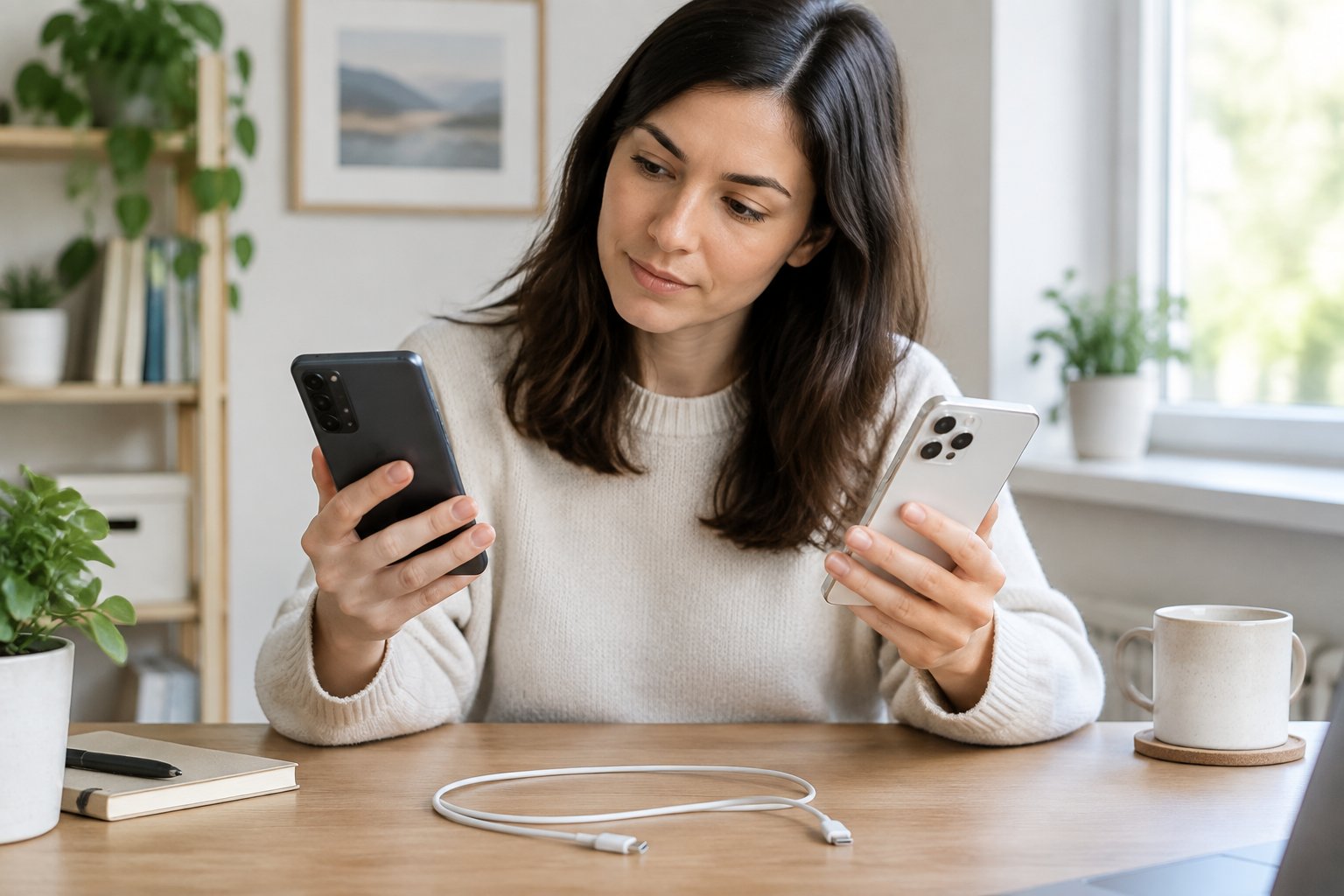
If your iPhone has already been through setup, Move to iOS is off the table, and your realistic options are resetting the iPhone, trying a third-party transfer tool, or exporting individual chats manually. Each comes with different trade-offs around convenience, cost, and how much of your existing iPhone data survives the process.
Reset the iPhone to Use the Official Method
Factory resetting is the only way to reopen the Move to iOS setup screen, and it is genuinely the most reliable path if your iPhone doesn’t hold irreplaceable data yet. Back up anything on the iPhone you want to keep first, since a reset wipes photos, apps, and settings clean.
Go to Settings > General > Transfer or Reset iPhone, choose Erase All Content and Settings, and let the device restart into the initial setup screen. From there, follow the same Move to iOS steps described above.
Consider Third-Party Transfer Tools Carefully
Paid tools such as MobileTrans, Dr.Fone, iCareFone Transfer, and Mobitrix WhatsApp Transfer advertise the ability to move WhatsApp chats onto an already-set-up iPhone without a reset. These typically run on a computer, connect to both phones via cable or Wi-Fi, and copy WhatsApp’s database directly.
Vendors describe these as working without erasing existing iPhone data, though results depend on phone models and WhatsApp versions matching what the software supports. Read the compatibility list on the vendor’s own site before paying for a license, and treat marketing claims about speed or success rates with some skepticism until you’ve tested a free trial or demo mode yourself.
Export Individual Chats for Reading Outside WhatsApp
WhatsApp’s built-in export feature lets you save one conversation at a time as a text file or with media attached, sent to email or another app. This won’t rebuild your chat history inside WhatsApp on the iPhone, but it preserves the content of specific conversations you want to keep readable.
Open a chat, tap the contact or group name, scroll down to “Export Chat,” and choose whether to include media. It’s a practical fallback when you just need a record of a conversation, not a full migration.
What Transfers, and What Happens to Your Backups?
Move to iOS carries over chats, media, and settings, but your Android WhatsApp backup on Google Drive cannot be restored directly on an iPhone under any circumstances. The two platforms store backups in completely incompatible formats, which is a bigger surprise to most people than the setup-timing rule.
Which Chats and Media Move-and Which Do Not?
Individual chats, group chats, communities, your profile photo, and Channel updates all transfer through Move to iOS. Photos, videos, voice messages, and documents attached to those chats come along too, provided the transfer completes without interruption.
Call history does not transfer, and it never has, regardless of which method you use. If keeping a record of past calls matters to you, note that down before you start, since there’s no workaround for it.
Why a Google Drive Backup Cannot Restore Directly on iPhone
Android’s WhatsApp backup lives in Google Drive, while iPhone’s WhatsApp backup lives in iCloud, and WhatsApp does not build a bridge between the two formats. A Google Drive WhatsApp backup restores only onto another Android phone, never onto iOS.
This is exactly why Move to iOS exists as a separate mechanism: it transfers chat data directly, phone to phone, sidestepping cloud backups entirely. If you’ve been holding onto an old Google Drive backup thinking it’ll restore on your new iPhone, it won’t, and no setting change fixes that.
What Changes for WhatsApp Business?
WhatsApp Business chats and catalog data move through the same Move to iOS process, provided you’re transferring into the WhatsApp Business app on iPhone rather than the standard consumer app. Business profile details, quick replies, and labels are tied to the Business app specifically.
Mixing up regular WhatsApp and WhatsApp Business during setup is a common mistake. Confirm which app your Android phone was running before you start the transfer, and install the matching version on iPhone first.
How Can You Fix a Stalled or Missing Transfer?
A transfer that stalls or hangs at 99% usually comes down to a weak or interrupted Wi-Fi connection between the two phones, and your original data stays untouched on the Android device the whole time. WhatsApp’s own guidance confirms that a failed transfer never deletes anything from your old phone, so there’s no risk in trying again.
When the Phones Will Not Connect or the Transfer Stalls
Keep both phones within a few feet of each other and disable mobile data on the Android device, since a stray cellular connection often breaks the temporary Wi-Fi network mid-transfer. Turn off battery-saving modes on both phones too, as aggressive power management can quietly kill the connection.
If the transfer still stalls, restart both devices, factory reset the iPhone again if it already went through setup, reinstall Move to iOS and WhatsApp on the Android phone, and start over from the Apps & Data screen. Large media libraries take longer, so give it time before assuming it’s frozen; anything under an hour with a large chat history is not unusual.
When WhatsApp Does Not Show Your Chats on iPhone
If the transfer reports success but WhatsApp opens with an empty chat list, the most common cause is verifying with a different phone number than the one used on Android. WhatsApp ties chat history to the number, so any mismatch, even a country code difference, breaks the link.
Uninstall WhatsApp from the iPhone, confirm the Android phone’s number is exactly what you’ll register with, and reinstall. If chats still don’t appear, the transfer itself may need to be redone from a freshly reset iPhone rather than patched after the fact.
Choose the Official Transfer When You Can
Move to iOS remains the simplest and only free way to bring your full WhatsApp chat history from Android to iPhone, and it costs you nothing beyond a few minutes of setup. Planning around its one hard rule, that the iPhone must be new or freshly reset, saves far more hassle than discovering it partway through.
If your iPhone is already set up with data you don’t want to lose, weigh a factory reset against a paid third-party tool, and check compatibility lists carefully before spending money. Either way, your Android chats stay safe on the original device until a transfer actually succeeds, so there’s little to lose by trying the official method first.
Frequently Asked Questions
Can I transfer WhatsApp from Android to iPhone for free?
Yes, Move to iOS is Apple’s official app and costs nothing to use. It works only during initial iPhone setup, so the iPhone needs to be new or factory reset before you start.
Can I move WhatsApp chats without factory-resetting my iPhone?
Third-party tools such as MobileTrans, Dr.Fone, or iCareFone Transfer advertise transfers onto an already-set-up iPhone without erasing existing data. These run on a computer and typically require a paid license, so check each vendor’s compatibility list against your specific phone models first.
Can I restore my Android WhatsApp Google Drive backup on iPhone?
No, a Google Drive WhatsApp backup only restores onto another Android phone. iPhone stores its WhatsApp backup in iCloud instead, and the two formats are not interchangeable, which is why Move to iOS transfers chat data directly rather than through either cloud backup.
Can I transfer WhatsApp Business chats from Android to iPhone?
Yes, using the same Move to iOS process, provided you install WhatsApp Business on the iPhone rather than the standard app. Business profile details, labels, and quick replies carry over as long as the app types match on both ends.
Can I transfer WhatsApp using a cable instead of Wi-Fi?
Move to iOS relies on a temporary Wi-Fi network between the two phones rather than a cable connection. Some third-party desktop tools support a USB cable connection instead, which can be more stable than Wi-Fi if your transfer keeps stalling.
Join The Discussion: