A missing Android phone feels like an emergency, but Google’s Find Hub is the fastest way to locate a lost Android phone, since it’s built into every Android device and lets you see its location, ring it, lock it, or erase it from a web browser or another phone in minutes. It works whether your phone slipped between couch cushions at home or went missing somewhere across town.

The tool comes preinstalled and switched on by default for most Android phones, so there’s a good chance it’s already working for you without any setup. Knowing how to use it, and what to do when it can’t find your phone right away, makes the difference between a five-minute recovery and a stressful, drawn-out search.
How Do You Locate Your Phone with Google Find Hub?
You can locate your phone by signing into Find Hub with the same Google account that’s on your missing device. The service shows a live map with your phone’s approximate position, along with options to play a sound, lock the screen, or wipe the data if recovery looks unlikely.
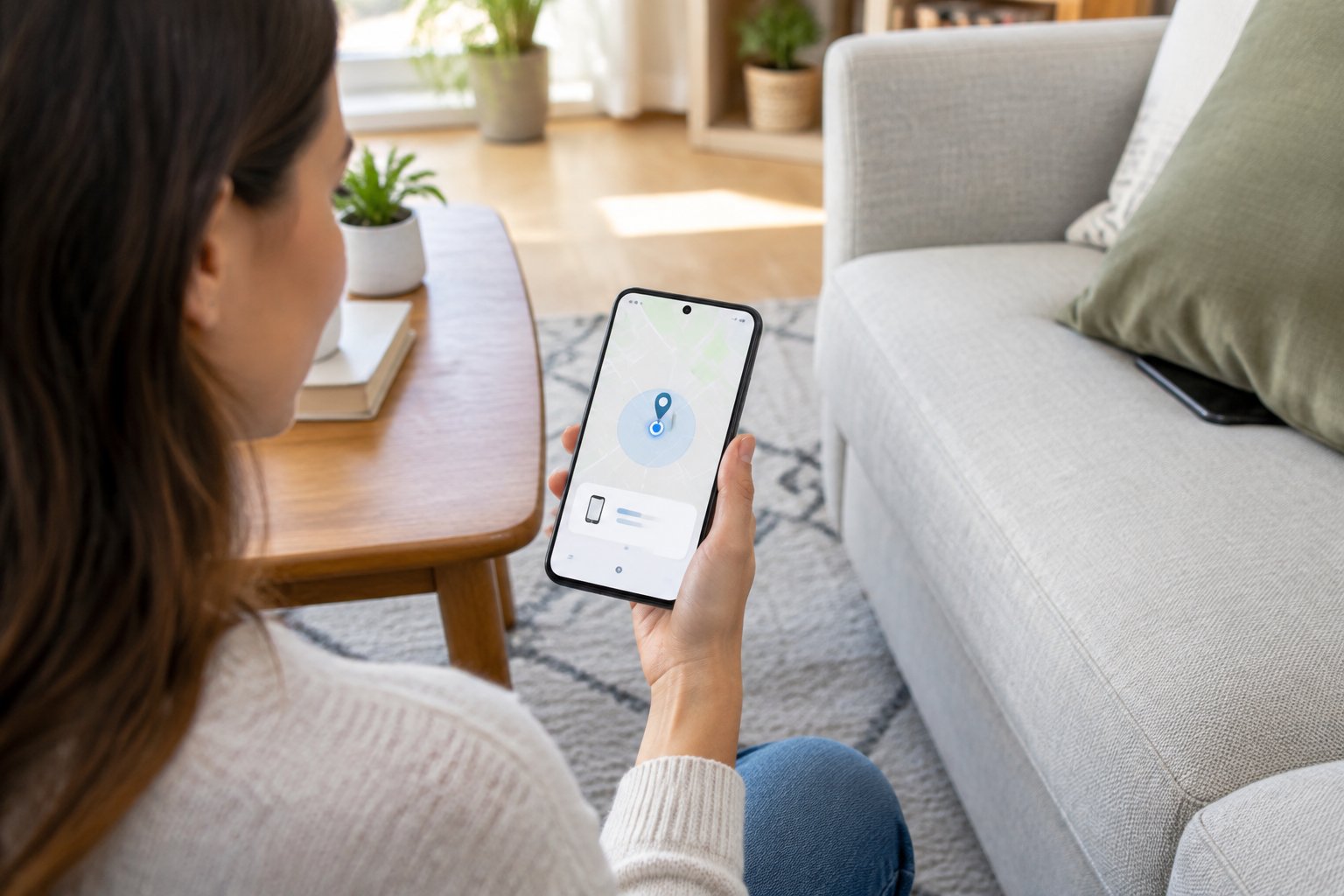
Sign in at android.com/find or Use Another Phone
Open android.com/find in any browser and sign in with your Google account. If you have access to another Android phone, the Find Hub app gives you the same controls, and adding a guest account is possible if the second phone belongs to someone else.
Check the Map and the Time of the Location Update
The map pin shows where your phone last reported its position, along with a timestamp. A location from two minutes ago is far more useful than one from six hours ago, so glance at that detail first before you head out the door.
Make a Nearby Phone Ring
If you suspect the phone is somewhere in your home or car, the “Play Sound” option makes it ring at full volume for five minutes, even if it’s set to silent. This trick has saved more searches under couch cushions and car seats than any map ever could.
What If Your Phone Is Offline or Turned Off?
A phone with no signal or battery isn’t invisible; Find Hub can still show its last known location and, for some devices, keep tracking it for a short while after it powers down. The details depend on your phone model and what you enabled beforehand.
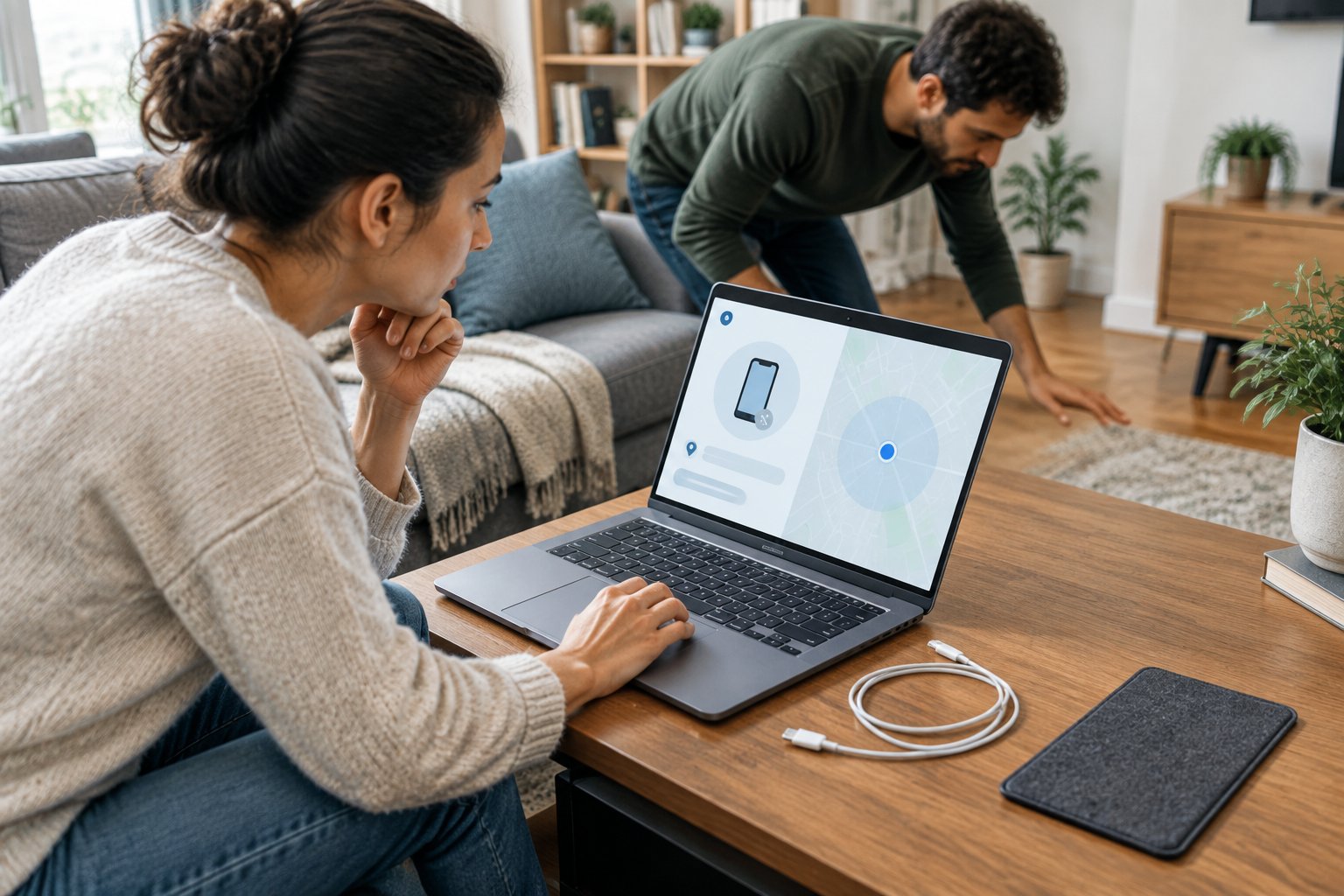
Check Its Last Known Location
Find Hub stores the most recent location your phone reported before it went dark. That last known location is often your best clue, especially if it places the phone at a specific address or business rather than a vague area.
Understand When Offline Finding Can Help
Android’s offline finding network uses nearby Android devices to detect your phone over Bluetooth, even without Wi-Fi or cellular service. On supported devices, including the Pixel 8 series, this network can keep reporting a location for several hours after the phone loses power, since a small reserve of battery keeps Bluetooth active briefly after shutdown.
Check Which Settings Must Be Enabled in Advance
Offline finding and location reporting need to be turned on before a phone goes missing. Check your device’s Find Hub settings now: location sharing, offline finding, and network participation should all be active so you’re not troubleshooting them during an actual emergency.
How Do You Protect a Lost or Stolen Phone?
Securing a lost phone matters more than finding it the instant it goes missing. Locking the screen and marking the device as lost through Find Hub blocks access to your apps, notifications, and payment cards right away, even before you know exactly where the phone is.
Lock It and Add a Contact Message
Marking your device as lost through Find Hub locks the screen and displays a custom message with an alternate phone number, so an honest finder can reach you without unlocking anything. This step also disables features like tap-to-pay so a thief can’t use stored cards.
Secure Your Accounts, Payments, and Mobile Service
Change passwords for your email and financial accounts, especially any that don’t use two-factor authentication tied to a separate device. Contact your mobile carrier too, since suspending service prevents unauthorized calls, texts, or data use on your line.
Erase It Only When Recovery Is Unlikely
A factory reset through Find Hub wipes personal data but also ends your ability to track the phone afterward. Save this step for situations where getting the phone back looks doubtful and protecting your data matters more than recovery.
What Else Can You Try If Find Hub Cannot Locate It?
Samsung owners have a second tool worth checking, and a bit of old-fashioned detective work still helps when Find Hub comes up empty. Between Samsung’s own Find app and your phone carrier’s records, there are a few more avenues before giving up.
Check Samsung’s Finding Tools If You Have a Galaxy Phone
Galaxy phones include Samsung Find, a separate service with its own map, ring, and lock features that sometimes picks up a location Find Hub misses. Sign in at Samsung’s Find website with your Samsung account to check it, since Samsung’s tool taps into a different device network alongside Google’s.
Retrace Your Steps and Contact Your Carrier
Think through your last few hours and check your Google Maps Timeline or location history for a trail of where you’ve been. If the phone still doesn’t turn up, call your carrier and report it lost or stolen, and have your IMEI number ready. Carriers can blacklist that IMEI so the phone becomes unusable on their network even if someone else tries to activate it.
Give Yourself the Best Chance of Getting It Back
A lost Android phone is usually recoverable when you act fast and have the right settings switched on ahead of time. Sign into Find Hub as soon as you notice it’s missing, check the timestamp on its last location, and use the ring feature if you think it’s close by.
If the phone appears offline, don’t assume it’s gone. The last known location and offline finding network still give you a real shot at tracking it down for hours after it loses power.
Lock the device and change your passwords before worrying about getting it back. Protecting your accounts and payment methods costs you nothing and takes only a couple of minutes, while a factory reset should wait until recovery looks unlikely. Keep your IMEI number written down somewhere separate from your phone, since your carrier will ask for it the moment you report a lost or stolen device.
Frequently Asked Questions
Can I find my lost Android phone for free?
Yes, Find Hub is a free service included with every Google account on an Android device. There’s no subscription or app purchase required to locate, ring, lock, or erase your phone.
Can I find my Android phone using my Gmail account?
Yes, since your Gmail address is tied to the Google account that Find Hub uses to identify your device. Sign into android.com/find with that same Gmail account and password to see your phone’s location and available options.
Can I find my lost Android phone if it’s turned off?
You can often still see its last known location before it powered down. Supported phones, including the Pixel 8 series, can also report a location for several hours after shutdown through the offline finding network, provided that feature was enabled beforehand.
How do I locate my Android phone from another phone?
Open the Find Hub app on the other phone and sign in as a guest with your Google account, or use that phone’s browser to visit android.com/find. Either method shows the same map, ring, lock, and erase options you’d get on a computer.
How do I locate a lost Samsung Galaxy phone?
Try Google Find Hub first, then check Samsung Find as a second option, since Galaxy phones support both services. Sign into Samsung Find with your Samsung account for a map view, ring feature, and remote lock that works alongside Google’s tools.
Join The Discussion: