That “storage almost full” notification always seems to hit at the worst possible moment, usually right when you’re trying to snap a photo or download something important. The fastest way to free up space on Android is to check your storage breakdown first, then clear cached data and duplicate files before you delete a single photo or app. That single move often recovers several gigabytes without touching anything you actually want to keep.
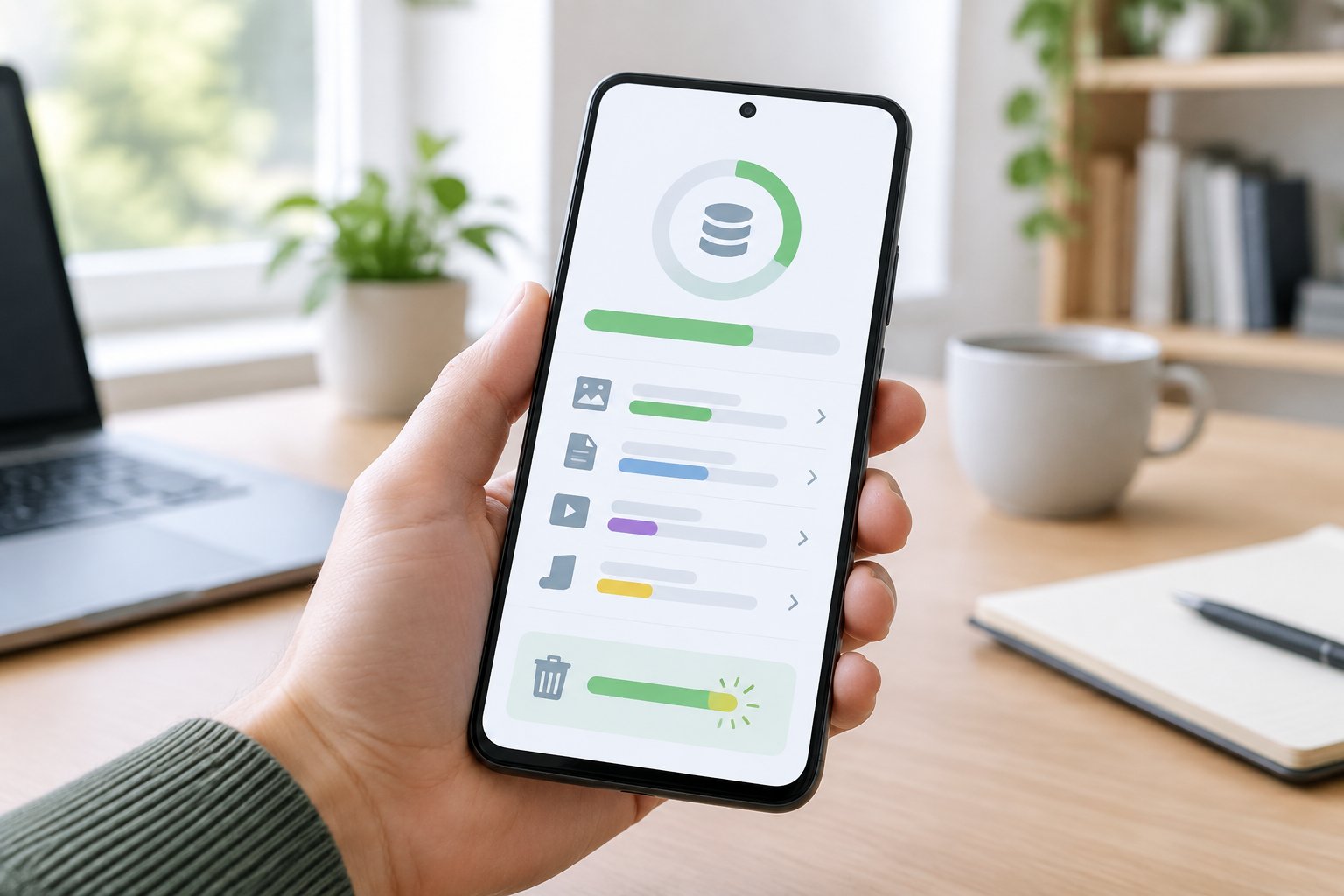
Most people jump straight to deleting apps or photos when their phone says it’s full, and that’s usually the wrong first move. Cache files, duplicate images, and old downloads tend to eat up far more room than most users realize, and clearing those out first can solve the problem before you lose anything meaningful. This guide walks through the cleanup steps in the order that gets you the most space for the least effort, starting with quick wins and moving into deeper options like cloud storage and factory resets for when your phone still feels cramped afterward.
Start with the Fastest Storage Wins
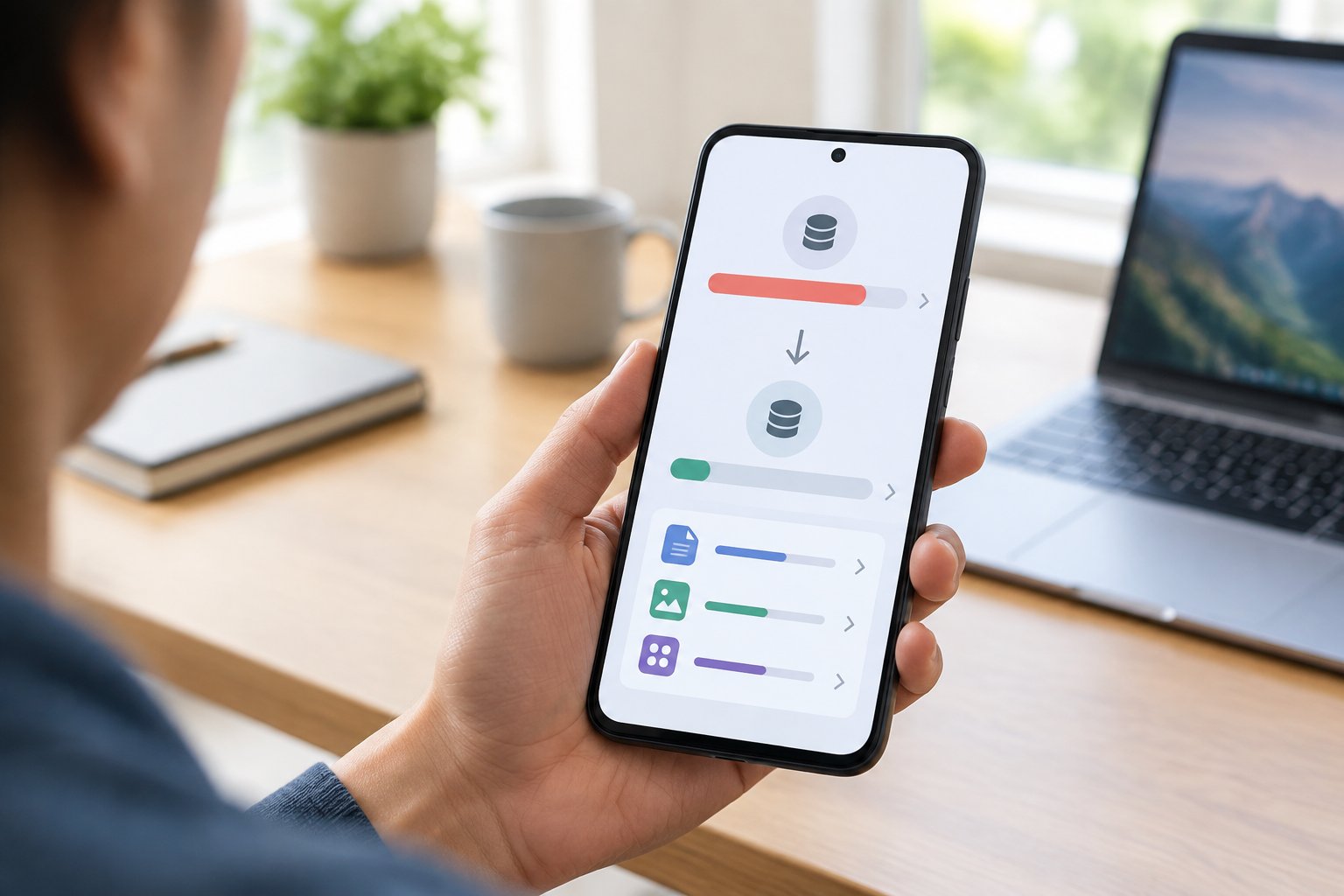
The quickest way to reclaim Android storage is to look at exactly what’s taking up space before deleting anything. Your phone’s built-in storage manager and a free app called Files by Google can both surface large files and duplicate photos in a few taps, often revealing gigabytes of junk you didn’t know existed.
How Do You Check Storage on Android?
Open Settings > Storage (on Samsung phones, it’s under Battery and Device Care > Storage). You’ll see a color-coded bar showing how much space apps, photos, videos, and system files each use.
This breakdown tells you where to focus. If videos dominate the chart, deleting a handful of old app cache won’t move the needle much. If “Other Apps” or system data looks unusually large, that’s often where cached files and leftover data pile up unnoticed.
Use Files by Google to Find Large Files and Duplicates
Files by Google is a free app built specifically for this kind of cleanup. It scans your device for large files, duplicate photos, blurry screenshots, and unused apps, then presents them in one organized list.
The “Clean” tab inside the app groups these suggestions by category, so you can review and approve deletions in batches rather than hunting file by file. Many users recover multiple gigabytes in a single pass on a phone that hasn’t been cleaned in months.
Empty Trash to Reclaim Space You’ve Already Cleared
Deleted files don’t always disappear right away. Google Photos, Files by Google, and several file managers hold deleted items in a trash folder for 30 to 60 days before permanent removal.
Check the trash or recycle bin in each app you use for photos and files. If you’ve already deleted a batch of large videos, emptying trash manually finishes the job instead of waiting weeks for it to clear on its own.
Remove Apps and App Data Safely
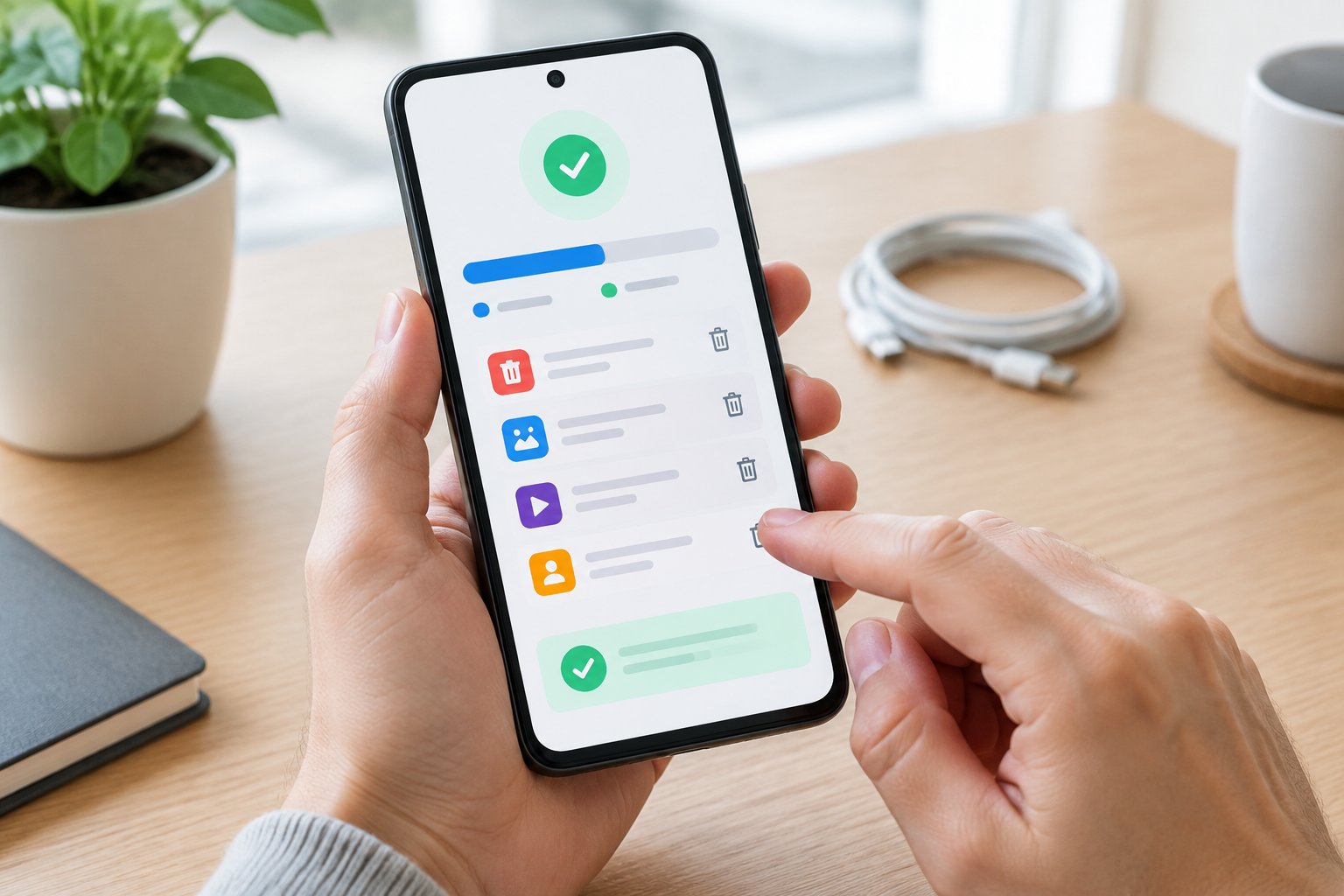
Uninstalling apps you no longer open and clearing cached data from the ones you keep both free up space without risking your files or logins. The two approaches solve different problems: uninstalling removes dead weight entirely, while clearing cache trims bloat from apps you still rely on.
Uninstall Apps You No Longer Use
Go to Settings > Apps and sort by size to spot the biggest space hogs. Games, streaming apps, and social media apps tend to grow larger over time as they accumulate cached media and offline content.
Long-press any app icon and select Uninstall, or remove several at once from the Apps list. If you’re not ready to commit to deleting an app permanently, some phones support archiving it instead, which removes the bulk of its storage footprint while keeping your data intact for a quick reinstall later.
Clear Cache Without Erasing App Data
Cached data speeds up apps by storing temporary files locally, but it builds up fast and rarely needs to stick around. Tap into any app’s info page and select Storage & Cache, then tap Clear Cache.
This step is safe. Clearing cache never touches your saved logins, game progress, or app settings, only temporary files the app can regenerate on its own.
Review Media Stored by Messaging Apps
WhatsApp, Telegram, and similar messaging apps auto-save every photo and video sent to you, and that folder grows quietly in the background. Open each app’s storage settings to review and clear old media you don’t need saved locally.
Many messaging apps also let you disable auto-download for media going forward, which stops the problem from recurring.
Make Room for Photos, Videos, and Downloads
Photos and videos are usually the biggest storage consumers on any Android phone, and backing them up before deleting local copies protects your memories while freeing serious space. Google Photos, Google Drive, and a microSD card each offer a different way to offload files without losing them.
Back Up Photos Before Removing Local Copies
Google Photos includes a storage management tool that flags blurry photos, screenshots, and large videos as candidates for removal. Once your library is backed up, you can free up space directly from the app, which removes local copies while keeping everything accessible in the cloud.
Confirm your backup status before deleting anything. The app shows a clear indicator when every photo and video on your device has synced.
Delete Unneeded Videos and Downloads
Videos take up disproportionate space compared to photos, often several hundred megabytes each. Screen recordings, duplicate takes, and old downloaded files from browsers or social apps are common culprits worth a quick review.
Check your Downloads folder specifically. PDFs, installer files, and shared documents accumulate there and rarely get cleaned out manually.
Move Files to Cloud Storage or a microSD Card
Google Drive works well for documents, backups, and files you access occasionally rather than daily. A microSD card, if your phone supports one, gives you physical expandable storage for photos, videos, and even some apps.
Cloud storage suits people who switch devices often or want files accessible from a computer. A microSD card suits anyone who prefers to keep everything on the device itself without relying on an internet connection to retrieve files.
Clear Offline Downloads and Stubborn Storage
Offline maps, downloaded music, and saved videos from streaming apps quietly consume gigabytes that don’t show up in a typical cleanup pass. These files live inside their own apps rather than a general downloads folder, so they need to be managed one app at a time.
Remove Offline Maps You No Longer Need
Google Maps and Waze both let users download map regions for offline use, and these files can run several hundred megabytes per region. Open the app’s offline maps section and delete regions you’re no longer visiting.
This step matters if you downloaded maps for a trip months ago and forgot to remove them afterward.
Manage Downloaded Music and Video in Their Apps
Spotify and YouTube Music both store offline downloads that count against your phone’s storage separately from your regular music library. Check each app’s downloads or offline content settings and remove albums, playlists, or videos you’ve already listened to or watched.
Streaming apps rarely warn you how much space downloaded content occupies, so a quick check here often surfaces a gigabyte or more.
When Should You Consider a Factory Reset?
A factory reset makes sense only after every other cleanup step has failed to free meaningful space, since it erases everything on the device. Back up photos, contacts, and files completely before starting a factory data reset from Settings > System > Reset Options.
Consider this option if your phone runs painfully slow despite a mostly empty storage bar, which can signal deeper system issues that cleanup alone won’t fix.
Keep Space Available Without Losing What Matters
Freeing up Android storage works best as a repeatable routine rather than a one-time fix. Checking your storage breakdown, clearing cache, reviewing large files, and backing up photos on a regular basis prevents the “storage full” warning from returning every few months.
Set a reminder to run Files by Google once a month, and turn on automatic backup in Google Photos so new photos never pile up unprotected. Small, consistent habits like these keep your phone responsive without requiring a dramatic cleanup session every time storage runs low.
Frequently Asked Questions
How can I quickly free up storage on Android?
Open Files by Google and use its Clean tab to find large files, duplicate photos, and unused apps in one pass. Clearing app cache from Settings > Storage adds a fast second win, since it removes temporary files without affecting your saved data.
What takes up the most storage on an Android phone?
Photos and videos typically account for the largest share of storage on most phones, followed by app data and cached files. Messaging apps like WhatsApp also contribute heavily through auto-saved media that accumulates without you noticing.
Is Files by Google a free storage cleanup app?
Yes, Files by Google is a free app published by Google that scans your device for large files, duplicates, and unused apps. It requires no subscription and works on most Android phones running a supported version of the operating system.
What should I delete when my phone storage is full?
Start with app cache, duplicate photos, and old downloads, since these rarely hold anything irreplaceable. Move to unused apps and offline downloads from music or map apps next, saving photo and video deletion for last once everything important is backed up.
Will clearing an app’s cache delete my photos or settings?
No, clearing an app’s cache only removes temporary files the app uses to load faster. Your login information, saved progress, photos, and app settings all remain untouched during this process.
Join The Discussion: