Android Lollipop is definitely the biggest update since the OS has evolved. The new update has made Android simpler, more intuitive and beautiful with enhanced usability. The software update was released in November last year and it’s still making its way to more and more eligible devices.
Being an HTC flagship, the One M8 was privileged to get the Lollipop update before any other phone from the OEM. While LG and Motorola among the first to release the software update, HTC took months before it could customize its Sense UI according to the new norms. Anyway, the international HTC One M8 received Android Lollipop update about a month ago and it has just been some days when it was pushed to the Verizon variant of the device too.
If you own the Verizon HTC One M8, you might already be enjoying the Android 5.0.1 Lollipop on your phone. However, if you have gained S-OFF, rooted and have installed a custom ROM on your device, you will not receive the official OTA. In that case, you can either look for a Lollipop based Sense ROM, or restore your device to stock to be able to get the Lollipop OTA.
Thanks to XDA member, dottat that we now have another way to update the Verizon One M8 to Android 5.0.1. He has shared the Lollipop firmware as an RUU (ROM update utility) for installation via a PC and also a Zip that can be installed by copying on the SD card.
Preparations:
- The procedure must be followed only by users who have gained S-OFF on their Verizon One M8.
- Install HTC Sync or HTC USB drivers on your computer: Download here
- Enable USB Debugging on your phone from Settings> Developer options. If you do not find Developer option under device settings, read the instructions given here.
- Go to Settings> Power and turn off Fastboot option.
- Make sure you got an external SD card (for Method 1).
- Backup all your data before proceeding with firmware installation.
Downloads:
- Download and Lollipop HBoot: vzwm8Lhboot.zip
- Download either the RUU or the FUU file from below:
- RUU (ROM Update Utility) zip file if you want to use Method 1: DOTTAT_VZWM8_S_OFF_5.0.1_RUU.zip
- FUU (Firmware Update Utility) file if you want to use Method 2 from below: DOTTAT_VZWM8_S_OFF_5.0.1_FUU.zip
Restore VZW M8 to Stock Android 5.0.1 Lollipop
Method 1
If you find the Method 1 too complicated for you, we got a much easier way of installing the stock ROM back to your Verizon HTC One M8. The following method is also suitable for those who do not have access to a computer. However, the is one step when you might need a computer.
- The method requires an external SD card. If you already have it format it to FAT32. This is actually the default mode of formatting memory drives on Windows.
- Rename the downloaded vzwm8Lhboot.zip to 0P6BIMG.zip and copy the file to your phone.
- Reboot your HTC One M8 into the Bootloader mode by pressing and holding the Volume Down + Power buttons for 2-3 seconds.
- Your device will automatically detect the RUU file and you’ll see installation prompts on your phone’s screen. Once the installation is done, your M8’s HBOOT will be updated to the Lollipop version. You are now ready to flash the RUU.
- Now rename DOTTAT_VZWM8_S_OFF_5.0.1_RUU.zip to 0P6BIMG.zip.
- Copy the RUU file (0P6BIMG.zip) to the external SD card.
- Reboot your HTC One M8 into the Bootloader mode again.
- Your device will automatically detect the RUU file and you’ll see installation prompts on your phone’s screen.
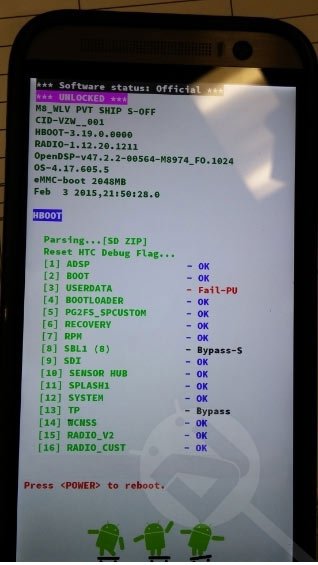
- Just follow the onscreen instruction and the RUU will be installed to your device within a few minutes and your phone will be updated to Android 5.0.1 Lollipop
Method 2
- Connect your phone to PC using the USB cable provided by the OEM.
- Extract “DOTTAT_VZWM8_S_OFF_5.0.1_FUU.zip” file and open the folder.
- Now double click ARUwizard.exe.
- When the FUU launches, follow the on-screen prompts until your One M8 reboots. Please note that your phone might take 5-8 minutes to reboot after firmware installation.
Congrats, you have successfully restored your Verizon HTC One M8 to stock Lollipop pre-rooted ROM!
Install TWRP Recovery on Verizon M8 with Lollipop
Having upgraded to Android 5.0.1 Lollipop, you can also root your device and flash a custom recovery.
- Download the latest TWRP Recovery image file: openrecovery-twrp-2.8.5.0-m8_wlv.img
- Copy it to your One M8.
- Install Flashify app on your phone: [googleplay url=”https://play.google.com/store/apps/details?id=com.cgollner.flashify”]
- Open the app and tap Recovery Image option and select the TWRP image file to flash.
- Your device will reboot and you will have TWRP Recovery installed on your Verizon HTC One M8.
Done!
Credits: dottat @ xda


woah man!!! it worked. thank you very much sir…
Glad to know! Thanks for the appreciation!
hi, my stock android on verizon m8 was 4.4.4, then I installed custom gpe ,marshmallow. can I also update my phone with this stock android lolipop?
can i use this with supercid that is cid_11111111
I tried method 2 many times but it didn’t work at all. Method 1 worked at first try. Thank you!
Comentario salvaje en español aparece :’v
Muchas gracias, me a servido a la perfección.
Guess my previous comment hasn’t been “moderated” yet because it seems to have disappeared, but ignore it anyway. I was able to re-run the ARUWizard.exe and it worked on the second try. I’m up and running! Whew!
Spoke too soon. I got it up and running, and had downloaded and even mostly configured my apps. Then I started an OTA update from Verizon, and the phone rebooted, and now won’t get past the red Verizon screen. Ugh.
Switched to Method 1 and am finally running again, though haven’t applied that OTA yet.
The first method is working for me. Just copy both files in external SD.
Glad to know it worked for you! 🙂
Method 2:
I am running the ARUwizard and can get all the way to where it starts updating firmware but it hangs at “Updating…(0/1) Sending…” I have waited 15+min just to be certain but nothing is happening.
Is root kept with this? I’m going to try this to remove data encryption on my m8
It will take away root.
According to rootchecker it still has root… I had backed up everything with titanium … And just restored … According to bootloader I still have s-off and the phone is still unlocked
Okay, then what you installed is the pre-rooted firmware.
Rakesh, you’ve saved my life again. I used method 1 to flash and evertyhing is great, I could to update very easy to Lollipop. You helped me in another forum with my LG G2, and now with a buddy’s HTC One M8. Thank you very much bro!
Glad to know, Orlando! Keep visiting! 🙂
I used the Method 1, but fails in the step of bootloader update. However it seems to be booting fine..I still waiting..
There’s a greater possibility of success with Method 2.
Method 2:
I am running the ARUwizard and can get all the way to where it starts updating firmware but it hangs at “Updating…(0/1) Sending…” I have waited 15+min just to be certain but nothing is happening.
Is your phone S-Off and have you enabled USB Debugging?
Yes, user error, running incorrect file. I did have to run the exe twice to get it to complete successfully though.
S-off is preserved correct?
Yes.
took a few runs but method 2 works! Thanks!
Thanks for sharing your feedback!
Hi there. Trying to use method 2 with a phone that’s charged to 100%, and when I run the utility it shuts down, saying that my phone is charged less than 30%. Any idea why this might be happening and what I can do to get it to run?
Try rebooting the phone and your PC.
No luck, same error. Might try method 1 when I get home tonight.
Okay, let me know of the result.
I ran this twice and it worked great, on the 3rd run I kept getting the same error. I found out it was caused by the ROM I was running. I installed a GPE ROM and it worked again. Thanks for the great work Dotat & Rakesh
Thanks for the appreciation.
Where are the files? Says not found (the large zips)
Hi, thanks for reporting broken links. I have fixed them.
my s-on problem that i can’t get to options because i can’t get my phone on ..because of a black screen and nothing happens is there a way to update phone with security on 🙁 ?