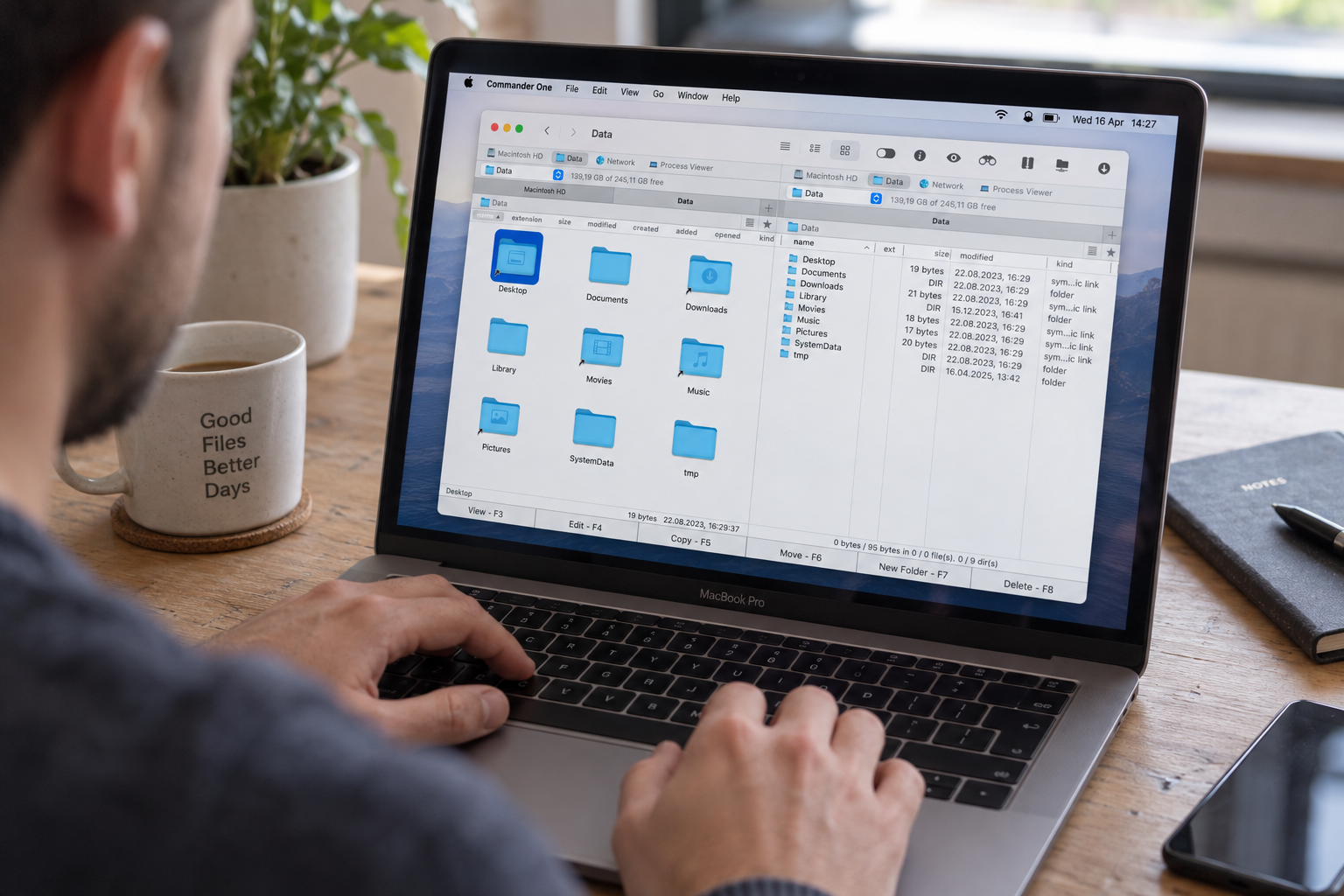
File management on Mac is straightforward until your project becomes cluttered with a huge number of drafts, documents, images, archives, and download files scattered across various folders. Finder handles basic navigation and file transfers well, but working with multiple folders at once often means opening several windows and constantly switching between them, which takes a lot of time. In this article, we’ll discuss another way to manage files on Mac, specifically, using Commander One, which offers a dual-pane interface. After reading this article, you’ll clearly understand for which tasks this solution is ideal and when Finder is perfectly sufficient.
Why File Management Becomes Cumbersome on Mac
As a rule, file organization problems don’t stem from a lack of basic functions, but rather from the need to perform a huge number of actions simultaneously. For security reasons, programs often store their data in isolated containers deep within the disk structure, which makes it difficult to manually search for the documents you need. If you’re working on a content project, for instance, the source images might be stored in the Downloads folder, the finished materials in the project folder itself, and some additional files in an archive, and constantly switching between Finder windows will significantly slow down your workflow.
This problem becomes particularly noticeable when you need to do more than just find a file – you need to perform several operations on it in succession, such as viewing, renaming, copying, and then chdecking the result. Finder allows you to use multiple windows or tabs for this, but the workflow itself is still centered around navigating between locations. In exactly this situation, the dual-pane feature offered by Commander One manager becomes particularly useful, since instead of opening the source and the destination folder separately, you can view them simultaneously. This feature is ideal for users who regularly need to sort, move, or copy files between multiple folders, as it makes workflows much clearer.
A Short Folder-Cleanup Workflow in Commander One
Now let’s take a look at how this process works in practice using a typical content project as an example. We have a folder containing new documents and images, and another folder containing the project files themselves. Commander One allows us to use a dual-pane file manager for Mac, so we can see both the source and destination folders at the same time.
We opened the folder containing the source materials in the left pane and the project folder in the right pane. First, we reviewed several files to determine which ones to keep, and then we selected the necessary items and renamed them directly while sorting. After that, you can drag the files to the desired folder or use the copy or move commands.
The next step in our case was to create a separate folder for the final materials and move the selected files there. If there are multiple operations, Commander One can queue them up instead of performing each action separately, which is especially useful when you need to move several groups of files at the same time.
Finally, we created an archive containing the finished materials and checked its contents without first unpacking it. In this way, navigation, previewing, renaming, moving, and archiving remain part of a single workflow, rather than separate steps in different tools.
Managing Files and Archives in One Workflow
The key advantage of Commander One is that it combines the main file operations into a single interface. You can create folders right while sorting, as well as copy, move, rename, or delete individual files or groups of items. Commander One supports multiple selections and drag-and-drop, which greatly simplifies working on multiple files at once, while tabs allows you to keep multiple locations open without having to open a huge number of windows. Another important advantage of Commander One is the ability to use advanced search and view hidden files, which is especially useful when working with a project’s service files.
Archives are a separate part of the workflow, and this
for Mac allows you to compress and decompress files, open archives, and view their contents without having to extract all the files first. Commander One allows users not only to open RAR on Mac, but also to work with ZIP, 7Z, TAR, TGZ, TBZ, and GZ files; however, keep in mind that the features vary depending on the format. It’s essential to note that you can create password-protect ZIP on Mac, whereas RAR files are supported in read-only mode.
Thus, with Commander One, archiving becomes an extension of a simple file management rather than a separate operation performed in another program.
Commander One vs Finder
Commander One and Finder perform many of the same tasks, but they organize the workflow differently. Finder is suitable for simple, eversyday tasks, while Commander One, which is available on the Mac App Store, is a better choice for advanced file and server management and working with two panes simultaneously, as it also serves an archive manager for Mac.
The advantages of Commander One become particularly apparent if you’re used to dual-pane file managers, frequently work with remote servers or FTP clients, or find that Finder’s standard features aren’t sufficient for sorting and transferring large amounts of data. Commander One also supports FTP/SFTP, WebDAV, OneDrive, Google Drive, Dropbox, and Amazon S3, which may be important for some users.
Another difference between Finder and Commander One is the ability to work with archives as part of the same process. If you need not only to
but also to create a password-protected ZIP or 7Z archive, view an existing archive, or find a specific file inside it, Commander One combines these actions into a single file manager.
At the same time, this doesn’t mean that Commander One is meant to replace Finder in every scenario. For simply browsing files and performing routine folder operations, Finder remains sufficient; moreover, it’s deeply integrated into macOS, runs reliably, and requires no additional software installation. Commander One is better suited for those who regularly need to work with multiple folders, large groups of files, and archives within a single workflow.
Conclusion
Commander One makes sense as a Finder alternative for Mac primarily in situations where standard file navigation is no longer sufficient for efficient workflow organization. If you need to regularly sort files among multiple folders, work with large groups of files, or include archives in the same process, the dual-pane approach may be more practical than working with separate Finder windows. However, for basic viewing, opening, and one-time
, there’s no need to abandon Finder, as Commander One isn’t a universal replacement for the standard macOS file manager, but rather an alternative tool for specific workflows.
Join The Discussion: