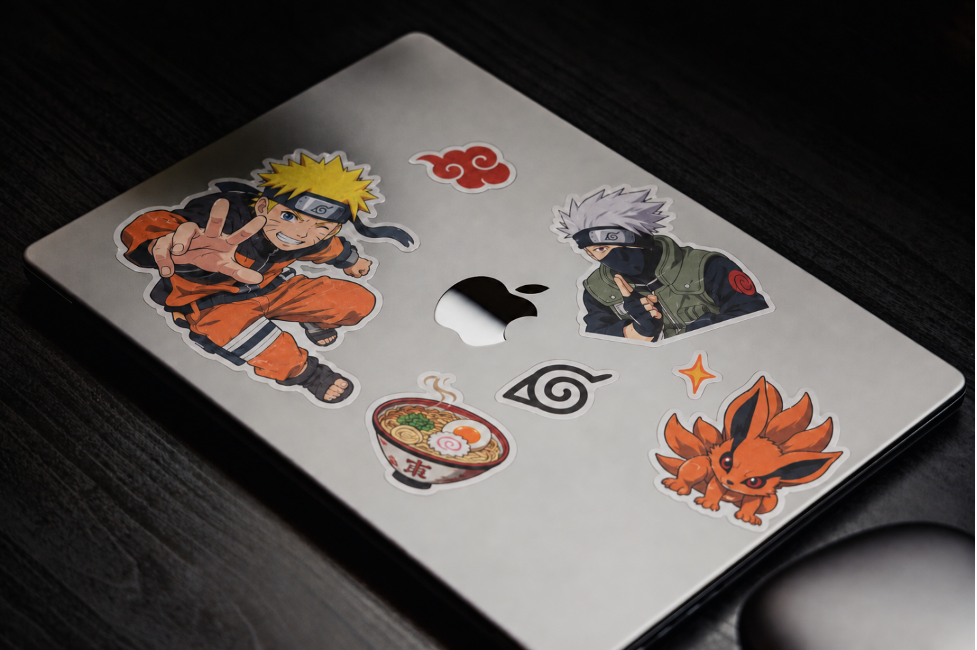
Your laptop goes everywhere with you, from class to your favorite café. You use it for work, watch anime on it, and carry it home in your bag. But does it look like it belongs to you?
If it still looks the same as the day you bought it, here’s how to give it a fresh, anime-inspired look.
Pick a Theme You Like
Start with one idea. It could be a favorite character, a color, or the kind of anime you enjoy watching.
Love quiet scenes with little cafés and sleepy cats? Try soft colors and small food drawings. Prefer space adventures? Plan around planets, stars, and a character in a flight jacket.
You can mix shows, too. Choosing two or three colors that appear across your stickers can help them look good together.
Keep a few pictures in a folder for ideas. Then choose the parts you like most before you start shopping.
Choose Your Stickers
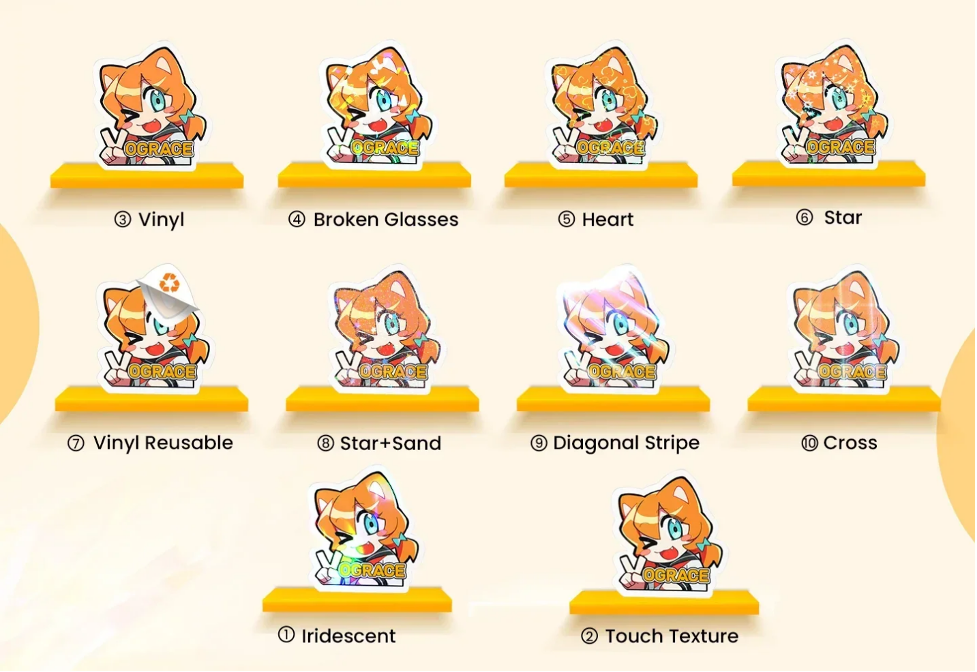
You can buy stickers from an artist or turn your own drawings into stickers.
Have a drawing you want on your laptop? You can order cheap custom vinyl stickers from Vograce with your own art. Upload your design, pick a size, and choose how many you want. You need to order at least 10 of the same design.
Use a few on your laptop and share the rest with friends or put them on notebooks. Check the full price with shipping before you buy.
Only use art you made or have permission to print.
Check the sticker’s size before buying, too. It may look small in a photo but take up a lot of room on your laptop.
Look at your drawing at the size you plan to print it. Can you read the words and see the face clearly? Make tiny details bigger or leave them out if they are hard to see.
Try the Layout Before Sticking
Keep the paper on the back of each sticker for now. Put them on your closed laptop and try a few different spots. Place the biggest one first, then put the smaller ones around it.
Here are a few ideas:
- Pick a corner: Put a character there with a few little stars.
- Spread them out: Leave some space between the stickers.
- Make a little scene: Put an anime girl next to a moon and add some clouds.
You can put one sticker partly over another. Just make sure you can still see the faces and read any words. You don’t have to cover the whole lid.
Check which way the pictures will face when your laptop is open. Hold the loose stickers in place so they don’t fall off, then close it again.
Take a photo before you start sticking. It will help you remember where each sticker goes.
Prepare the Surface
Check your laptop maker’s care instructions first. Some cleaners and stickers may damage the surface.
Turn off your laptop and unplug it. Clean the outside as the maker suggests. Let it dry fully before adding stickers.
You can also put stickers on a hard case that fits your laptop. Make sure the case does not block any vents or ports.
Put stickers only on the outside of the lid. Keep them off the screen, keyboard, trackpad, vents, ports, and hinges.
Apply a Little at a Time
Choose a spot for your sticker, then read the seller’s instructions before putting it on.
Peel off the paper backing and gently place the sticker where you want it. Use a clean finger to press it down, starting in the middle and moving toward the edges.
Take your time with big stickers. Don’t pull on them as you stick them down.
Some stickers are hard to take off. They may leave sticky marks or damage the laptop’s surface when removed. Want to change them later? Look for stickers that the seller says are easy to remove.
Match Your Desktop Wallpaper
Now give the inside a little attention. Choose a wallpaper that uses some of the same colors as your stickers.
Love One Piece? Try Luffy against a blue sky to match your blue laptop stickers.
Your own drawing works well here. You can also use a wallpaper an artist has offered for personal download, following their terms.
Leave a quiet area behind your desktop icons so their names stay easy to read. A busy drawing can sit toward the other side of the screen.
Enjoy Your New Look
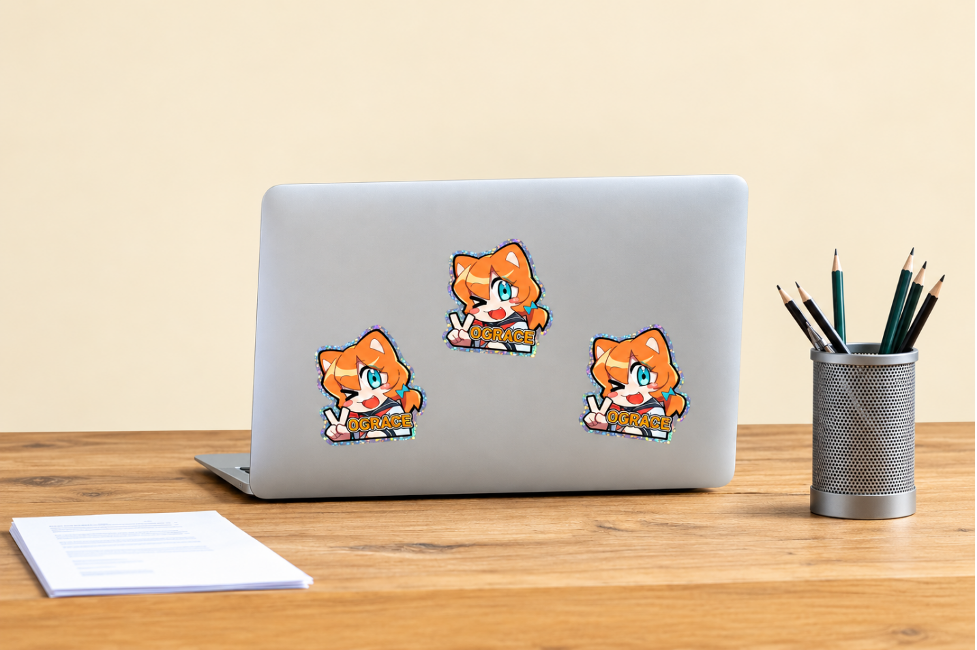
Silver laptop decorated with Vograce stickers.
Start with a few pieces you really like and see how they look together. There’s no need to buy everything at once.
A small anime girl in the corner might be enough. You might prefer a whole lid of colorful characters. Either way, take your time placing the art. The fun part is opening your laptop tomorrow and seeing something you chose yourself.
Join The Discussion: