Pin down the moment that feels slow
Write down one repeatable example: signing in, opening a particular file, switching between applications or loading a page. Note whether the problem started recently or has gradually become more noticeable. That small record gives you a way to judge whether a change actually helped.
Try a local task and an online task separately. If a document opens promptly but several websites stall, the network or service may be involved. If one application struggles while others behave normally, start with that application's requirements, updates and files.
Restart after saving work and repeat the same task. A restart is not a cure for every problem, but it clears the distinction between a persistent limitation and a temporary session that has accumulated trouble.
Look at the workload while it happens
In Windows, Task Manager can show which applications are using processor, memory and disk resources. Observe it during the slowdown rather than only when the computer is idle. A brief spike can be normal; a process that remains busy while you are doing little is more informative.
Do not end unfamiliar system processes simply because they appear near the top of a list. Identify the application first. A sync client, update or security scan may have a legitimate job to finish. If a familiar app is responsible, close it normally where possible and see whether the symptom changes.
Check free storage space and review unnecessary startup applications. Microsoft's performance guidance identifies both low storage and background startup activity among possible contributors to slow behavior. Make selective changes you can reverse rather than applying a bundle of unexplained optimization settings.
Repair the narrow problem first
If only a browser is affected, review unused extensions and test a small number of tabs. If only one large project is affected, try a smaller file of the same type. These comparisons help distinguish an application problem from a machine-wide limitation.
Install updates through the operating system, the application and the computer manufacturer's supported channels. Avoid utilities that promise a dramatic improvement by changing many settings at once. They can make it harder to understand what changed and may introduce software you do not need.
If the computer is unexpectedly warm or noisy, place it on a firm surface with clear ventilation and check the workload again. Persistent mechanical noise, repeated errors or sudden shutdowns deserve a support or repair assessment rather than another cleanup routine.
Then price the useful upgrade
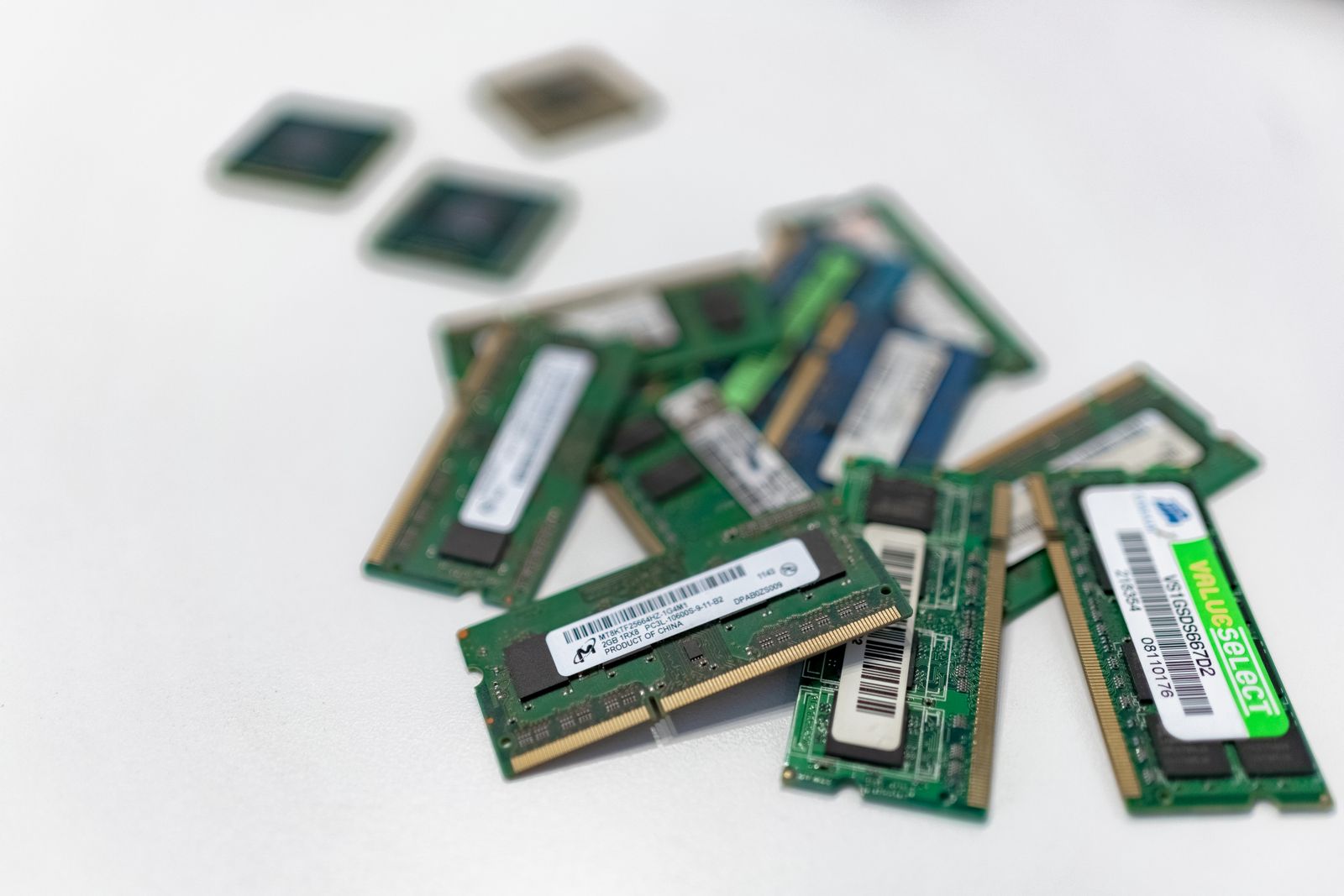
A supported memory or storage upgrade can help when it addresses an identified constraint, but it is not a universal fix. Confirm that the model can be upgraded and compare the complete cost, including labor and data migration.
Replacement becomes more persuasive when the machine cannot support the software or updates you need, essential hardware is failing, or an upgrade would still leave several serious compromises. A working laptop should not be kept indefinitely simply because one component can be replaced.
Before any repair or replacement, verify a backup of important files. Then use your original repeatable task to evaluate the result. If the delay has gone, you have evidence that the change addressed the problem; if it remains, you have avoided confusing a cleaner-looking desktop with a faster computer.