Start with the exact model number
Locate the full model identifier or service tag, then open the manufacturer's support page for that machine. Product-family names are often too broad. A 13-inch and 15-inch version, or two generations with similar names, can have very different internal layouts.
Look for the service or maintenance manual and the specifications section. You want explicit information about memory slots, installed modules, supported capacity and storage connections. A retailer's statement that a laptop has an SSD does not tell you whether the drive can be replaced.
If the documentation is unclear, ask the manufacturer or a qualified repair provider before ordering. A photograph of another owner's opened laptop is not a reliable substitute when configurations differ.
Memory may be fixed, replaceable or a mixture
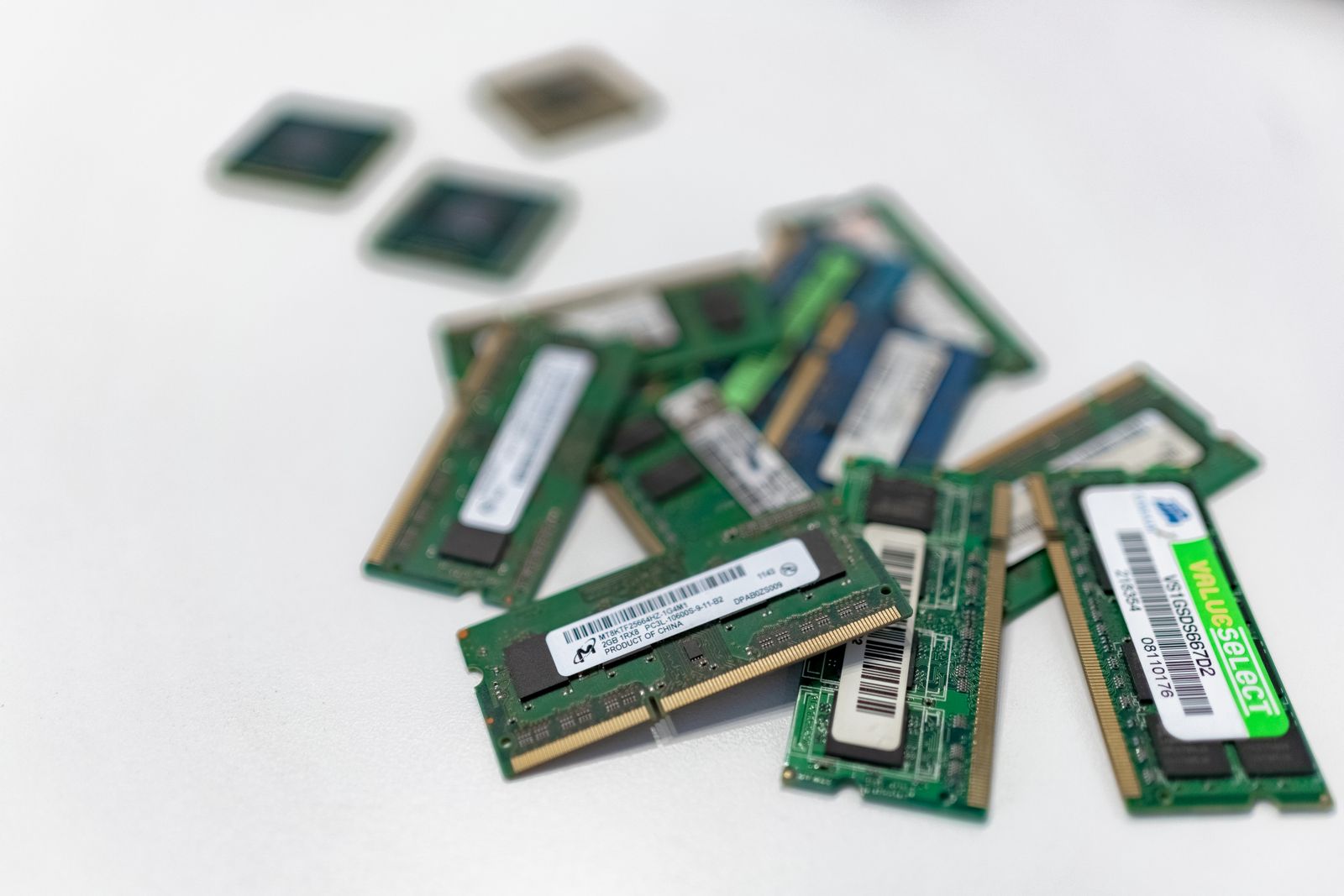
Some laptops use removable memory modules; others have memory attached to the board. A few combine fixed memory with an expansion slot. That distinction determines whether you can add capacity, replace the installed capacity or do neither.
For removable memory, check the supported type and maximum capacity for the exact system. Also inspect the slot arrangement. If both slots are occupied, an upgrade can require replacing existing modules rather than simply adding one. Include that in the cost.
Do not buy solely by matching a capacity number. Module generation, physical format and supported configuration matter. Dell's memory-upgrade guidance, for example, directs users to identify the computer and its compatible specification. The same principle applies regardless of brand.
An SSD needs to fit more than the connector
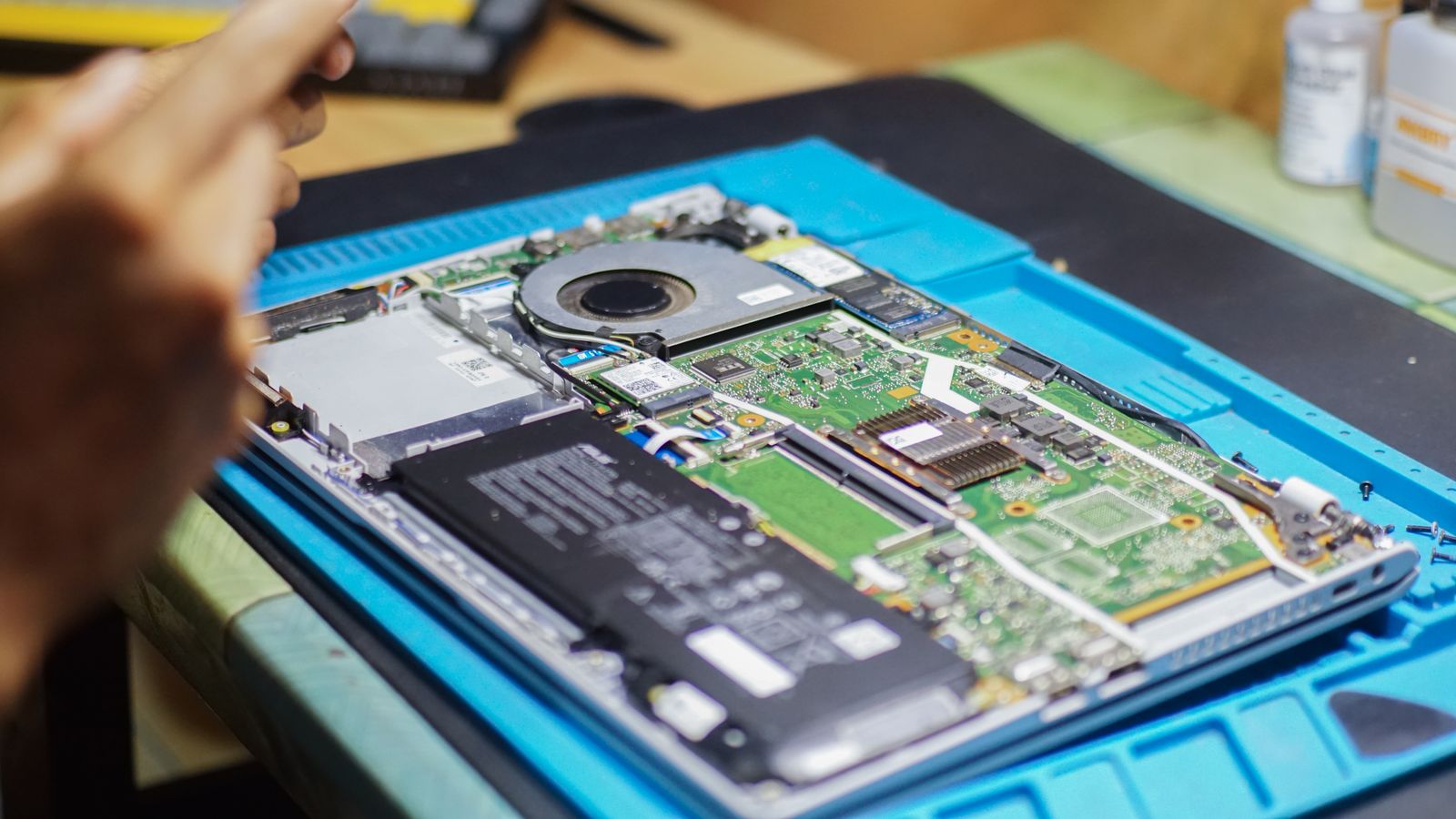
Check the drive interface and physical size, including length where relevant. The service manual may also specify a bracket, screw, thermal material or other mounting part. An apparently empty space inside the chassis is not proof that a second drive can be installed.
Find out whether you are replacing the existing system drive or adding another one. Replacing it means planning how the operating system and files will move. Cloning, a fresh installation and restoring a backup are different approaches with different requirements; choose a supported method before opening the case.
A larger drive should not become the first and only backup of the old one. Make a separate verified copy of important files, and record any recovery information needed for encryption or accounts. Check that you can open the backup on another device where possible.
Decide who should do the work
Read the service procedure from beginning to end. It may involve battery disconnection, delicate clips or parts that are easy to damage. Follow the manufacturer's safety instructions and use the specified tools. If the steps are unfamiliar, obtain a service quote rather than learning on the only computer you need tomorrow.
Consider the warranty and service terms that apply to the machine. Do not assume either that opening it automatically invalidates every form of support or that any damage caused during an upgrade will be covered. The relevant terms and local rules need to be checked for your situation.
Before purchasing, compare the complete upgrade cost with a configuration that already includes the capacity you need. Parts, labor and the time required to migrate data all belong in that comparison. Upgradeability is useful flexibility, but it only saves money when the supported path is clear and worthwhile.