Know where the sign-in method lives
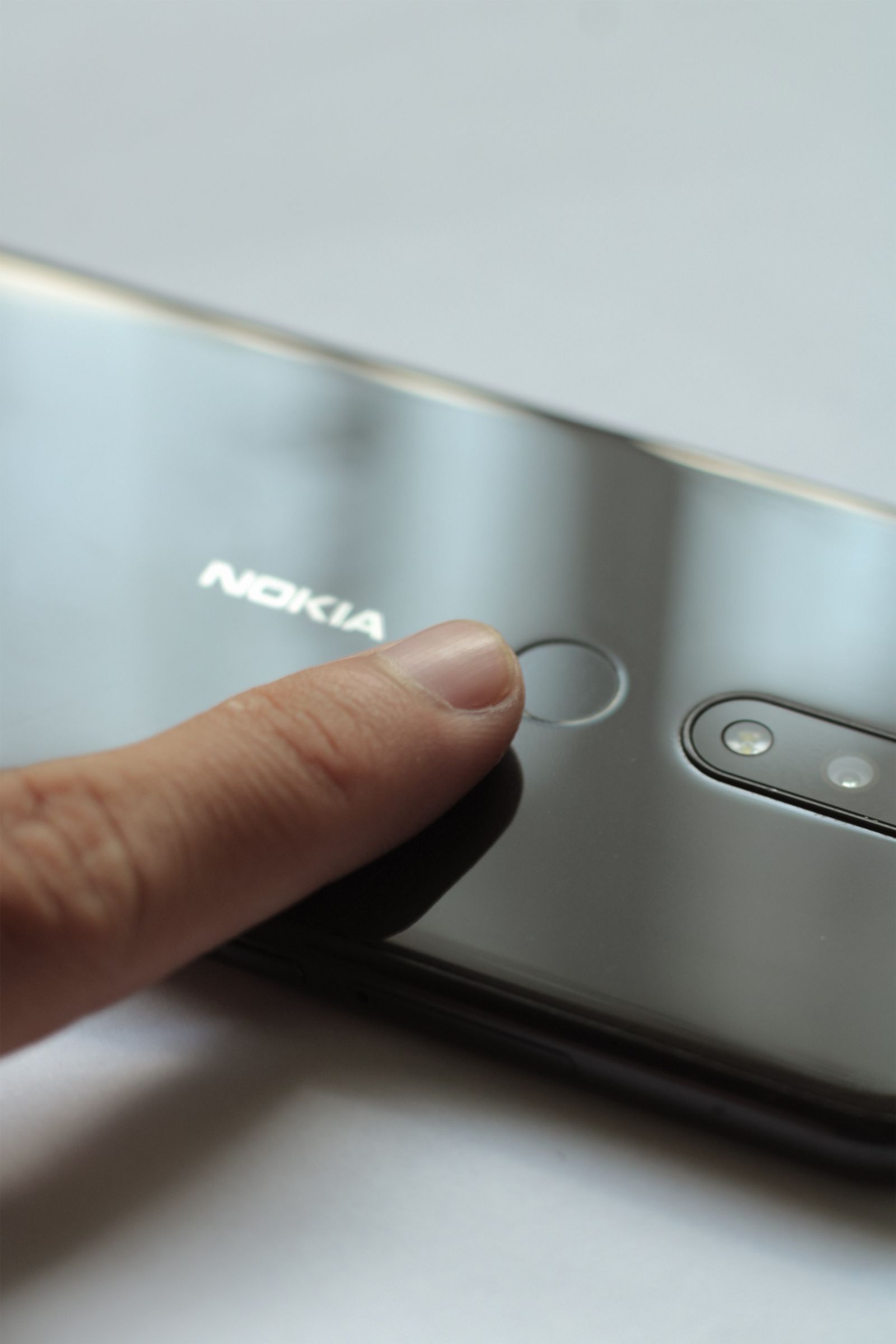
A password is a secret you enter or retrieve from a password manager. A passkey uses a different sign-in mechanism, commonly unlocked through a device PIN, fingerprint, or face check. Google describes passkeys as resistant to the kind of phishing that tricks someone into handing over a password.
The experience can look similar across devices while the storage arrangement differs. A passkey may be available through a credential provider that synchronizes it, or it may be associated with a particular device or security key. Check the provider's explanation instead of assuming every passkey will appear automatically on your next computer.
During setup, read which account and credential provider are being used. If several personal and work accounts are open, pause long enough to confirm the destination. Creating a working sign-in method for the wrong account can be surprisingly easy when the prompts look familiar.
Do not create a personal passkey on a shared computer simply to make one sign-in quicker. If the service offers using a passkey from your own device, follow that supported flow. Sign out of the borrowed session afterward and avoid saving additional credentials there.
A new method does not erase the old recovery problem
Adding a passkey does not necessarily remove a password, recovery email, phone number, or other verification method. Google explicitly says that adding one to its accounts does not change existing authentication or recovery factors. Review those existing methods rather than assuming the new setup has replaced them.
Check whether the recovery email still belongs to you and whether you can open it independently. A phone number you no longer control or an old employer's email address can remain in settings long after it stops being useful. Update the details through the account's official security page.
Where a service provides recovery codes or an additional security key option, decide how to keep that route available. Store recovery material securely and separately from the device whose loss would trigger the need. An ordinary screenshot inside the same phone's photo library is a weak sole fallback.
Consider the credential provider's own recovery process too. If access to several passkeys depends on one password-manager or cloud account, you need a workable way back into that account. Avoid a circular arrangement in which every recovery step demands access to the same missing phone.
Test access before retiring the old device
Use another trusted device or a separate browser session to try the supported sign-in flow while the original device is still available. Confirm which prompts appear and whether the account opens. You do not need to remove a working method to test an additional one.
If you are replacing a phone, keep the old device until the necessary passkeys, authenticator access, and account recovery methods have been checked on the replacement. A restored app icon is not proof that its credentials are ready. Follow the provider's transfer instructions rather than copying files you do not understand.
For work or school accounts, the organization may control which methods are allowed. Ask the administrator about replacement-device and recovery procedures before making changes. A personal-account guide may not describe the rules applied to a managed account.
Keep the record small and useful
Maintain a secure note of which credential provider you use and which accounts have a separate recovery route. Do not turn that note into a plain-text collection of passwords or recovery codes. Its purpose is to remind you where to go, not expose the credentials.
After a lost device, use the service's official guidance to remove its access and review sessions from a device you still control. Do not assume that deleting a passkey in one place clears every account session everywhere.
The convenience of a passkey is worth keeping. Give its recovery arrangement the same attention as the sign-in button, and it can remain convenient after the hardware changes.