Start with occupied space, not the advertised capacity
Open the storage view on your current computer and note how much space your applications and personal files occupy. Then separate everyday files from things you keep only as an archive. A folder of completed video projects has a different role from the photos you edit this month.
The capacity printed on a listing is not all available for your documents. The operating system, recovery files, bundled applications and the way capacity is reported account for some of the difference. You also need working space for updates, temporary files and new projects. A drive that just accommodates today's collection is a tight fit for a computer you expect to keep for years.
For example, suppose your current files and applications occupy about 300 GB and that total grows noticeably each year. A 512 GB configuration deserves closer thought than it would for someone whose whole setup occupies 100 GB. These figures are an illustration, not a rule: the rate at which your own collection grows is what makes the comparison useful.
Decide what must be available without a connection
Cloud storage can reduce the local space you need, but only when you are content to retrieve files over the internet. A cloud folder may contain both downloaded files and online-only placeholders. Before relying on it during travel, make the required folders available offline and check them with the connection disabled.
An external drive is another option for a large archive. Include the drive, cable and backup arrangement in the cost comparison. Moving the only copy of a photo collection off the laptop frees space, but it does not create a backup. It simply moves the place where a failure could lose that collection.
For work that frequently moves between rooms or locations, paying for more internal space can be worth it just to avoid managing another device. For files opened twice a year, an external archive may be entirely reasonable.
Capacity and speed are separate questions
A larger SSD is not automatically a better upgrade for every slow computer. If the delay is caused by a demanding application, insufficient memory or a poor connection, extra capacity may change little. Check whether you are running out of space before treating storage as the cause.
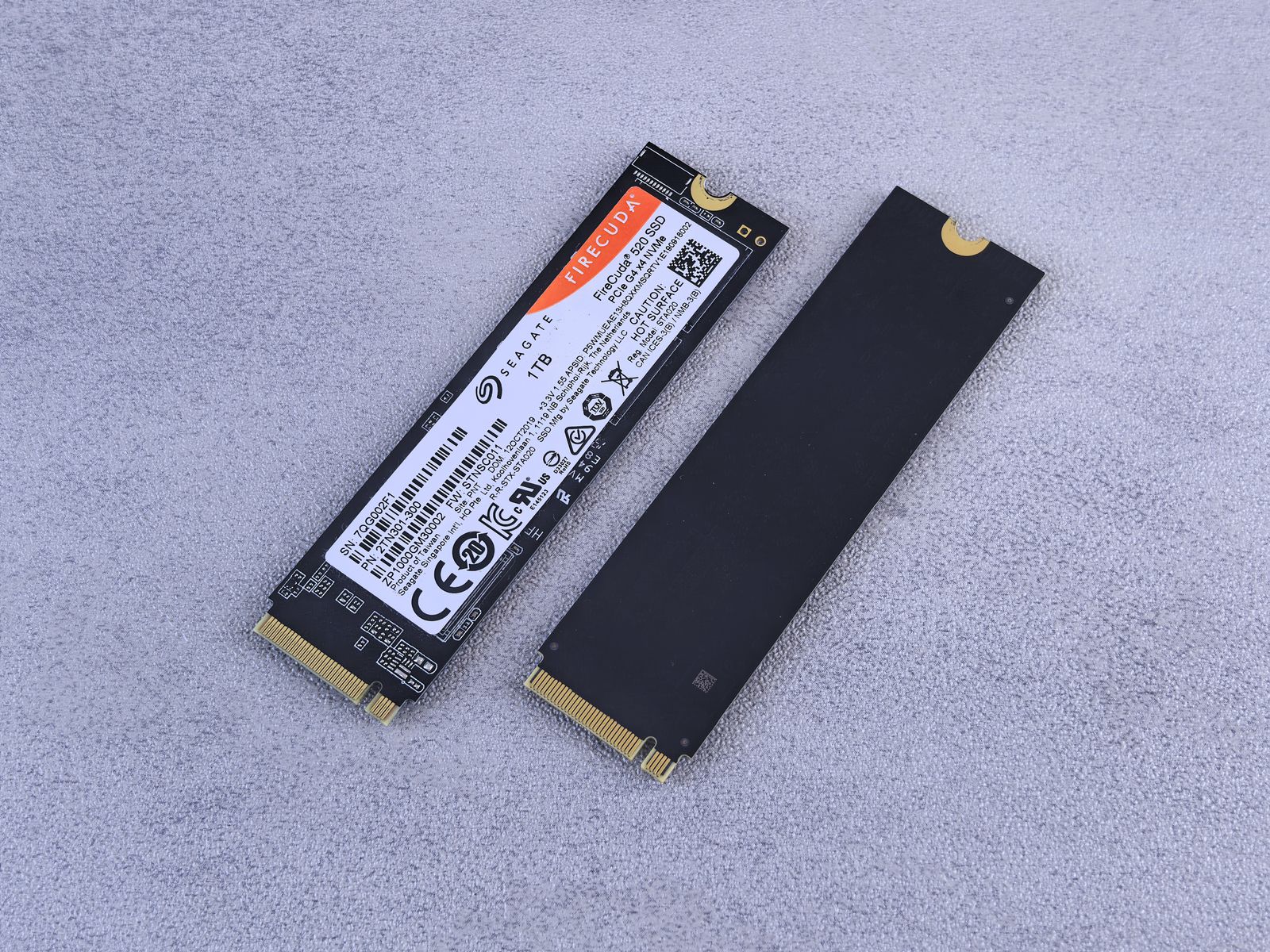
Also confirm whether the laptop's drive can be replaced later. The service manual should identify the supported drive type, physical size and access procedure. Do not assume that every SSD with a similar-looking connector will fit. If replacement is difficult or unavailable, a larger factory configuration has more value; if an easy supported upgrade exists, you have another way to spread the cost.