Try the movements that are easy to get wrong
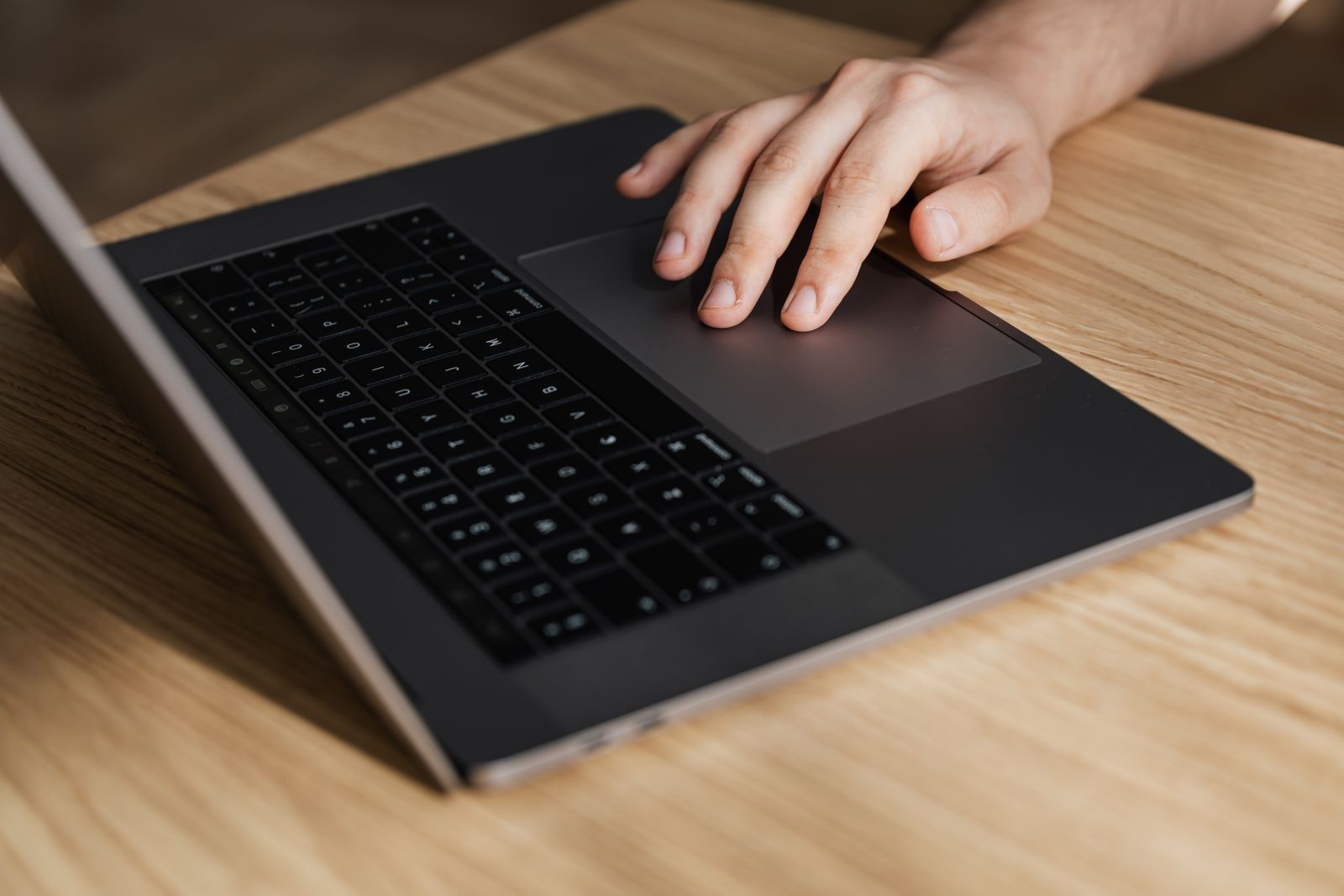
Move the pointer slowly toward a small button, then quickly across the display. Both motions should feel predictable. A touchpad that is fine for broad movements can still be frustrating when you need to place the text cursor between two letters.
Select part of a paragraph, drag a file between folders and resize a window. These tasks reveal whether the surface, click mechanism and pointer response suit your hand. Use whichever method you prefer—physical click, tap or a supported drag gesture—rather than relying on the store's default setup.
Scroll through a long page and stop at a heading. Test two-finger scrolling near the center and close to the edges. A very large surface is not automatically better if your palms repeatedly brush it during typing. Size, positioning and palm rejection need to work together.
Settings can help, within limits
Pointer speed, tap behavior and gesture settings may be adjustable in the operating system or the manufacturer's utility. Make small changes and repeat the same task. Turning sensitivity to an extreme can mask one problem while making precision worse elsewhere.
Some touchpads use a mechanical click, while others provide haptic feedback. The label alone does not establish which you will prefer. Try clicking in different areas and note whether the effort or response changes. If adjustable click feedback is offered, compare a moderate setting with the default.
Check accessibility options if a particular gesture is difficult. You may be able to assign an alternative action or use keyboard shortcuts for tasks that otherwise require a delicate movement. A useful device should support the way you work without making every interaction a negotiation.
The test is a few minutes without the mouse
Put the mouse aside during the first days with a new laptop. Write an email, move an attachment, edit a document and switch between windows. This gives you a better picture than a few swipes across an empty desktop.
If the pointer behaves erratically, clean and dry your hands and check for an approved driver or firmware update before concluding the hardware is poor. Persistent jumps, missed clicks or unwanted movement during typing are worth documenting for support or a return.
A compact travel mouse can still be useful, but it should be a choice rather than equipment you must carry to make the laptop tolerable. A touchpad you trust makes short sessions away from a desk much less cumbersome.