Find the publisher through a route you trust
If the app belongs to a company you already use, open that company's website yourself and follow its app-store link. Compare the developer name and support details on the listing. Search results and advertisements can place a similarly named product beside the one you intended to find.
Read the description for the actual function you need. A free download can still require an account, a subscription, or an additional purchase to perform the advertised task. Look at the most recent reviews for recurring problems, but do not treat a star average as a security certificate. Reviews can describe a different version or a different use case.
Avoid installing an app because a stranger claims it is required to resolve an urgent account problem. Verify the request through the company's established support channel. A plausible logo and a countdown do not establish who sent the message.
Permissions should have an understandable purpose
A camera permission makes sense when you choose to scan a document. It deserves more scrutiny if the app's only stated job is converting a file already on the device. Ask what action needs each permission and whether a narrower option is available. You can often try the basic feature before granting access to unrelated information.
Pay particular attention to requests for broad device control or accessibility access. Legitimate assistive tools may need powerful capabilities, but the app should explain why. Do not turn off a protection or bypass a warning simply because an installation page insists that everyone must do so.
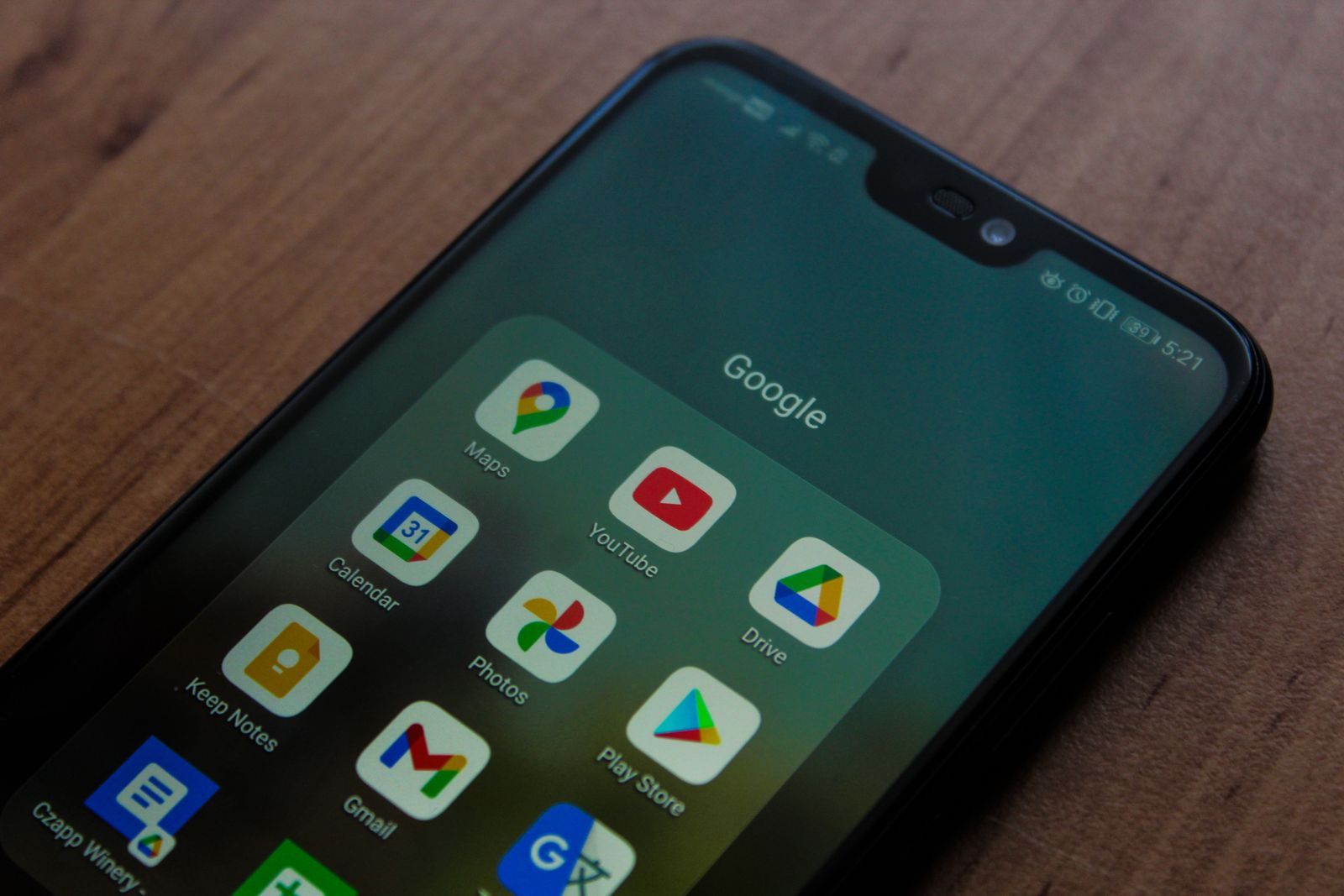
Keep Google Play Protect enabled on a device that supports it. Google says it checks for harmful behavior and can warn about, disable, or remove harmful apps. That is a useful layer, not a guarantee that every app is suitable for you or that every claim in a listing is true.
Consider the first update before the first install
An app from outside the usual store also needs a dependable update route. Check who publishes the package, how you will recognize a legitimate update, and whether the installation changes any system settings. If you cannot answer those questions, use a supported alternative that accomplishes the task with less uncertainty.
After installing, start with a harmless sample file rather than your whole document collection. Watch for unexpected prompts, account requirements, or requests to upload content. Remove the app if its behavior does not match the function you wanted, and review any account access you granted separately.
Finally, keep the number of installed apps manageable. Removing a tool you no longer use reduces the settings and update notices you must keep track of. Save any local work before uninstalling; the application icon is not the only thing that may be removed.