Check the simple controls before changing software
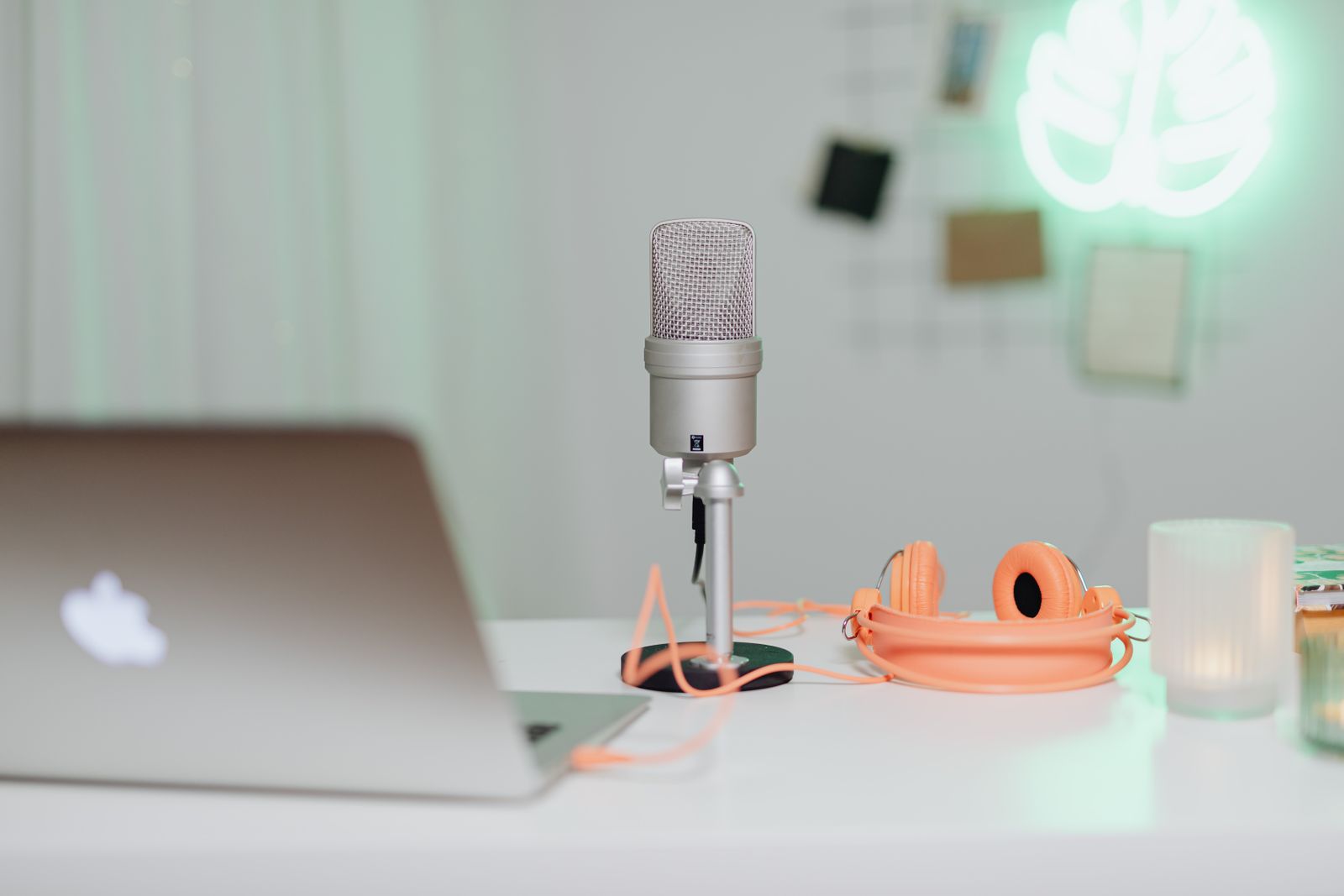
Look for a mute switch on the headset, cable, keyboard or microphone itself. Some headsets also mute when the boom is raised. Check the device's indicator and manual rather than relying on the meeting app's icon alone.
Confirm the connection. A wireless headset may be paired but connected to another device, while a wired microphone may require a particular socket or adapter. If a USB device is not detected, try a direct connection to the computer with a known-working cable where appropriate.
Position the microphone as intended by its maker. Speaking toward the wrong side of a directional microphone can produce very quiet or muffled sound even when every permission is correct.
Test the input in Windows
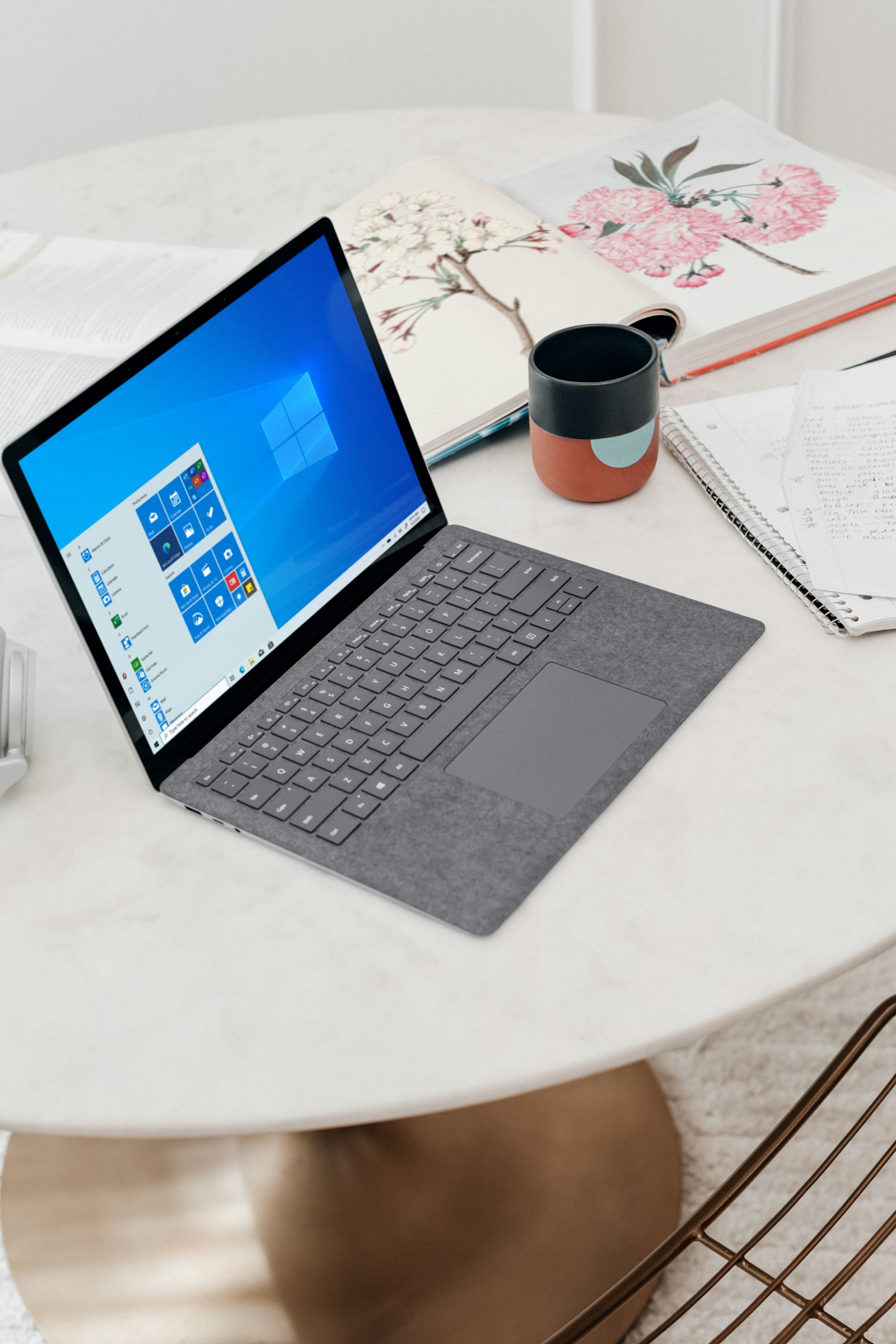
In Windows 11, open Settings, System and Sound, then inspect the Input section. Select the microphone you intend to use. Several devices may have similar names, especially when a webcam, headset and laptop microphone are all available.
Use the supported microphone test or a short local recording to confirm that Windows receives speech. Listen to the result if possible rather than looking only at a moving level indicator. A signal can be present but too quiet, distorted or dominated by background sound.
If Windows receives nothing, inspect the microphone privacy settings. Microsoft's guidance identifies Microphone access, app access and desktop-app access as relevant controls. The exact options vary by application type and Windows version, so use the current Settings search if the layout differs.
Then test the meeting application
Open the app's audio settings and choose the same intended input. Do not assume it follows the system default, especially after connecting an accessory. Run its test call or preview function when available.
For a meeting in a browser, review the site's microphone permission as well. Windows may allow the browser to use a microphone while the browser blocks that particular site. After changing a permission, reload the meeting page or rejoin as the service instructs.
If you can record locally but the call still has no audio, keep the investigation at the application or site level before reinstalling device drivers. That comparison shows the hardware path is working in at least one context.
Keep a fallback for the meeting
When the meeting is about to begin, switching to a known-working laptop microphone or another supported device may be more sensible than making several system changes. Tell the participants if you need a moment to change the input.
Afterward, investigate the persistent fault with time to test. Record the device name, application version and whether the problem occurs in other apps. On a managed computer, contact support if permissions are locked.
Once the setup works, perform a brief check after changing headsets, docks or meeting software. The useful habit is to verify the selected input before the call, not to repeat a full troubleshooting routine every morning.