Decide what the backup must recover
List the material you need to recover after a lost computer or an accidental change: documents, photographs, creative projects, and any other local work. Decide whether you need earlier versions as well as the latest files. A simple copied folder and a versioned backup solve different problems.
Check which folders your chosen backup tool includes. Do not assume that everything visible in a cloud folder is fully stored on the computer; online-only files may need separate handling. Review the software's documentation for cloud content and application data before relying on a drive as a complete copy.
Estimate the amount of data now and allow room for growth and retained versions. A drive that barely holds today's files can become awkward as soon as the software keeps multiple versions. The exact margin depends on how often files change and how long you want to retain them.
Match the drive to where it will live
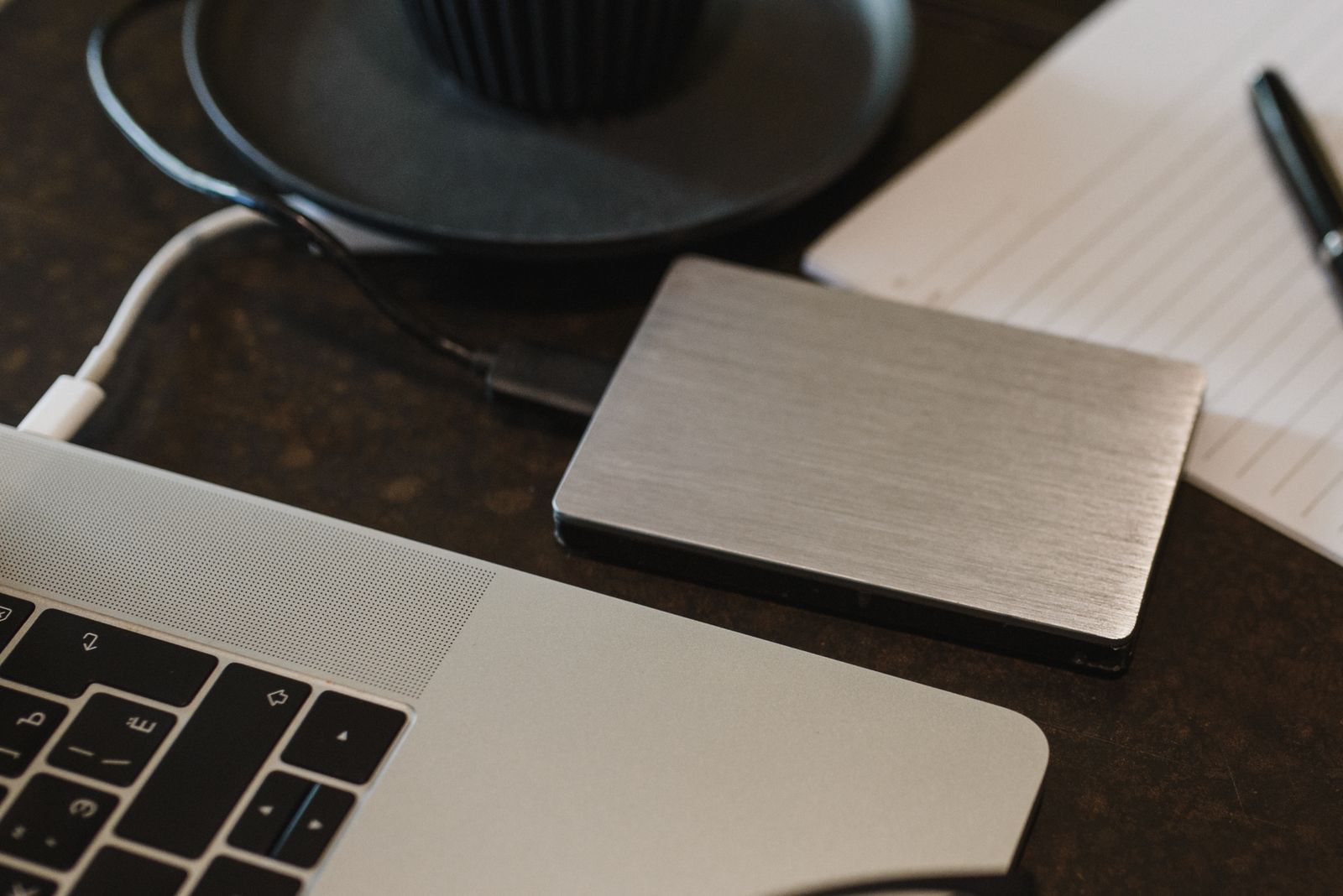
A larger desktop drive can suit a fixed location, especially when its capacity is the priority. A portable drive may be easier to connect to a laptop you move between rooms. Consider whether it needs a separate power adapter and whether there is a safe place for it to sit while a backup runs.
An SSD has no moving disk mechanism and can be convenient for a portable setup. A hard drive may offer more capacity for the money. Neither choice removes the need for another copy of important data, and neither should be treated as indestructible.
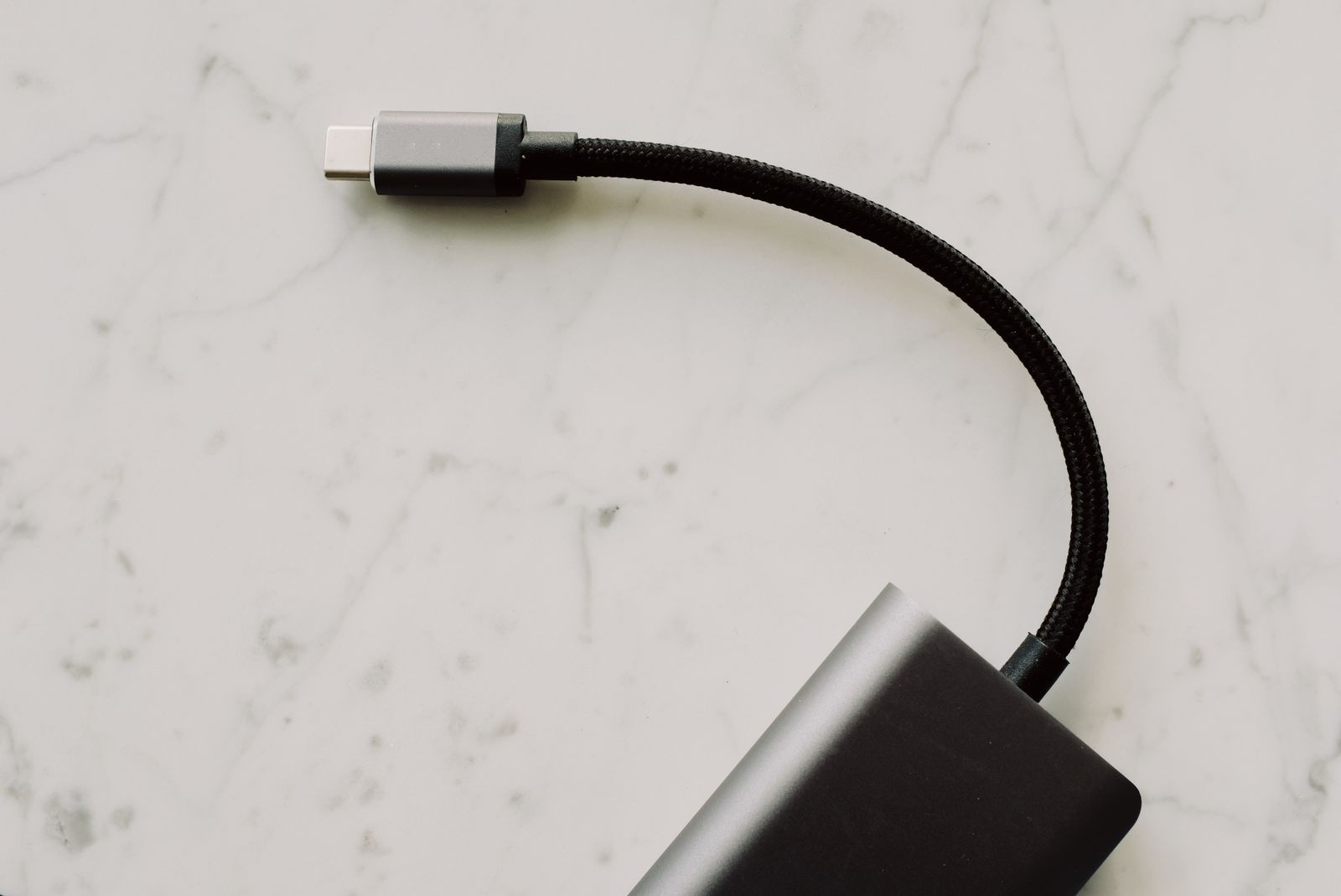
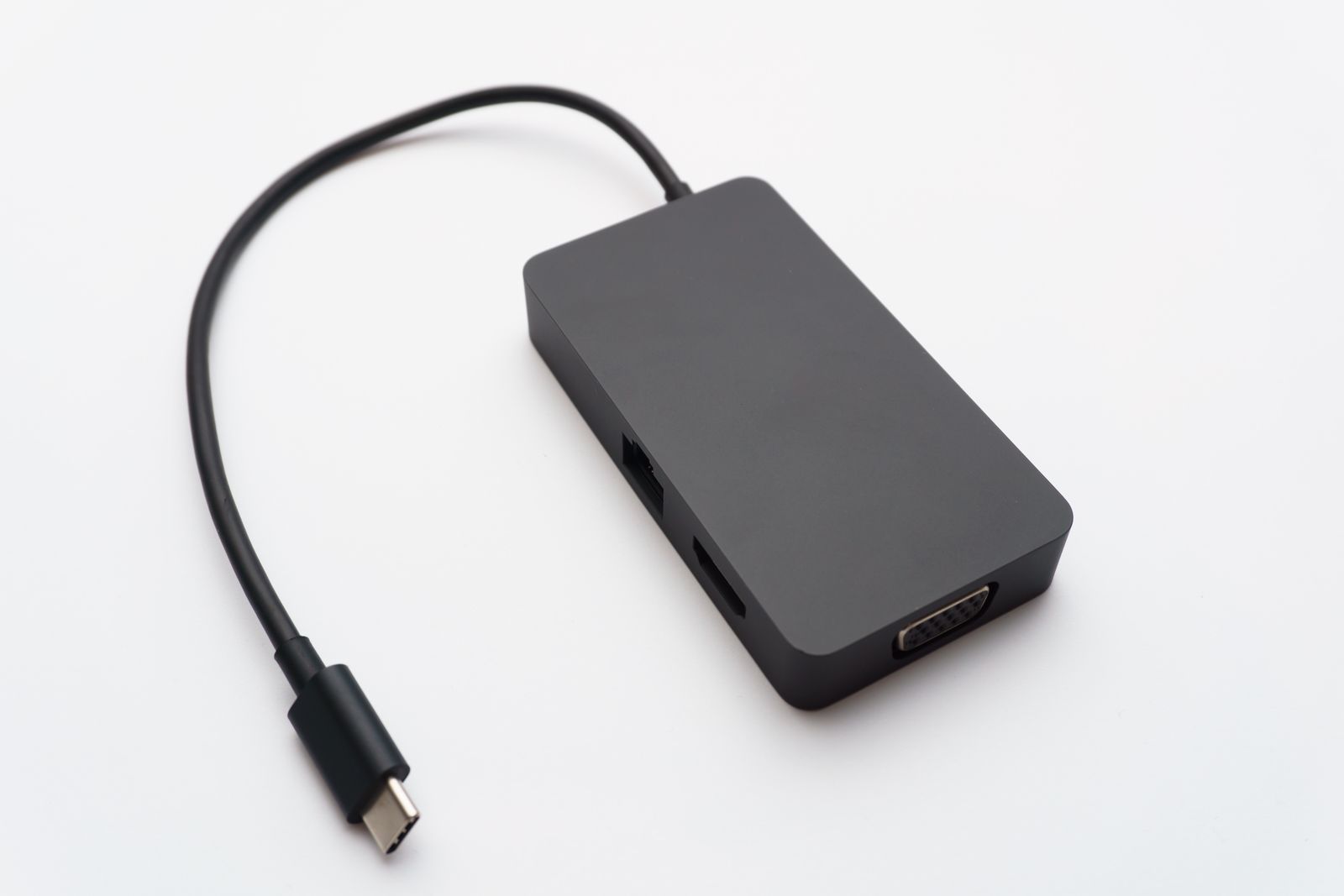
Check the connector and cable supplied with the drive. If you need an adapter, include it in the setup rather than borrowing one unpredictably. A backup that depends on finding a missing cable tends to be postponed.
Use a format and tool you can restore from
Confirm compatibility with the operating system and backup software before reformatting a new drive. Formatting erases existing data, so verify the selected device and copy anything needed first. A drive intended for use across several systems may require different decisions from one dedicated to a single computer's backup tool.
Windows File History is one example of a tool that stores versions on an external drive or network location. Whatever tool you use, learn its restore process and how it reports a completed run. The software's name matters less than knowing what it includes and how you would retrieve a file.
If the backup contains private records, consider supported encryption and a secure recovery method. Keep the necessary password or recovery key somewhere you can reach if the main computer is unavailable. Encryption without a recoverable key can make a surviving drive useless.
Test a restore before trusting the routine
Create a harmless test document, back it up, and restore it into a separate folder. Open the restored file and check that it contains the expected version. Do not test by deleting your only copy of something important.
Give the drive a regular place and an achievable connection schedule. Safely disconnect it when the job is complete if that is part of your chosen routine. A second copy stored separately can help with risks that affect both the laptop and a drive sitting beside it.
Review the backup status after software changes or replacing the computer. A familiar drive letter or a blinking light is not proof that the right folders are still being protected.