The shape tells you where the plug fits
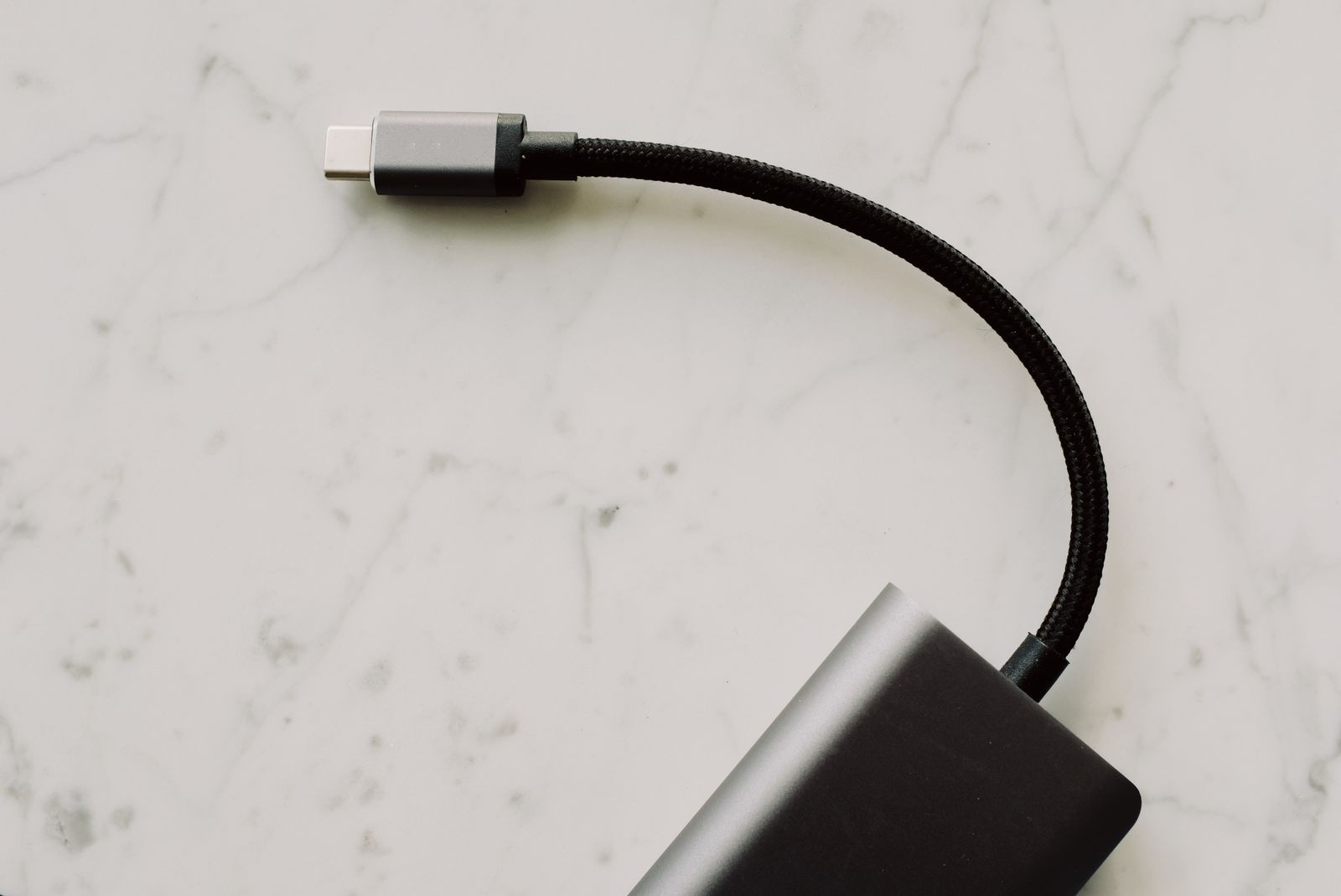
USB-C describes a connector system. It does not, by itself, tell you the data-transfer speed, the amount of charging power, or whether video output is supported. The USB Implementers Forum explicitly distinguishes USB Type-C from USB Power Delivery in its terminology guidance.
That distinction explains an otherwise puzzling situation: two cables can fit the same ports while only one works for the intended job. One may be suitable for ordinary charging and modest data transfer; another may be specified for a faster link or video. Judge the stated capabilities of the exact cable, not just its ends.
The ports on a single laptop can also differ. Read the specifications for each side or port rather than assuming they are interchangeable. Small symbols may help, but the manufacturer's documentation is the better place to confirm a feature that will determine a purchase.
Trace the data path
For an external drive, check the interface supported by the computer, cable, and drive enclosure. A faster drive cannot transfer through a connection faster than that connection allows. Nor does a maximum interface rate describe every real file copy: many small files and the storage inside the device can change the result.
Write down the required capability in plain terms. For example, you may need a cable for transferring a large photo collection, or only one for connecting a keyboard. Those jobs do not justify the same purchase. A cable with a clear specification and sensible length is more useful than an expensive one advertised with unrelated features.
When troubleshooting, connect the device directly to a supported port before adding a hub. That removes one set of compatibility and power questions. If the direct connection works, add the intermediary back and check its specifications rather than replacing everything at once.
Power has its own limits
A USB-C power connection needs a suitable charger, cable, and receiving device. A high power rating on the charger is not a command forcing that amount into every phone. Supported devices negotiate an appropriate charging arrangement, and the available modes still need to match.
Check the power delivered to the laptop, particularly when it passes through a dock. The number on the dock's power supply may include power used by the dock and its other ports. A smaller usable output can be enough for light work yet leave the laptop charging slowly under a heavier workload.
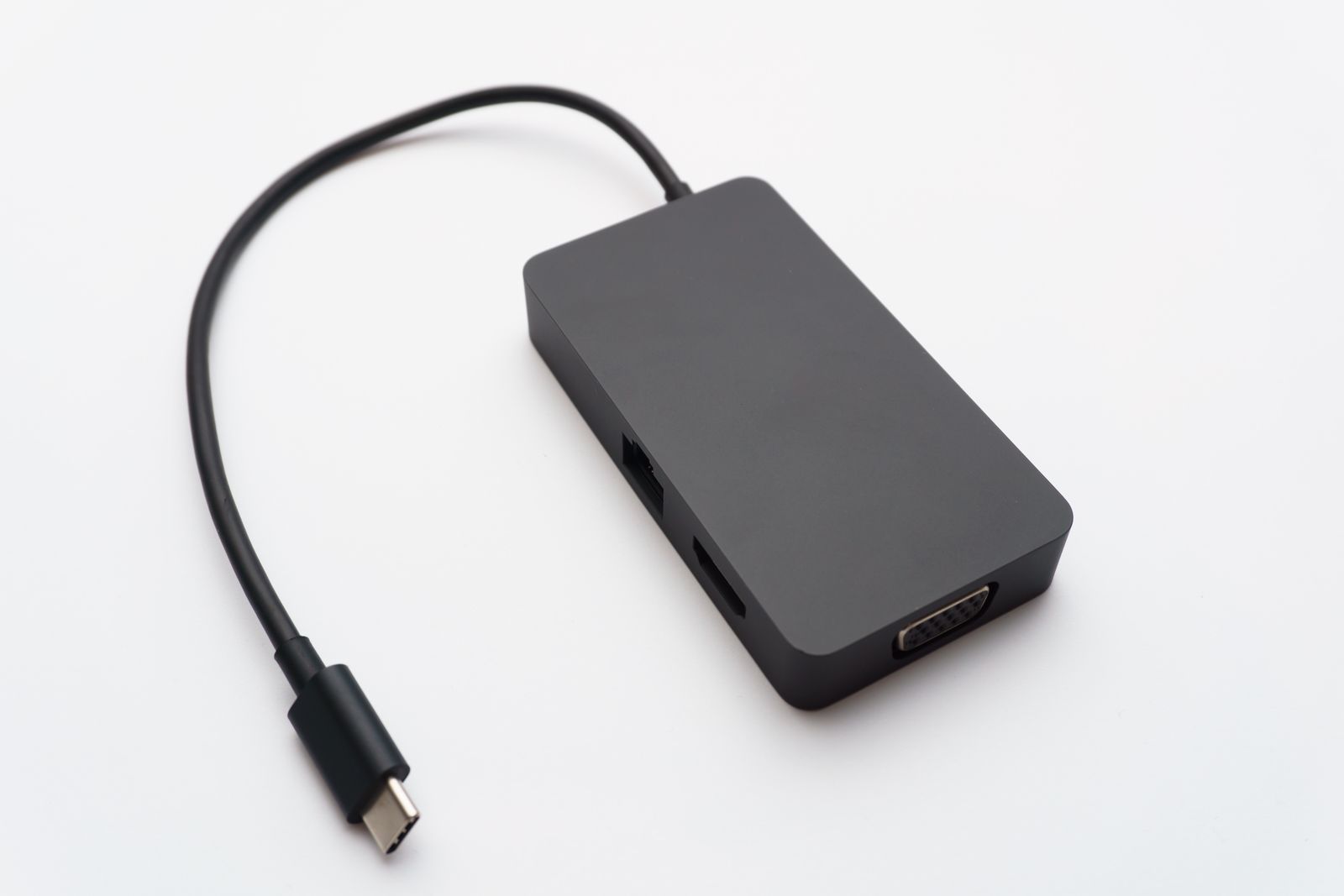
For a multiport adapter, read the allocation when several ports are occupied. Two devices attached at once may not receive each port's advertised single-device maximum. Keep a note of the recommended port combination if you use the same setup every day.
A display adds another compatibility check
For a common USB-C display connection, look for the required video capability, such as DisplayPort Alternate Mode, in the laptop and accessory specifications. USB4 and Thunderbolt arrangements have their own capabilities and requirements. Do not turn these names into interchangeable labels merely because they use a similar connector.
Check the exact resolution, refresh rate, and number of displays supported by the complete setup. A dock with two display sockets is not proof that every laptop can drive two independent screens through it. The computer's graphics support, operating system, dock design, and cables all matter.
Keep the cable supplied with a monitor or dock identified. Replacing it with a convenient charging cable is a common way to introduce a problem that looks like a broken screen. Once a combination works, label the cable by its role so you can rebuild the same connection after moving the desk.