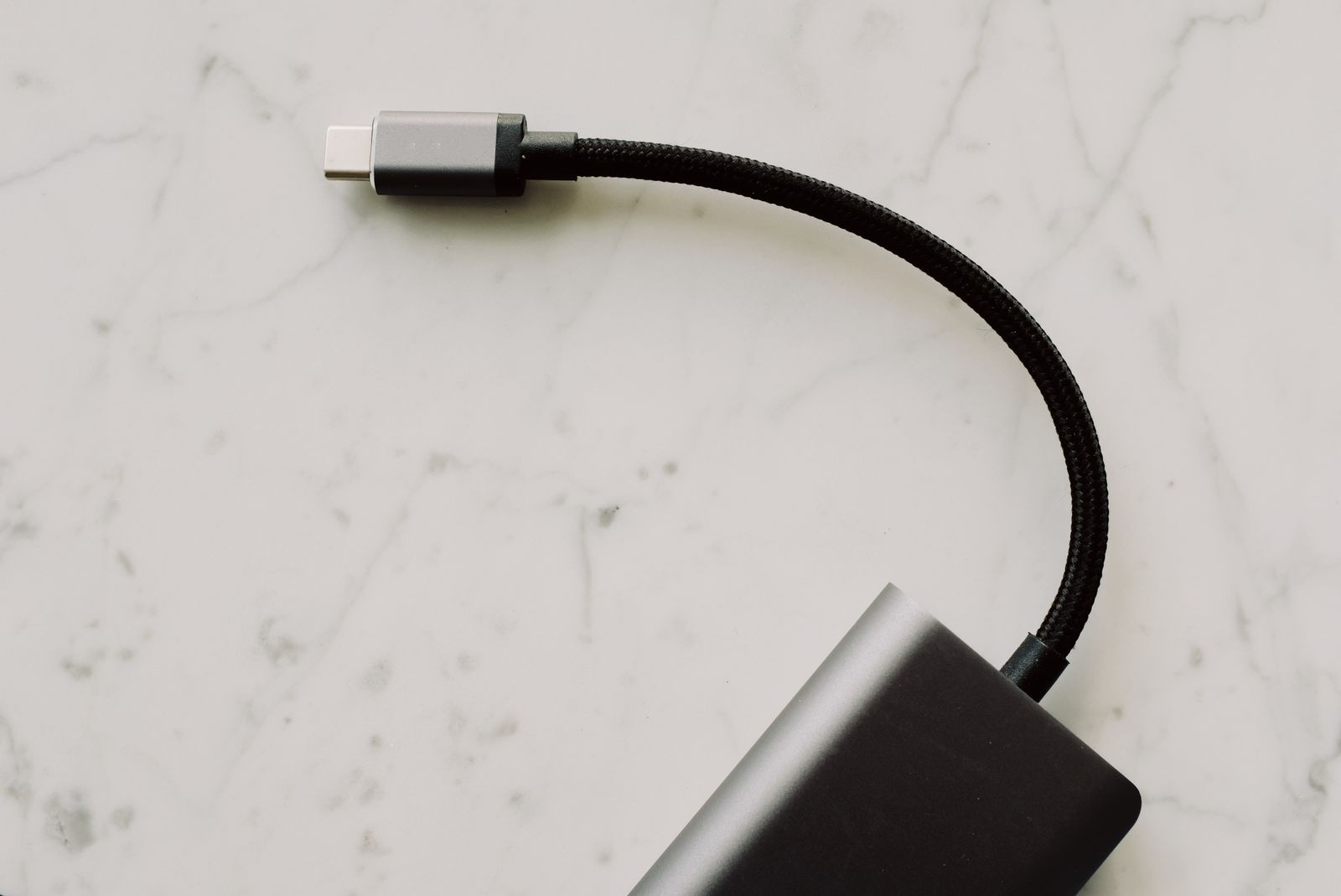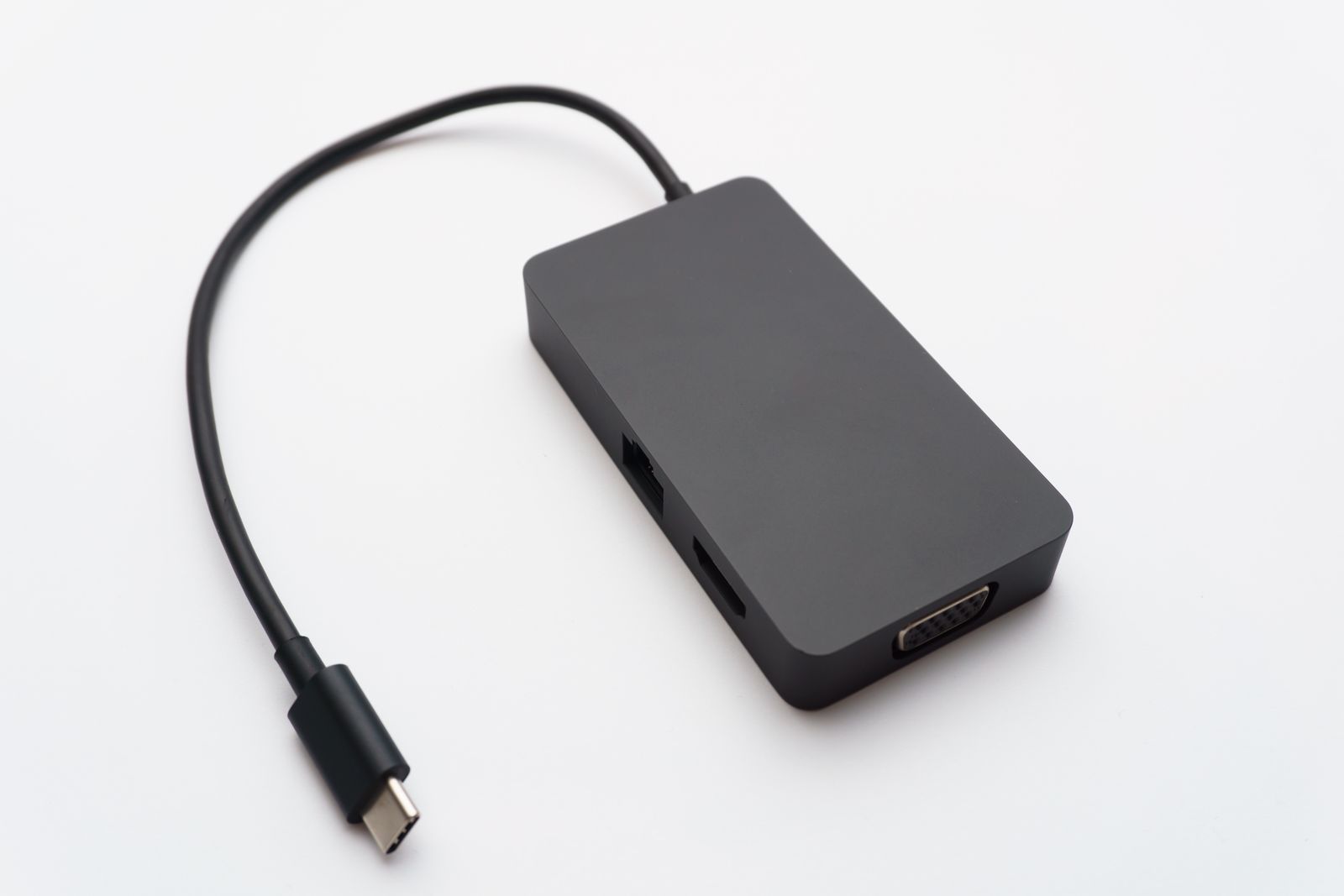
Check the ports at both ends
Identify the exact USB-C port on the laptop and read its specifications. For a common direct USB-C display setup, the port needs a supported video function, often DisplayPort Alternate Mode. Some ports provide data and charging without the video feature required by the monitor.
Do the same at the display. A monitor may have several USB-C sockets with different jobs, including an upstream connection to the computer and a port intended for accessories. Connect to the input described in the monitor's manual and select that input in its controls if necessary.
If a dock sits between them, remove it temporarily and test a supported direct connection. The aim is to reduce the number of parts under investigation. A direct picture does not prove the dock is defective; it shows that the dock's capabilities, cable, or setup deserve the next check.
Use a cable known to carry the required video
Try the cable supplied with the monitor or dock if it is intended for that connection. A charging cable borrowed from a phone can look identical while lacking the needed capability. A high charging-power label also does not establish display support.
Read the cable specification for video and the required connection type. Avoid chaining several adapters during the first test. Each conversion adds another direction, power, or mode requirement, and some cables work only in the direction printed on their labels.
Inspect the connectors without forcing them. If the cable is damaged or fits loosely, replace it with an appropriately specified one. Do not hold a plug at an angle to keep a picture on screen; that is evidence of a connection problem, not a usable arrangement.
Once a picture appears, check its mode
Start with a display mode supported by the laptop, cable, and monitor together. If the highest resolution or refresh rate fails, try a lower supported mode as a diagnostic step. A picture at a lower setting can help distinguish a bandwidth or compatibility limit from a completely absent video connection.
Check whether the operating system detects the monitor and whether it is set to extend or duplicate the desktop. If it detects nothing, record that result along with the port and cable used before contacting support. An exact model list is more useful than saying that USB-C does not work.
When the connection is stable, label the working cable and keep it with the display. This small step prevents the same fault from returning when a charging cable is substituted during a desk move.