Make the physical connection predictable
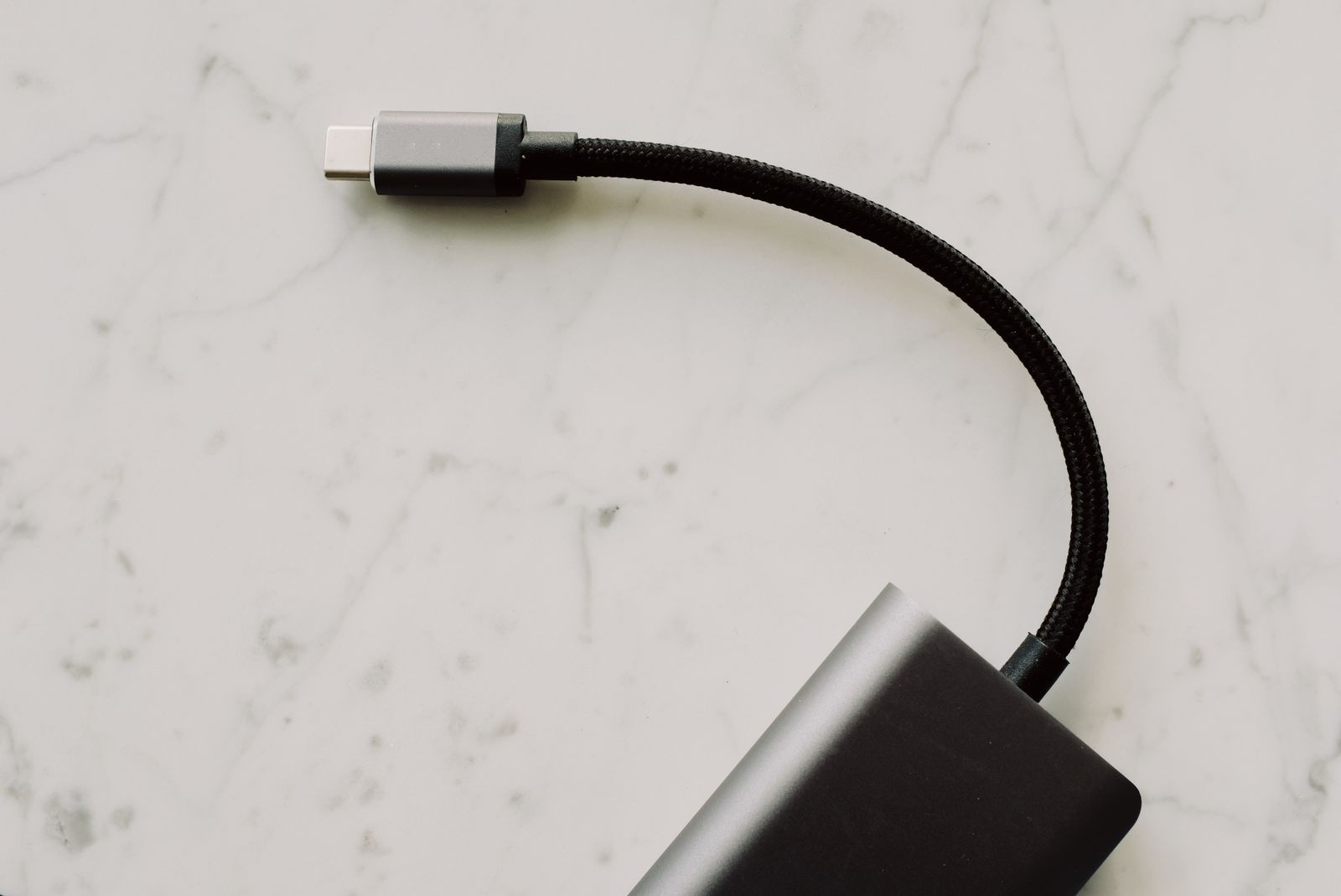
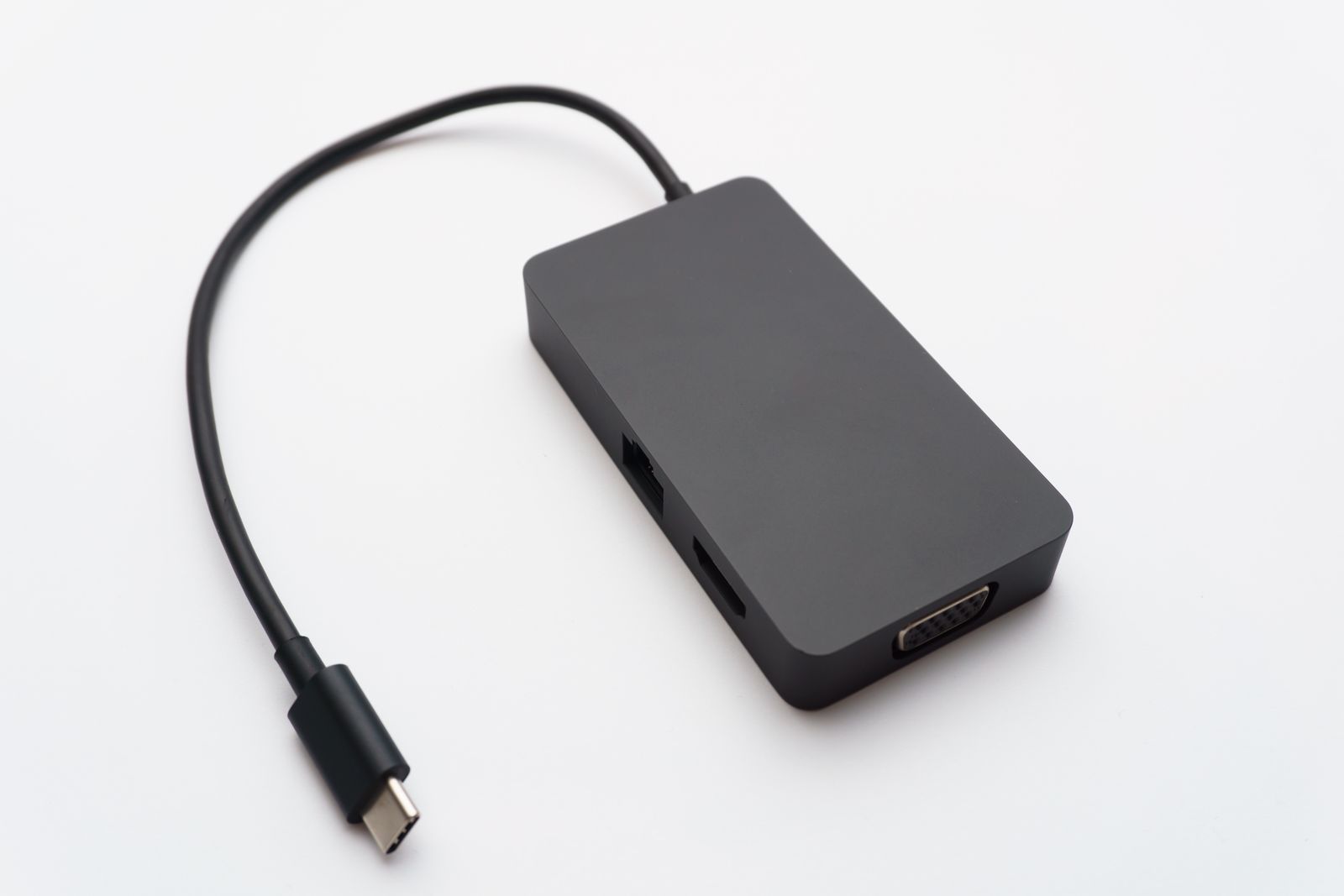
Check the television's available inputs and the laptop's supported outputs. A direct HDMI connection may be straightforward; a USB-C adapter requires the laptop to support the necessary video function. Use a cable long enough to reach without stretching across a walking route.
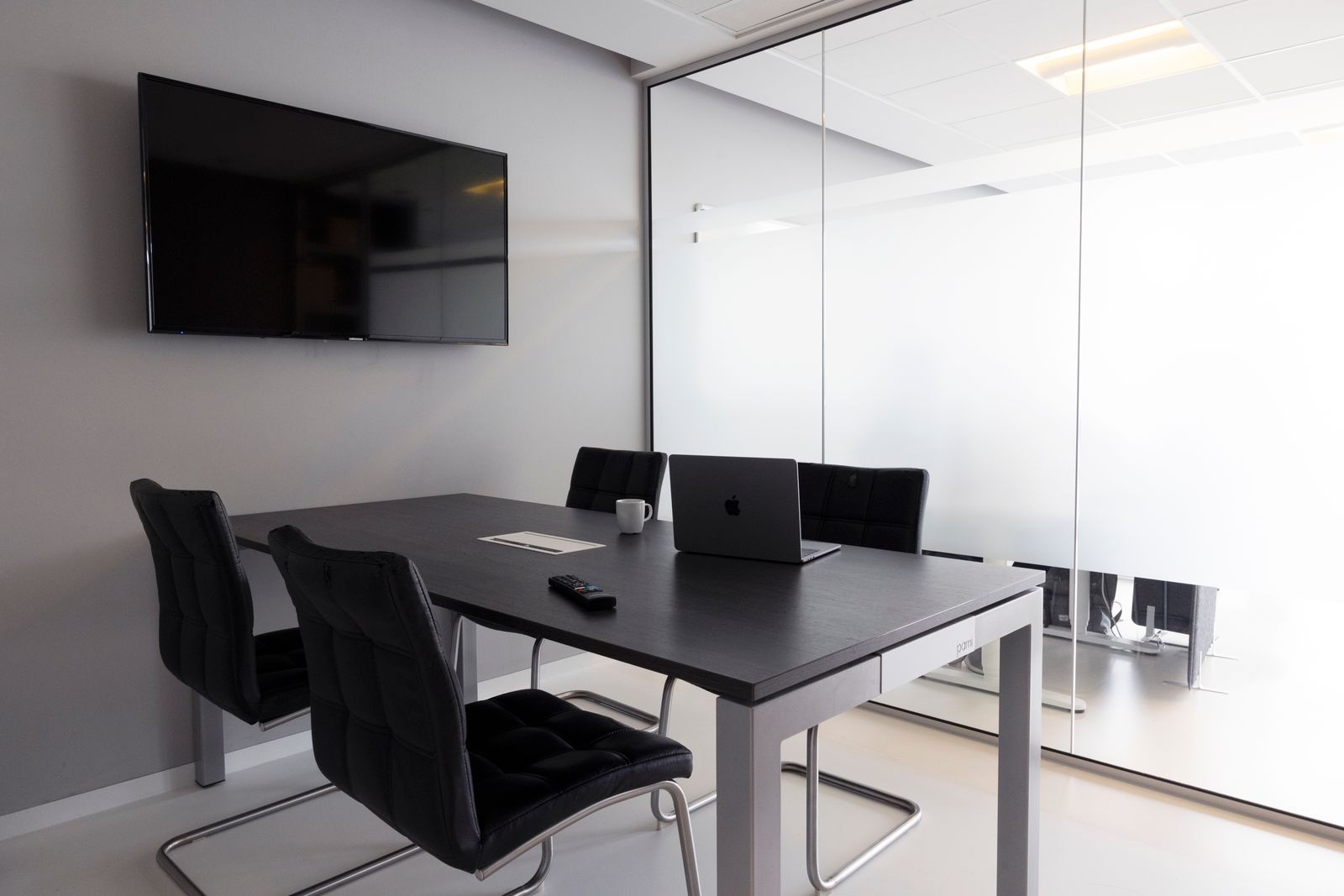
Select the correct input on the television and keep the remote nearby. If the screen shows no signal, confirm the input and cable before changing several laptop settings. Test the same connection with a simple desktop view before opening the presentation.
Wireless display options can be convenient when both devices support a compatible method. Microsoft's Windows guidance describes Miracast for supported external displays, but a television being connected to Wi-Fi does not automatically mean it supports every casting method. Test the exact devices and network ahead of time.
Choose what the audience should see
On Windows, the projection menu opened with Windows key plus P offers choices including Duplicate and Extend. Duplicate shows the same desktop, while Extend gives the television a separate display area. Choose according to whether you need private presenter notes on the laptop.
Check the presentation application's own screen assignment. A successful extended desktop can still put the notes on the television and the slides on the laptop if the application chooses the wrong display. Run the slideshow and look at both screens.
Close unrelated windows and pause notifications through the operating system's supported controls. Do not rely on remembering not to click a private message. If sharing a browser, open only the tabs needed and avoid exposing a saved account page behind the content.
Check from the back of the room
Read a slide from the farthest likely seat. Text that is comfortable on a laptop can be too small on a television across the room. Adjust the presentation itself if necessary rather than assuming a higher-resolution connection makes small text easier to read.
Play any video or sound clip and confirm the selected audio output. The laptop may still be using its own speakers or a previously connected headset. Keep volume modest while testing and check that the clip has downloaded if internet access is uncertain.
Save a local copy in a format you can open without an unexpected sign-in. Keep the charger connected where appropriate and test the laptop's sleep behavior. After the session, disconnect the display and restore any notification setting you changed, so a presentation setup does not become tomorrow's mystery.