Compare supported modes, not reputations
Check the monitor manual for the resolution and refresh rate available on each input. Then check the laptop's output specification. A monitor's maximum mode may be available through one input but not another, and the computer may have its own limit.
For ordinary document work, either connection can be suitable when the complete setup supports the desired mode. Do not buy an adapter merely because one connector is described as more advanced in a general article. A direct, supported connection is often the simpler purchase.
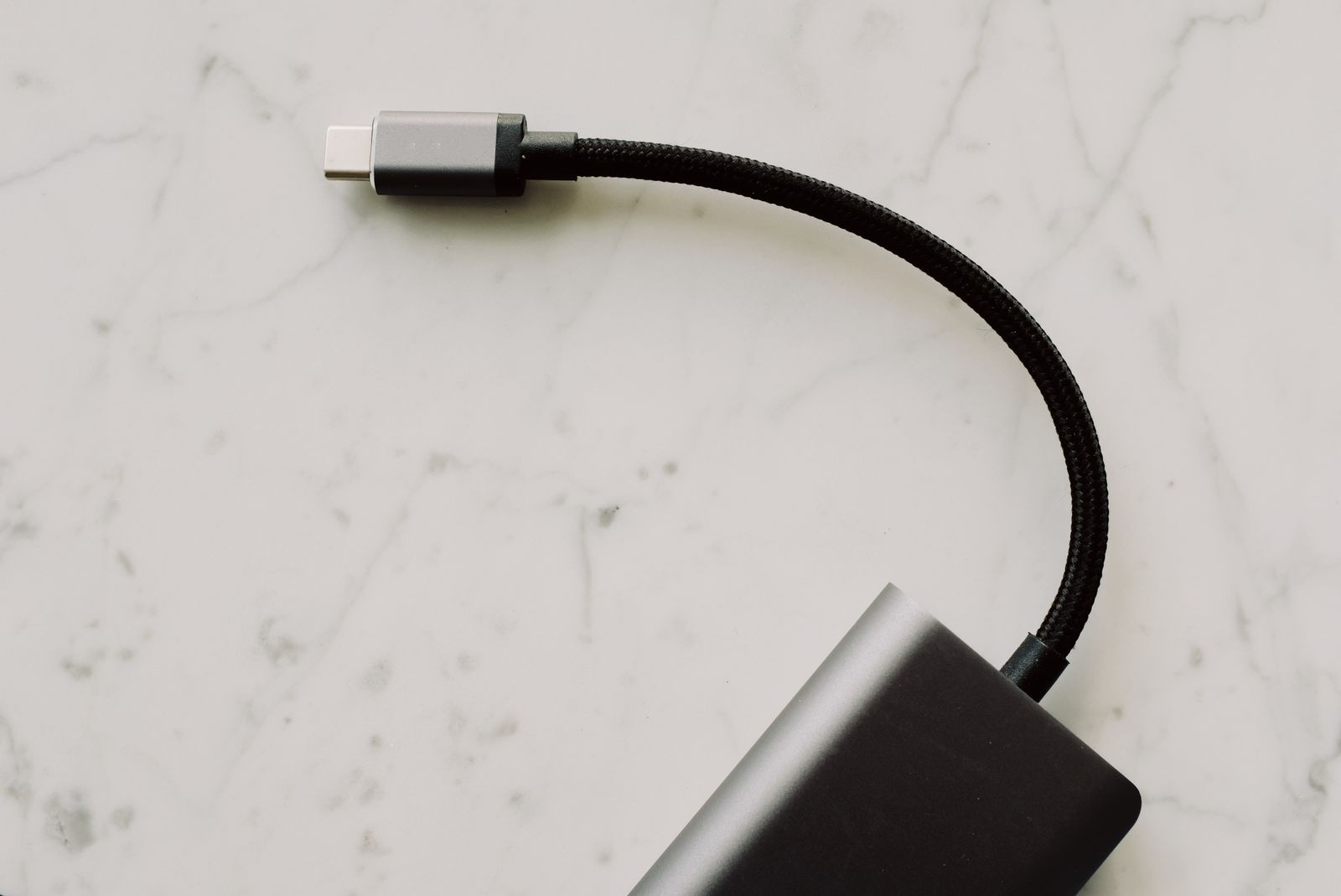
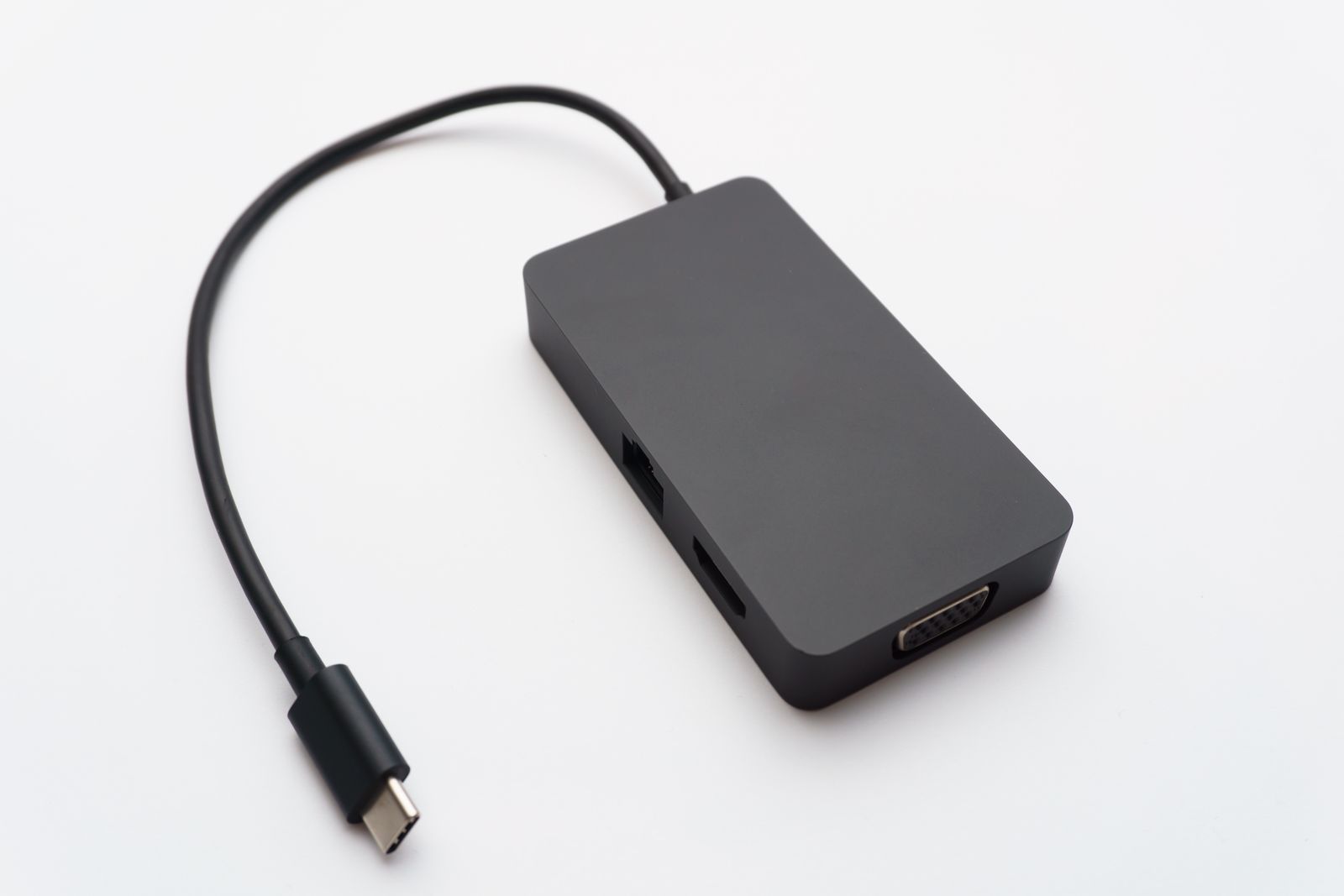
If the laptop has USB-C video output, identify the video capability it supports before choosing a USB-C-to-HDMI or USB-C-to-DisplayPort cable. VESA documents DisplayPort over USB-C and compatible conversion options, but that does not mean every USB-C port provides a display signal.
Avoid an unnecessary conversion chain
A cable directly matching a supported laptop output and monitor input is easier to troubleshoot than several adapters joined together. Where conversion is necessary, verify its direction. An adapter intended to take a DisplayPort source to an HDMI screen may not work in reverse.
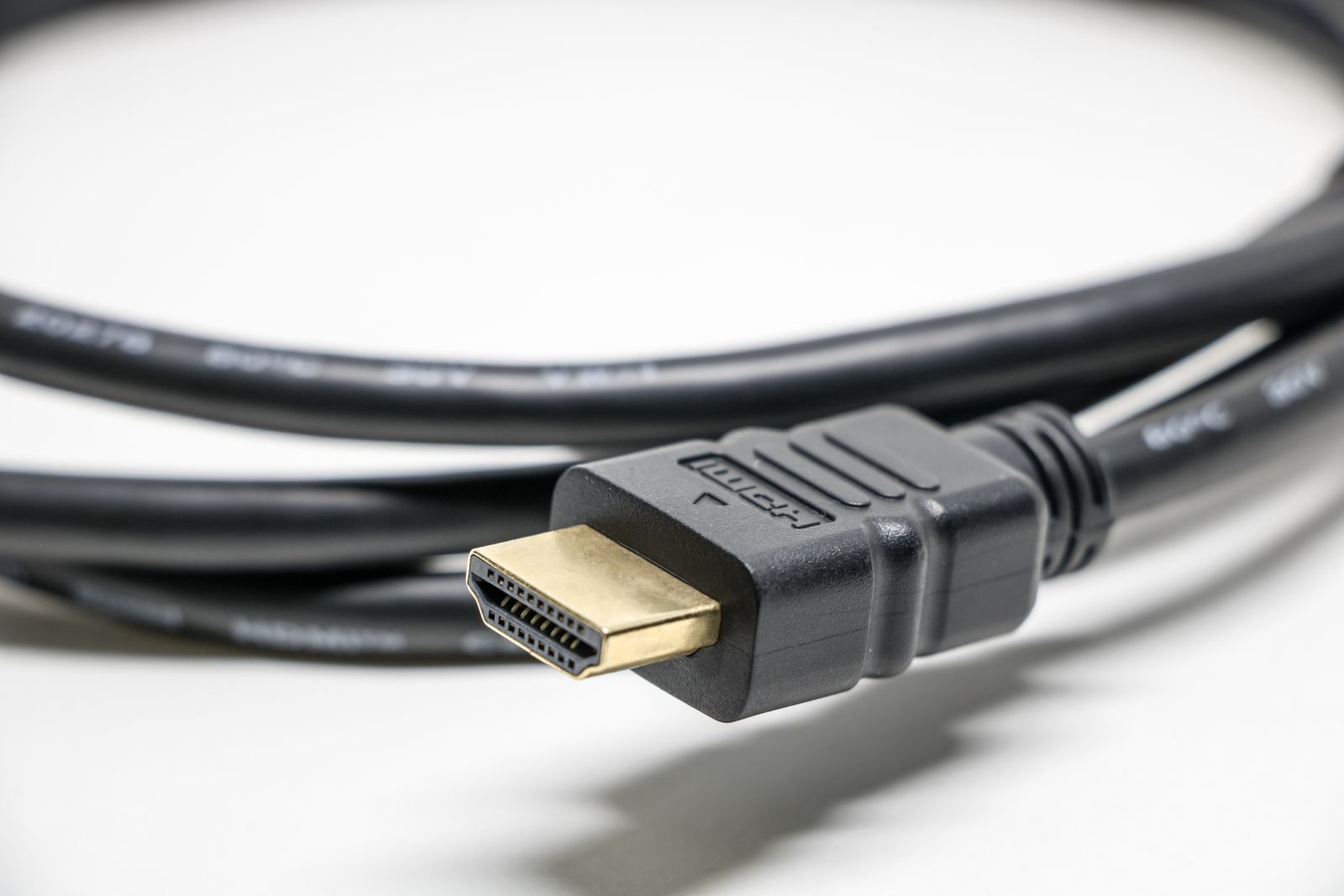
Buy a cable rated for the intended display mode and length. For demanding HDMI connections, the official certification label provides a way to verify the cable model and length. A thick jacket, metallic plug, or expensive packaging is not a substitute for a suitable specification.
Leave enough cable to position the screen without tension, but avoid a large spare coil that catches on the desk. If a DisplayPort connector has a latch, release it as designed when unplugging. Pulling harder is not the right response to a locked connector.
Check the result on the computer
After connecting, open display settings and confirm the active resolution and refresh rate. A picture appearing does not prove that the system selected the mode you intended. If you use the monitor's speakers, check the chosen audio output too.
Use a familiar document and move a window across the screen. If text is too small, adjust scaling rather than immediately reducing resolution and making the image softer. Evaluate the display at the desk distance you will actually use.
Keep the working connection documented if the screen is shared with another computer. Knowing which input and cable belong to the laptop prevents a later input switch from looking like a hardware failure.