Capture the smallest useful area
For an error message, include the full message and enough of the application to establish context. A tightly cropped code with no application name can be hard to interpret. A full desktop filled with unrelated windows can be equally unhelpful.
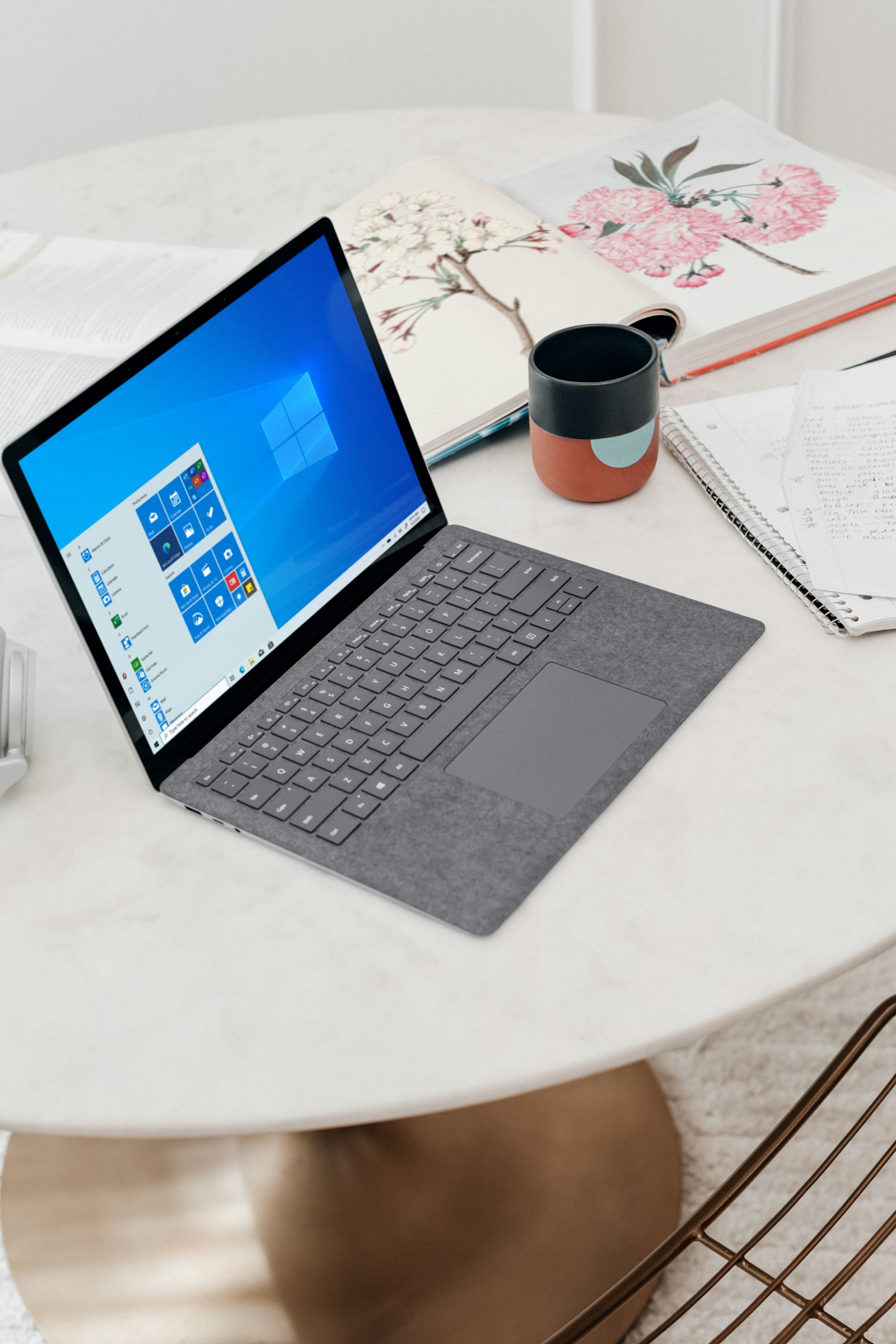
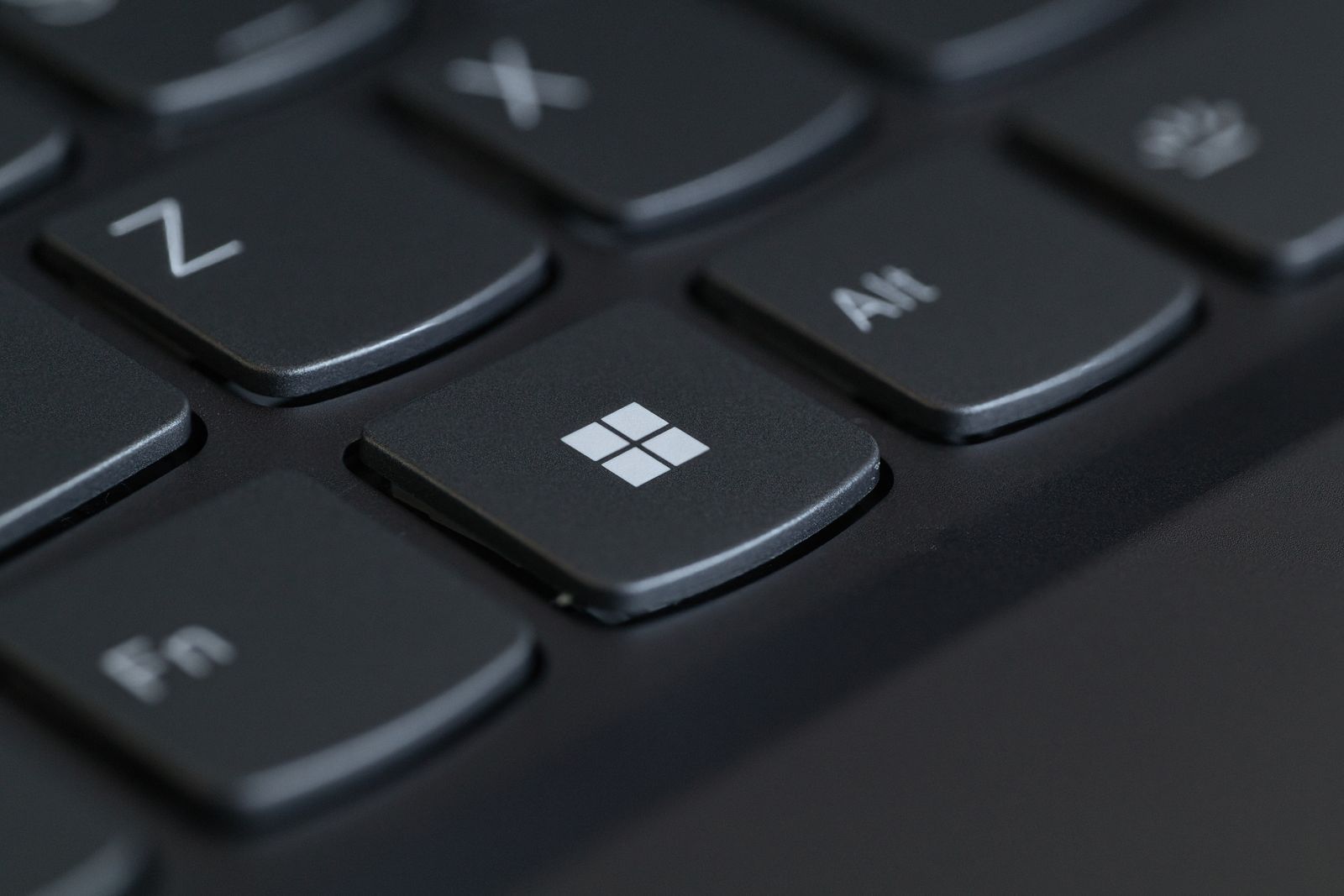
On Windows, Windows plus Shift plus S opens the Snipping Tool capture controls. Choose a region or window where appropriate. The available controls can differ by version, but the principle is the same: capture the relevant area instead of making the recipient search a large image.
If the issue involves a sequence, two clearly labeled images may be more useful than one crowded screenshot. For example, show the setting before the change and the result afterward. Keep the order obvious.
Review the image before attaching it
Look for email addresses, notification previews, browser tabs, file paths and account names. Close or hide unnecessary material before taking the capture when possible. This is cleaner than trying to cover dozens of details afterward.
If information must be removed, use a method that actually removes or replaces the pixels in the exported image. A translucent highlighter is not redaction. Save the edited image as a new flattened file and reopen it to check the result.
Do not crop away the very detail needed to diagnose the problem. An error number, selected device name or application version may be relevant. Share only what is needed through the appropriate support channel rather than publishing a full account view in an open discussion.
Send context with the picture
Keep text readable at ordinary viewing size. If a messaging app compresses the image heavily, use its file-attachment option where appropriate. Avoid enlarging a tiny crop until its letters become blurred.
Add a sentence explaining what you expected, what happened and the action immediately before it. A screenshot records a moment; it cannot explain the sequence on its own.
Use a descriptive filename and keep the original privately if the edit may need to be revised. Once the issue is resolved, remove unnecessary copies from temporary folders or shared locations. A screenshot is a document containing information, not merely a disposable picture.