Confirm which camera is available
Open a supported camera application and check whether it displays an image. If an external webcam and a built-in camera are both present, identify which one is actually producing the picture. A meeting app may be looking for a disconnected device used previously.
Inspect the physical shutter, privacy switch or camera function key. A shutter can leave a device detected while blocking the image, whereas an electronic switch may disable the camera differently. The manufacturer's manual should explain the behavior.
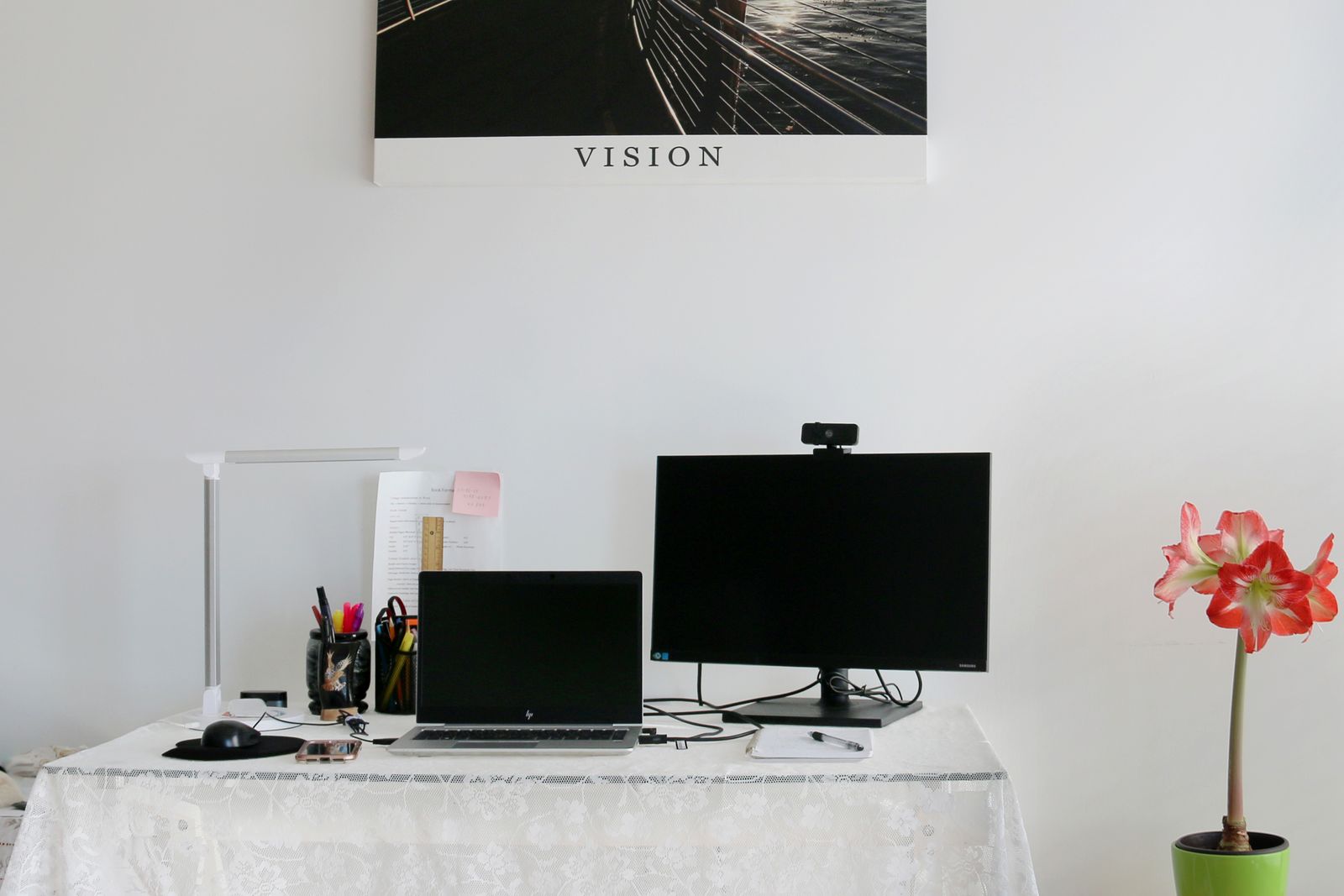
For an external camera, check the cable and try a direct supported port if a hub or dock is involved. Avoid changing several connections at once; test after each change so the result tells you something.
Give the intended app access
In Windows 11, search Settings for Camera privacy. Review camera access and the controls for applications and desktop apps. A permission granted to one category does not necessarily cover every program you use.
Inside the meeting app, select the intended camera explicitly. A virtual camera or an older device name can remain in the list. Use the preview before joining so you can confirm the image and framing.
If the meeting runs in a browser, inspect the permission for the meeting site. The operating system can allow the browser while the browser still blocks a particular page. After making a change, follow the site's instructions for reloading or rejoining.
Close other applications that may be using the camera, then try again. This is a useful isolation step even though sharing behavior varies between devices and software. Save any recording before closing its app.
Update only the part that needs attention
If the camera works elsewhere, update or repair the affected meeting application through its official channel. Check its supported browser or operating-system requirements if you are using a web version.
If no application can see the camera, use the operating system's camera troubleshooter and the computer or webcam manufacturer's current support guidance. Driver or firmware steps should match the exact device. Avoid downloading a generic driver utility from a search advertisement.
A work or school administrator may control camera access. If a setting is unavailable or reports that it is managed, ask the administrator rather than trying to remove the restriction yourself.
Record the distinction for support
A useful report says whether the camera works in the system camera app, which device is selected in the meeting and what error appears. Include the application and operating-system versions, but keep private meeting links and account details out of screenshots.
If you need an immediate workaround, join with audio or use another approved device while the fault is investigated. After the fix, test a new meeting rather than relying only on a settings preview. The complete path—from permission to selected device to live call—is what needs to work.