Separate a wake-up pause from a lost connection
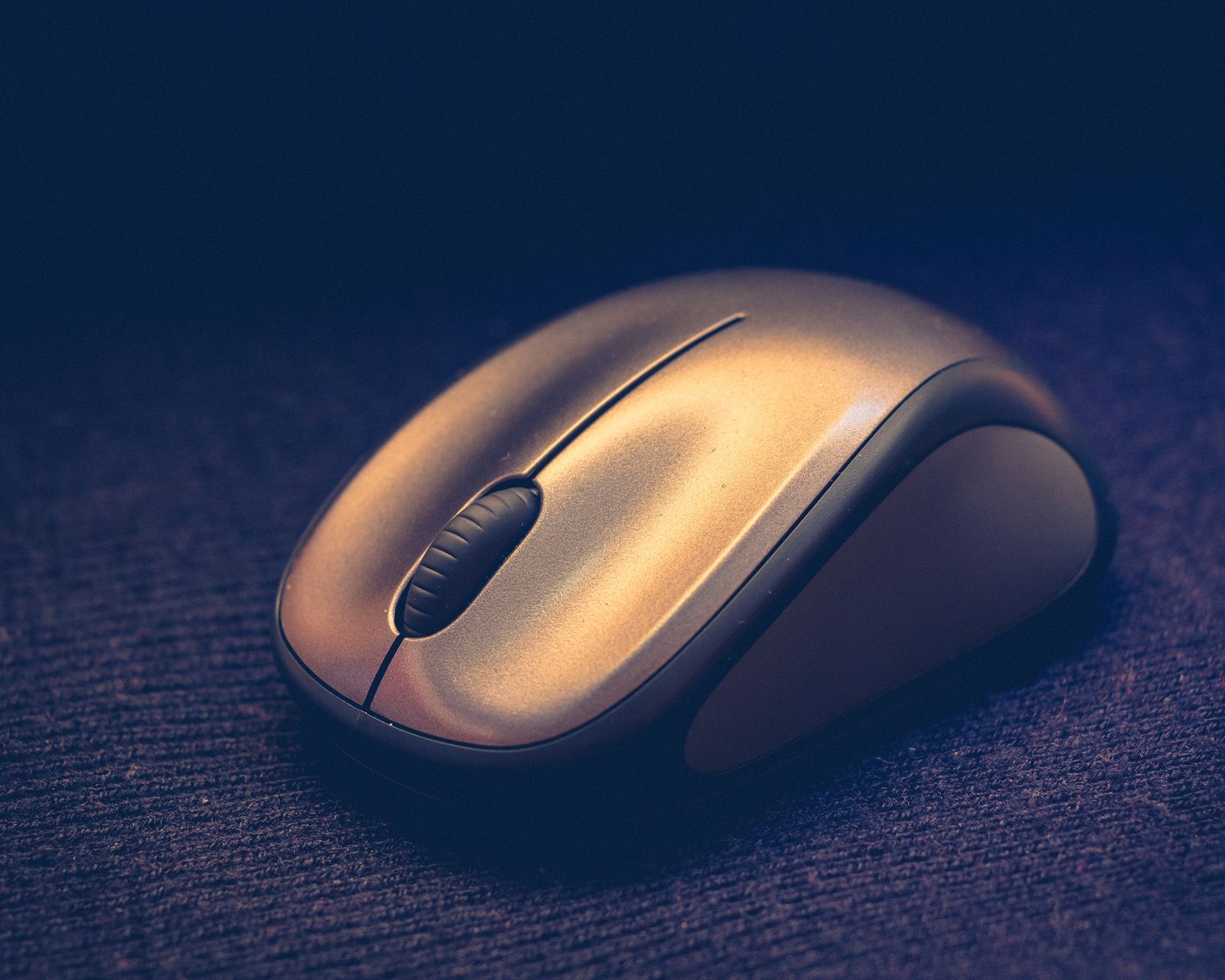
Try the mouse after a short period of inactivity, then during continuous use. Some Bluetooth accessories take a moment to reconnect after saving power. A brief wake-up delay is a different symptom from repeated failures while you are moving the pointer.
Check the power switch and battery state. Replace batteries with the specified type or charge the mouse using its supported method. A low battery can make a connection unreliable before the device stops working completely. Microsoft includes battery checks among its first troubleshooting steps for wireless mice.
If the mouse has several device channels or both receiver and Bluetooth modes, confirm the selected one. A small button pressed in a bag can send the mouse back to another computer. Look at the model's indicator instructions rather than interpreting an unfamiliar flashing light by guesswork.
Reduce the connection to a simple test
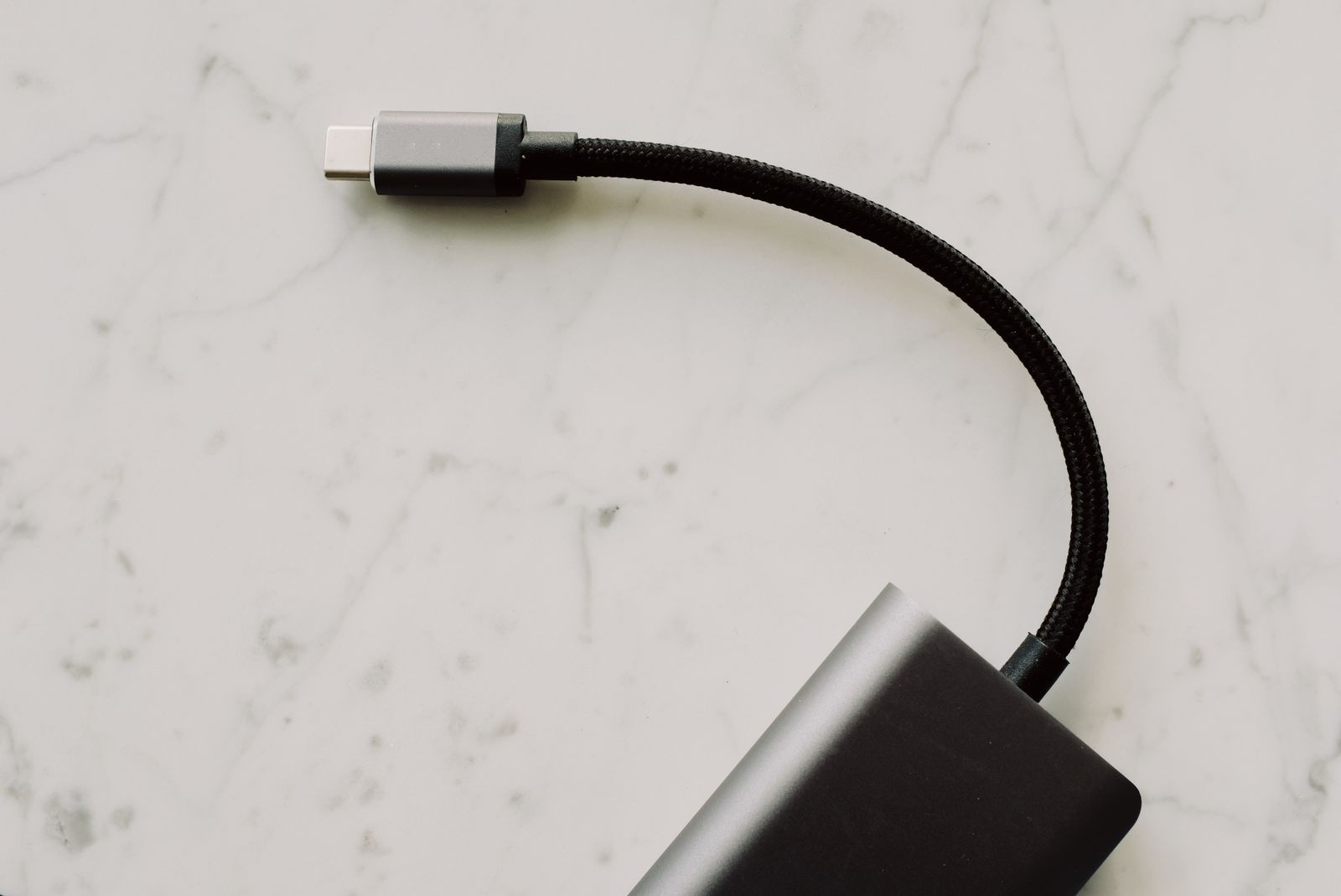
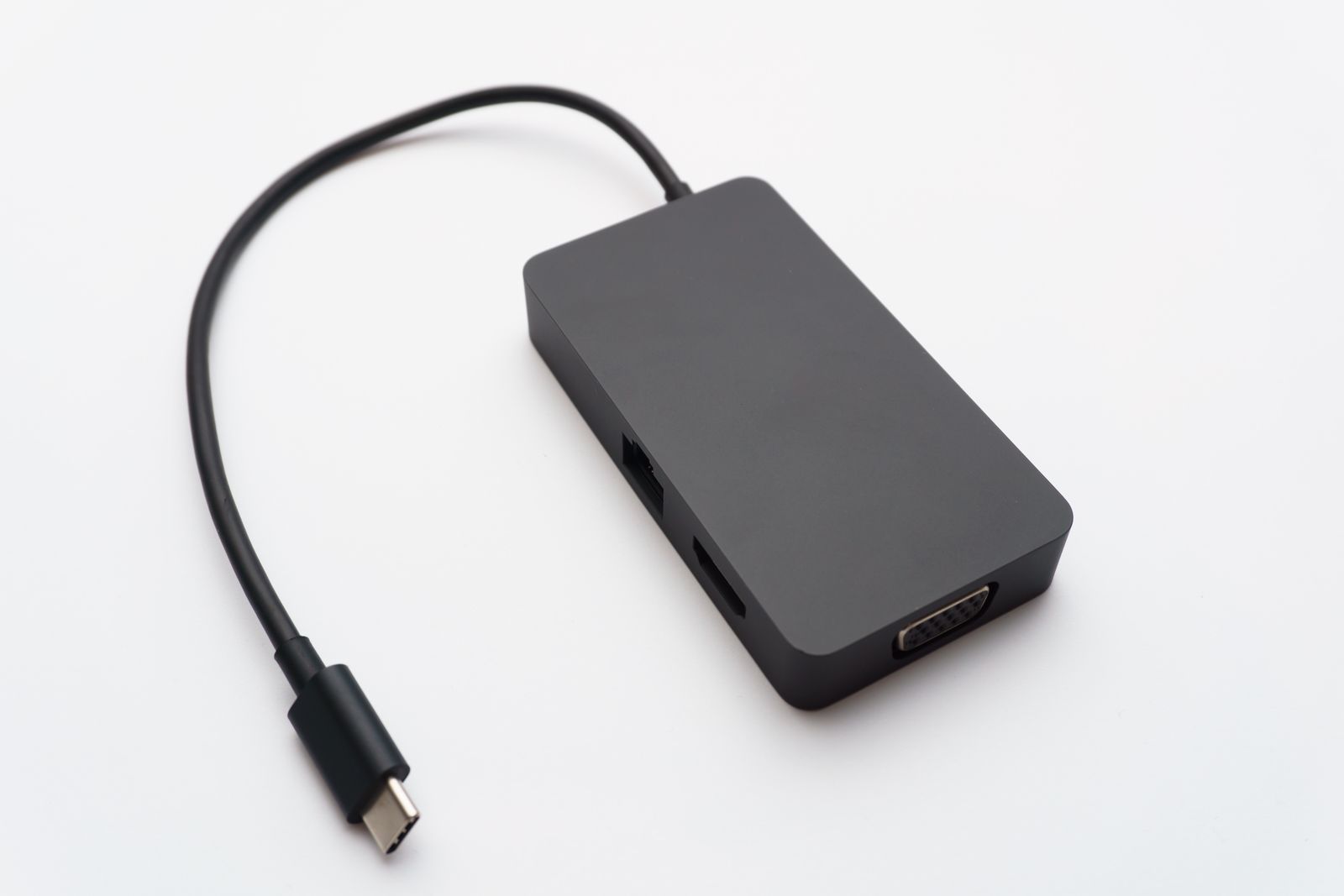
For a receiver-based mouse, try the receiver directly in a suitable laptop port instead of through a dock. Keep the mouse nearby and test without unnecessary devices crowded around the receiver. If the arrangement improves, investigate the dock position or connection rather than immediately replacing the mouse.
For Bluetooth, confirm that the computer's Bluetooth is enabled and that the mouse is connected to the intended computer. If you remove and pair it again, use the manufacturer's pairing sequence. Be prepared to use the laptop's touchpad or another input device during the process.
Try a plain suitable mouse surface and inspect the sensor area for debris. A pointer that skips on a reflective table can feel like a wireless problem even when the connection remains active. Do not scrape the sensor or use an unsuitable cleaning liquid.
Keep a record if the problem persists
Note whether the failure happens after sleep, when another USB device is attached, or only in one room. Test the mouse on another compatible computer if one is available. A pattern that follows the mouse is different from one confined to a single laptop.
Check relevant operating-system and manufacturer updates through their official tools. Avoid installing a random driver package found in an advertisement. If the mouse is managed through optional software, confirm that it supports your current system.
Give support the model, connection method, battery test, and the situations that trigger the fault. Those details make it easier to distinguish a failing accessory from a computer or workspace issue, and help you decide whether repair or replacement is warranted.