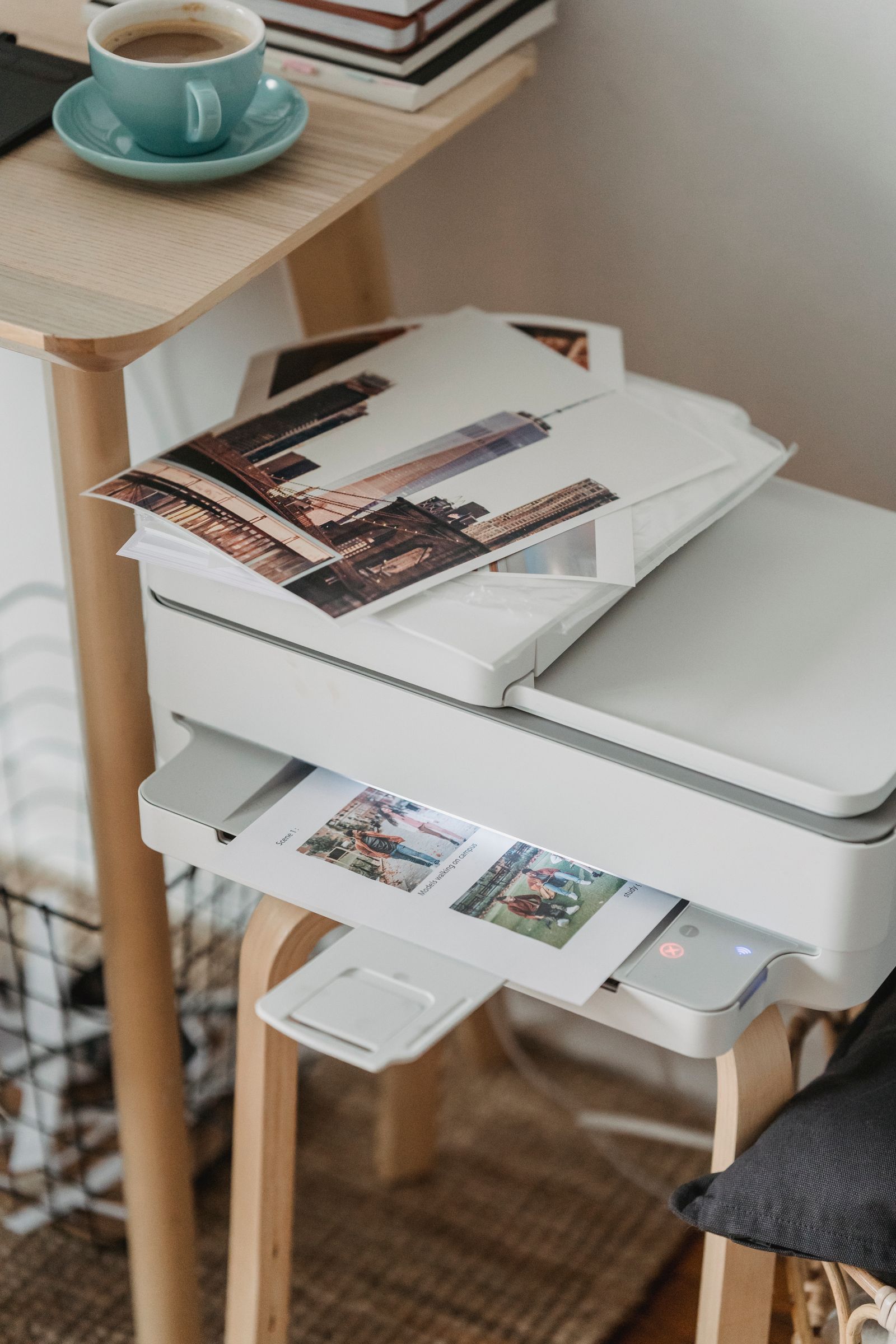
Read the printer's own display
Check power, paper, covers and any message on the printer. A jam, empty tray or open panel may need attention before computer settings matter. Use the printer's instructions for clearing a fault rather than repeatedly sending the same document.
If the printer is asleep, wake it with its normal control and allow it to reconnect. A device that has been moved may also have lost its network connection. Look for the Wi-Fi or network status on the printer itself.
For a USB connection, check both ends of the cable and use a direct port as a comparison if a hub is involved. For a network printer, confirm that the laptop and printer are on the intended network. A guest network can isolate devices from one another even when both can reach the internet.
Check that the queue points to the right device
Windows can retain several entries for a printer, particularly after a reinstall or connection change. Inspect the printer name and connection before sending another test. An old queue can remain offline while a newer entry is ready.
Open the queue for the intended printer and review stuck jobs. Cancel only the jobs you recognize, noting that a document may already have printed partly. Sending repeated copies while the queue is blocked can produce a stack of duplicates when the connection returns.
Check for a paused queue or an offline setting where those controls are available in your version. Do not change a shared office queue casually; other people's jobs may be affected. Ask the administrator when the printer is managed centrally.
Use a small test to separate the causes
Print a short test page rather than a large document. If it succeeds, try a simple file from another application. A failure limited to one document may involve its size, content or the application rather than the connection.
If another device can print to the same printer, compare its connection method with the laptop's. This does not prove the printer is faultless, but it narrows the problem. If no device can print, concentrate on the printer and network before changing every computer.
Restart the printer and computer according to their normal procedures after saving work. On a shared network, avoid restarting the router without coordinating with others. A small local problem should not interrupt the whole household or office unnecessarily.
Reinstall with a reason
If basic checks do not resolve the issue, use Windows' supported printer troubleshooting and the manufacturer's instructions for the exact model. Confirm compatibility with the operating system and processor architecture, especially for older printers and specialist features.
Removing and adding the printer can help in some cases, but first record its settings and connection details. You may need the network information, driver package or administrator assistance to restore it.
Keep a short note of the successful connection and queue name. If the fault returns after the laptop moves between networks or docks, that pattern is more useful to support than a report that printing randomly fails.