Find your next step.
Browse a topic or search for the device, setting or task on your mind.

Why a USB-C cable charges but does not show a picture
A monitor can power a laptop through USB-C while showing no picture. Charging proves that one part of the connection is working; it does not prove that the cable and both ports support video. Trace the display path before changing unrelated Windows settings or buying another screen.
Read the guide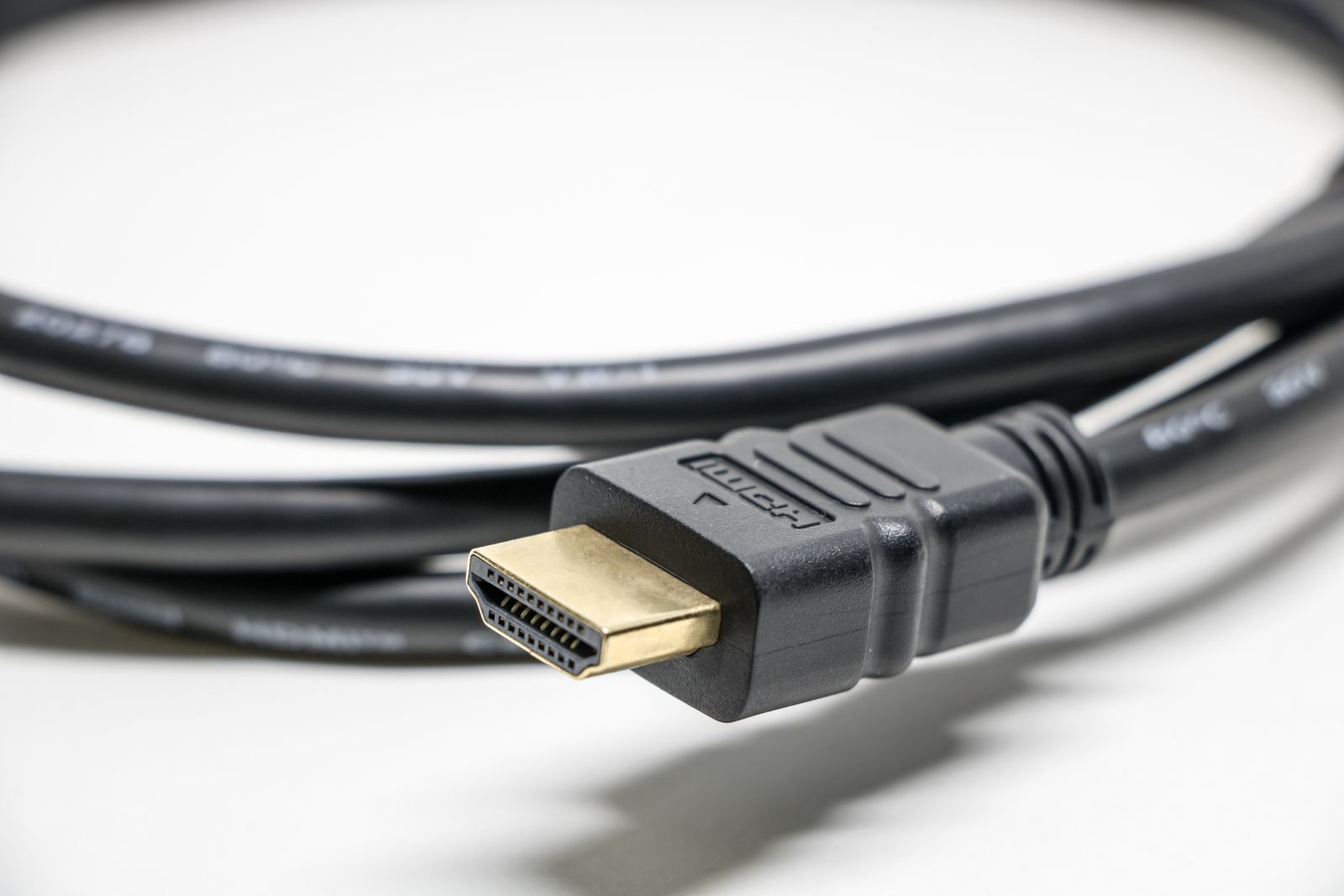
HDMI or DisplayPort for your laptop monitor?
If a monitor offers both HDMI and DisplayPort, there is rarely a useful answer based on the connector name alone. Choose the path that supports the display mode you need with the fewest complications. Your laptop's outputs, the monitor's inputs, and the cable between them all belong in that decision.
Read the guide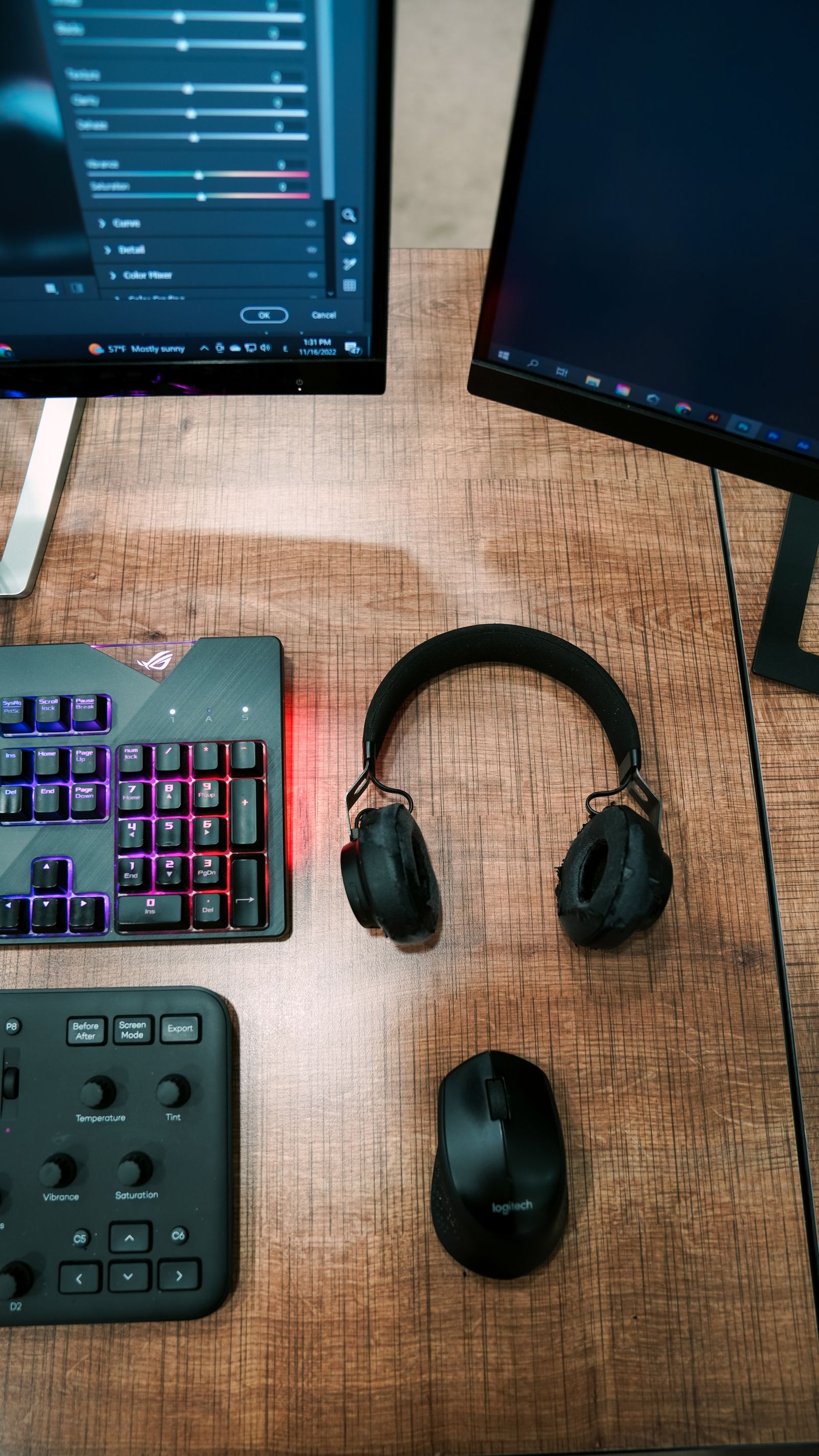
A second monitor that fits your desk and your work
An extra screen is only useful if it gives your work somewhere sensible to go. Before choosing a diagonal size, try arranging the windows you want to keep visible. Then measure the desk, including the stand and the space where the laptop will sit.
Read the guide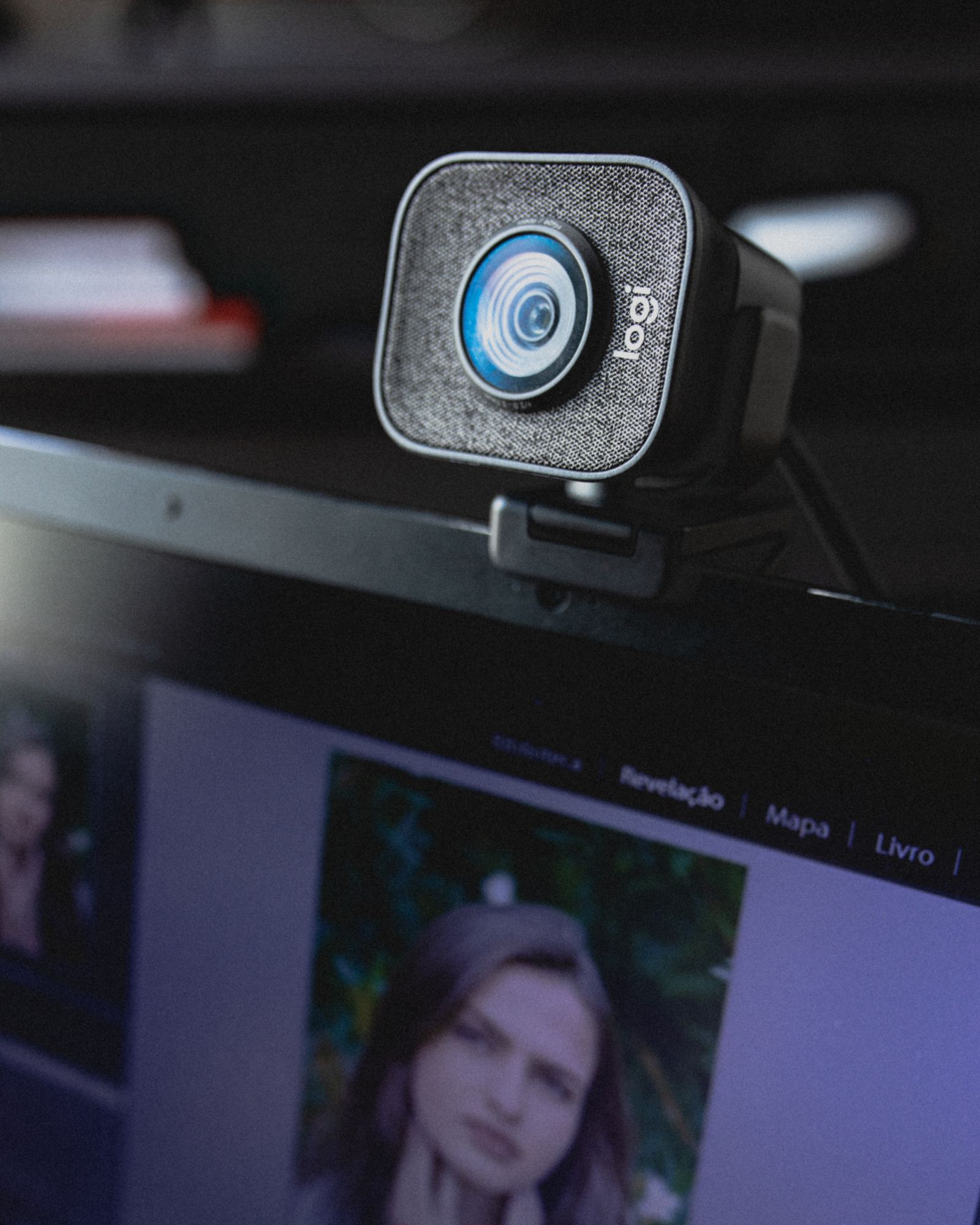
Choosing a webcam for an ordinary room
A new webcam cannot choose a better place for the lamp or move the window behind you. Start by looking at the room through your existing camera. The improvement you need may be a different angle, a steadier mount, or clearer exposure rather than the largest resolution number.
Read the guide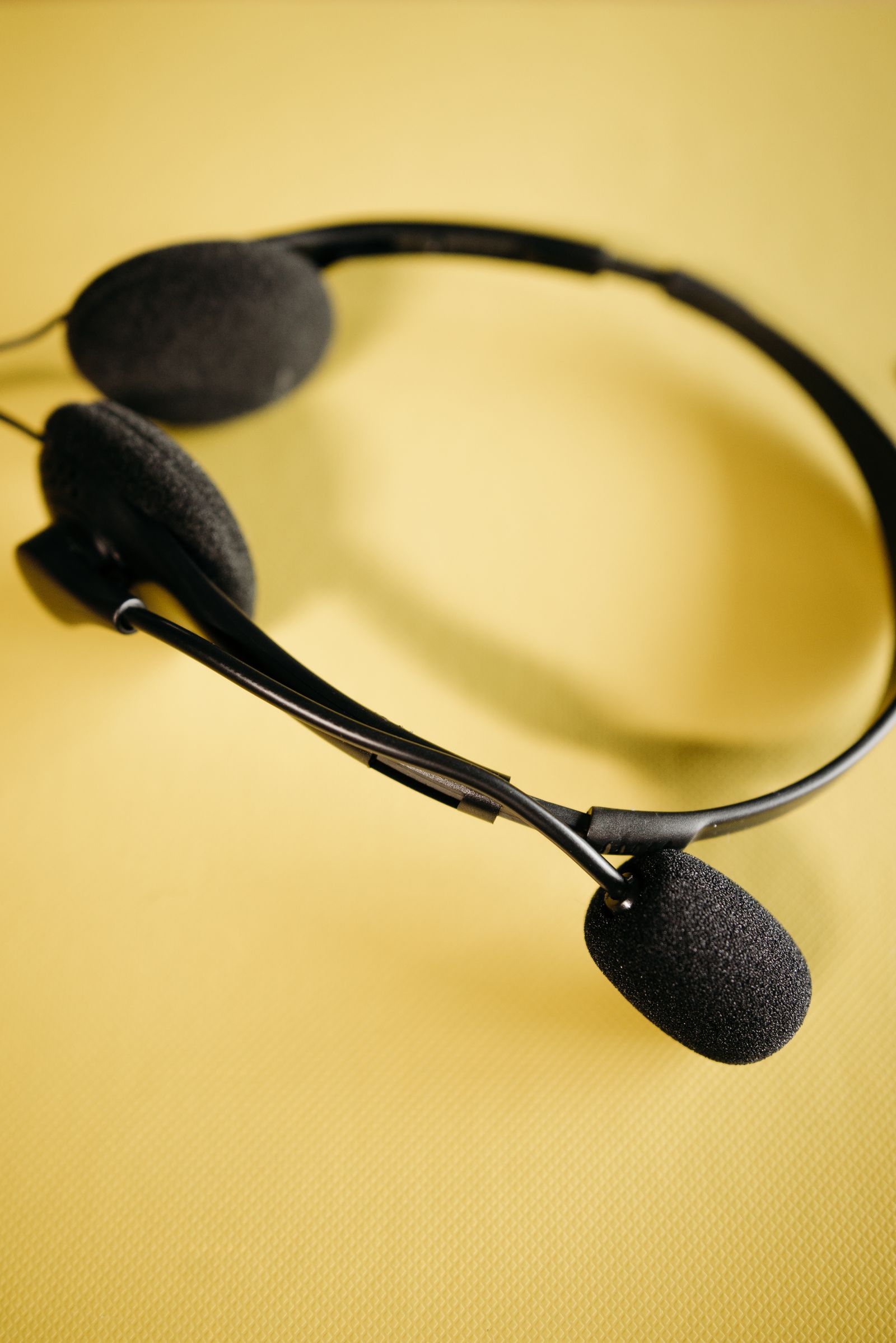
A headset for calls: start with the microphone
For calls, the person at the other end hears the microphone long before they notice the headphones' other features. Choose a headset around voice clarity, fit, and the connection to your computer. Music playback quality can matter too, but it should not hide an awkward microphone or unreliable mute control.
Read the guide
Why your Bluetooth headphones sound different during calls
Music sounds normal until a call begins, then the same headphones become thinner or quieter. On many Bluetooth setups, activating the headset microphone changes the connection's audio mode. That is different from a damaged speaker, and it is worth checking before replacing the headphones.
Read the guide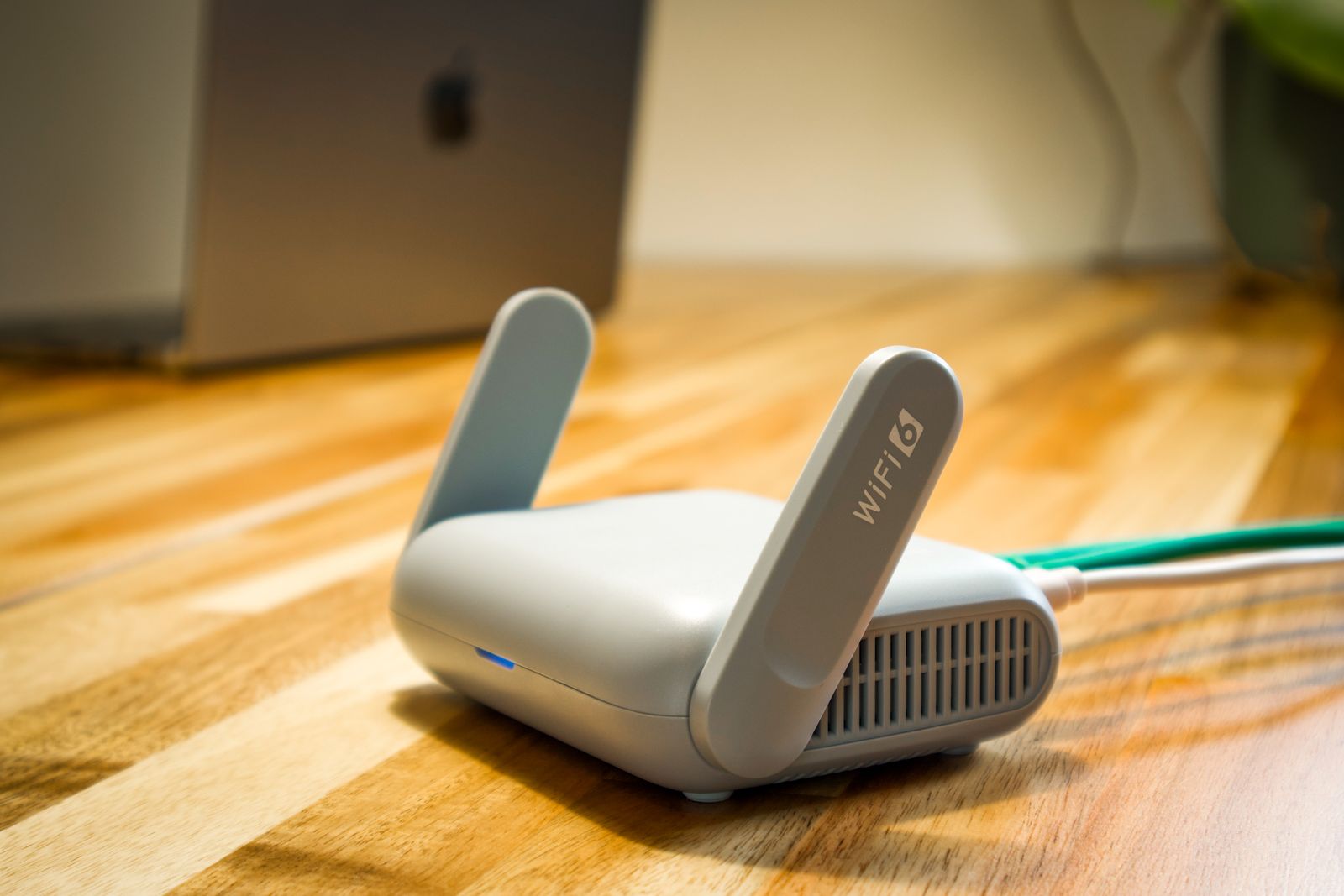
Placing a Wi-Fi router in a real home
The router often ends up wherever the internet cable first enters the home. That may be convenient for installation and poor for the rooms where you use a laptop. Before buying more network equipment, see whether the existing router can occupy a more open, useful position.
Read the guide
Weak Wi-Fi or a slow internet connection?
A slow page can be caused by the website, the laptop, the wireless link, or the internet service beyond the router. Buying a faster plan before separating those possibilities can leave the problem unchanged. Use a few comparisons to find where the slowdown follows you.
Read the guide
When an Ethernet cable is the simpler fix
A laptop does not have to use Wi-Fi just because it is portable. If it spends most of the day on one desk, an Ethernet cable may be the least complicated way to improve a weak local connection. The question is whether you can route it sensibly and connect it to suitable equipment.
Read the guide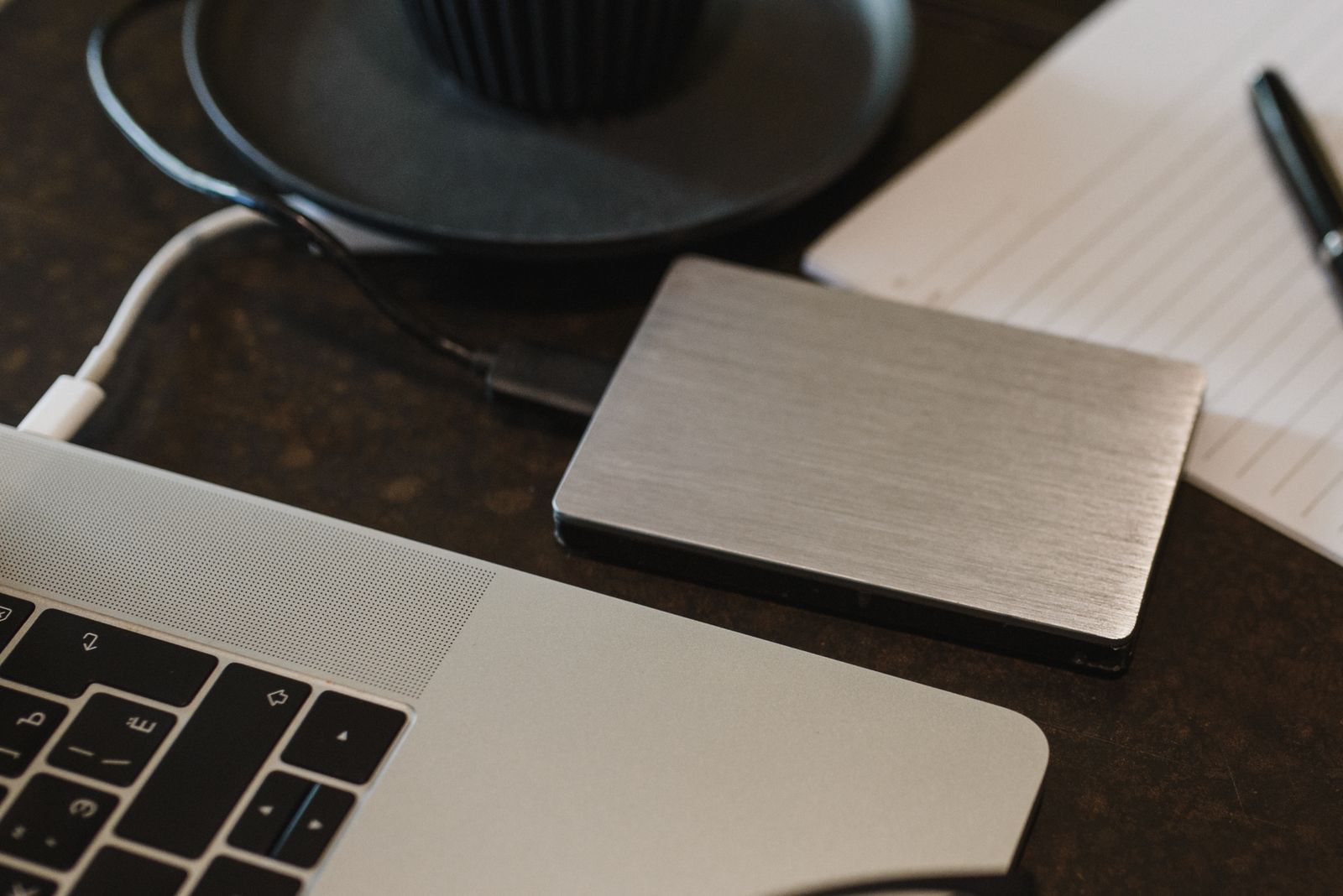
Choosing an external drive for a backup routine
A backup drive is not useful because it is fast on a specification sheet. It is useful because it holds the files you need, works with your backup software, and gets connected often enough to contain a recent copy. Choose the routine first, then buy the drive that fits it.
Read the guide